
Jogging through the record train using the touchscreen allows you to quickly move to any moment during the live recording.
Warning
Jog on Touch [ON] must be enabled to use jogging on the touchscreen.
How to Jog Through the Record Train
-
Swipe your finger left or right on Program, Preview, or Program 2 (PGM2)
-
The system will jog through the record train accordingly
Swiping left moves backwards in time, while swiping right moves forward.
Info
You can link outputs by activating Link Jog PGM1–2 located in the middle of the screen.
When enabled, Program 1 and Program 2 (PGM2) (or Preview) will move together while jogging.
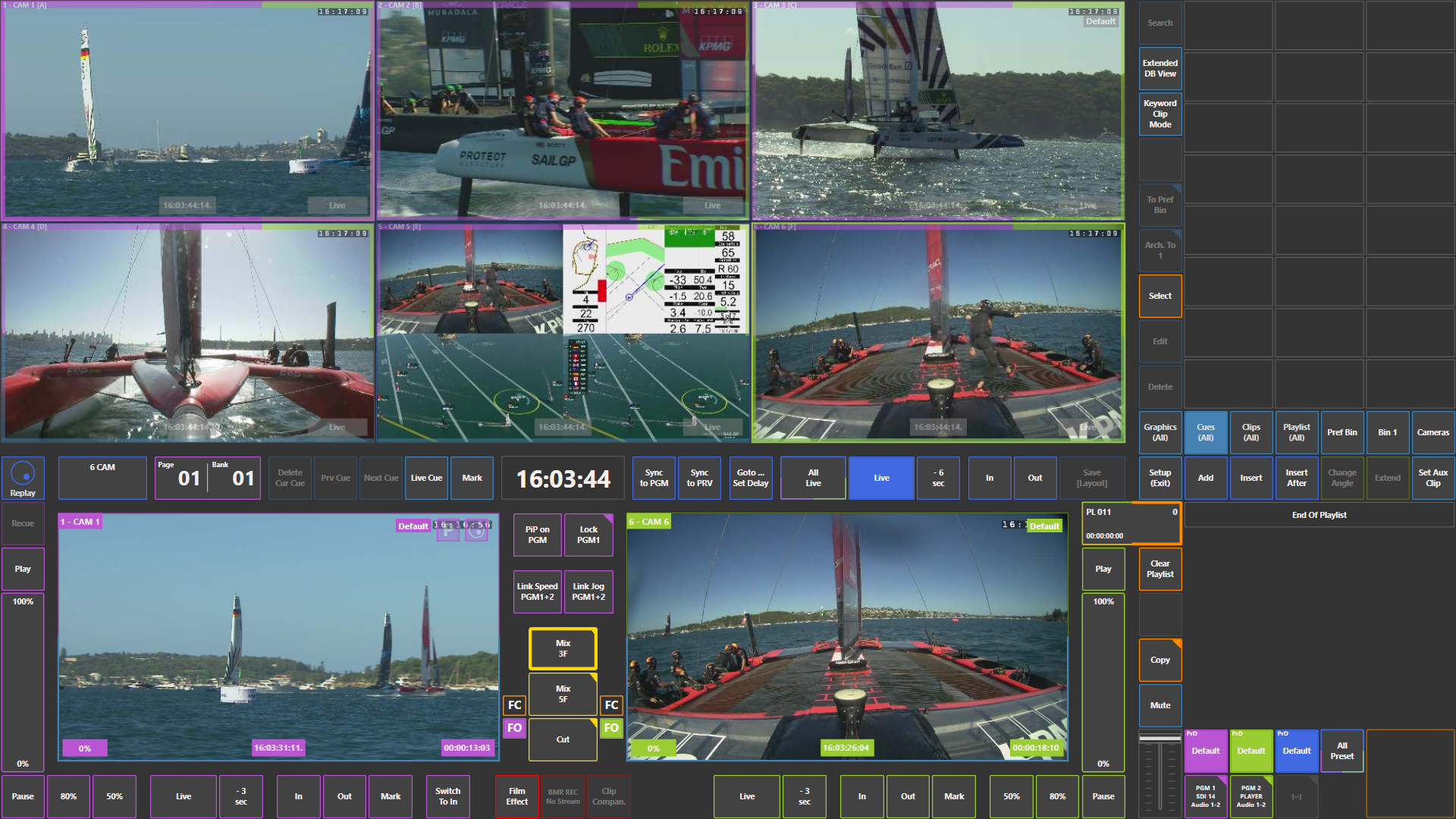
How to Jog Through the Record Train on Inputs
You can also navigate directly on the input cameras.
-
Swipe your finger left or right on the inputs in the multiviewer
-
The selected input will jog through the record train
Swiping left moves backwards in time, while swiping right moves forward.
Warning
There is no REPLAYS key in the touchscreen interface.
When you swipe left or right on the inputs, all inputs move together automatically.
This allows you to navigate through all camera angles in sync.
This touchscreen action replaces the REPLAYS key on the replay controller.
Pro Tip
You can synchronise playback speed between outputs by activating Link Speed PGM1–2.
Pro Tip
Use the “-6 sec” button under Program, Preview, or Program 2 (PGM2) to quickly jump back in the record train. You can define the jump duration according to your workflow for faster navigation during live production.