
Loading and playing clips using the touchscreen is quick and intuitive once your playlist is active.
How to Load and Play a Clip
-
Open the Clips panel
-
The active clip will appear in the lower part of the screen on the selected output (Program or Preview / Program 2 (PGM2)).
-
The active clip will appear in the lower left or right part of the screen
-
Touch the clip you want to play to activate it
-
Press the Play button next to the clip
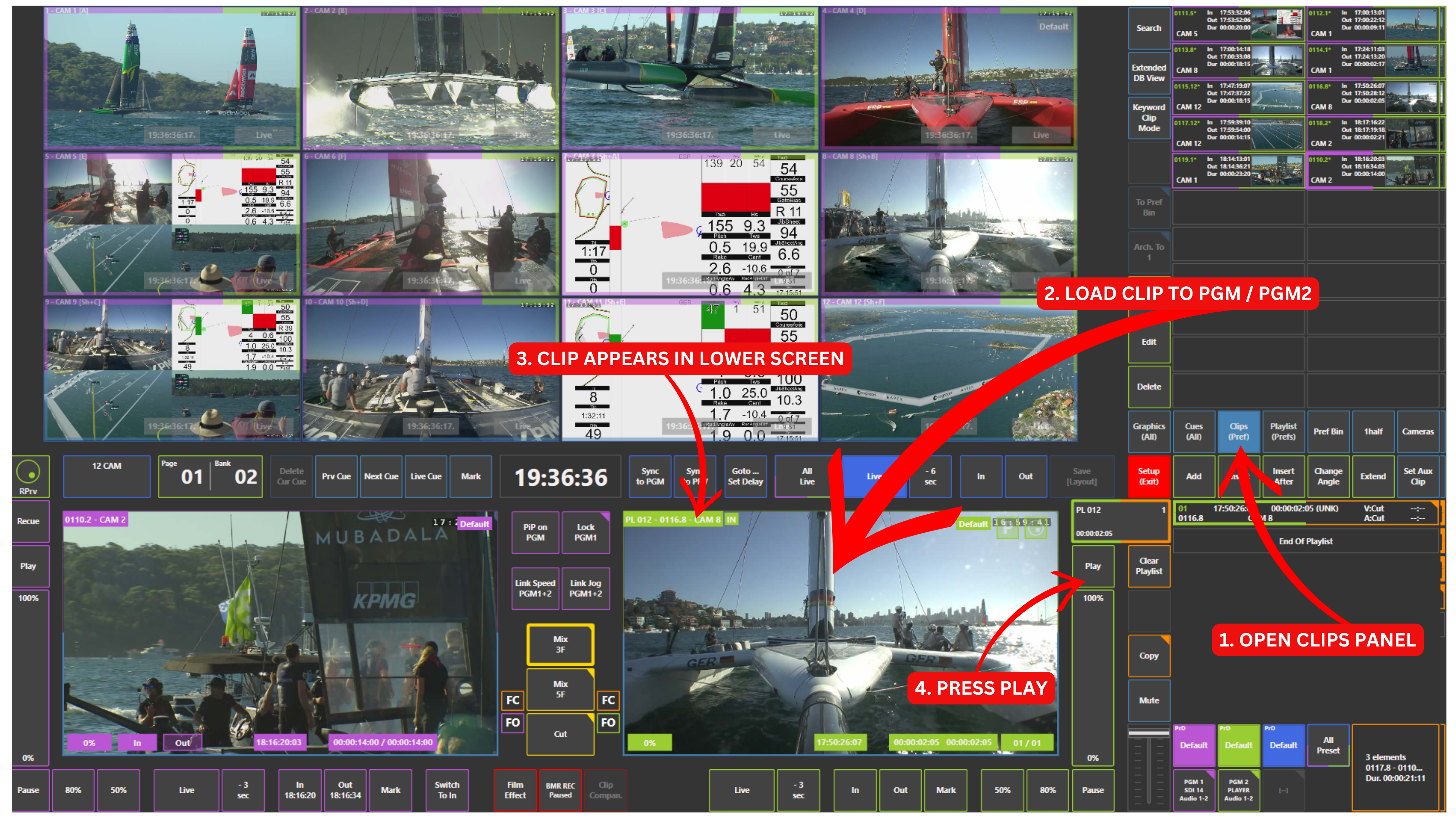
Alternatively, you can control playback speed using the 0–100% speed control box, allowing you to play clips in slow motion or at normal speed. You can also use predefined speed panels, such as 80% or 50%, which can be configured in Setup → Prefs.
This gives you full control over playback directly from the touchscreen, without needing the remote.
Pause Playback
-
Use the Pause panel located below the speed controls to stop playback instantly