
The SimplyLive Slomo system combines traditional controller-based operation with a fully integrated touchscreen interface. This allows operators to work faster and more intuitively, especially in environments where quick decision-making and visual control are essential.
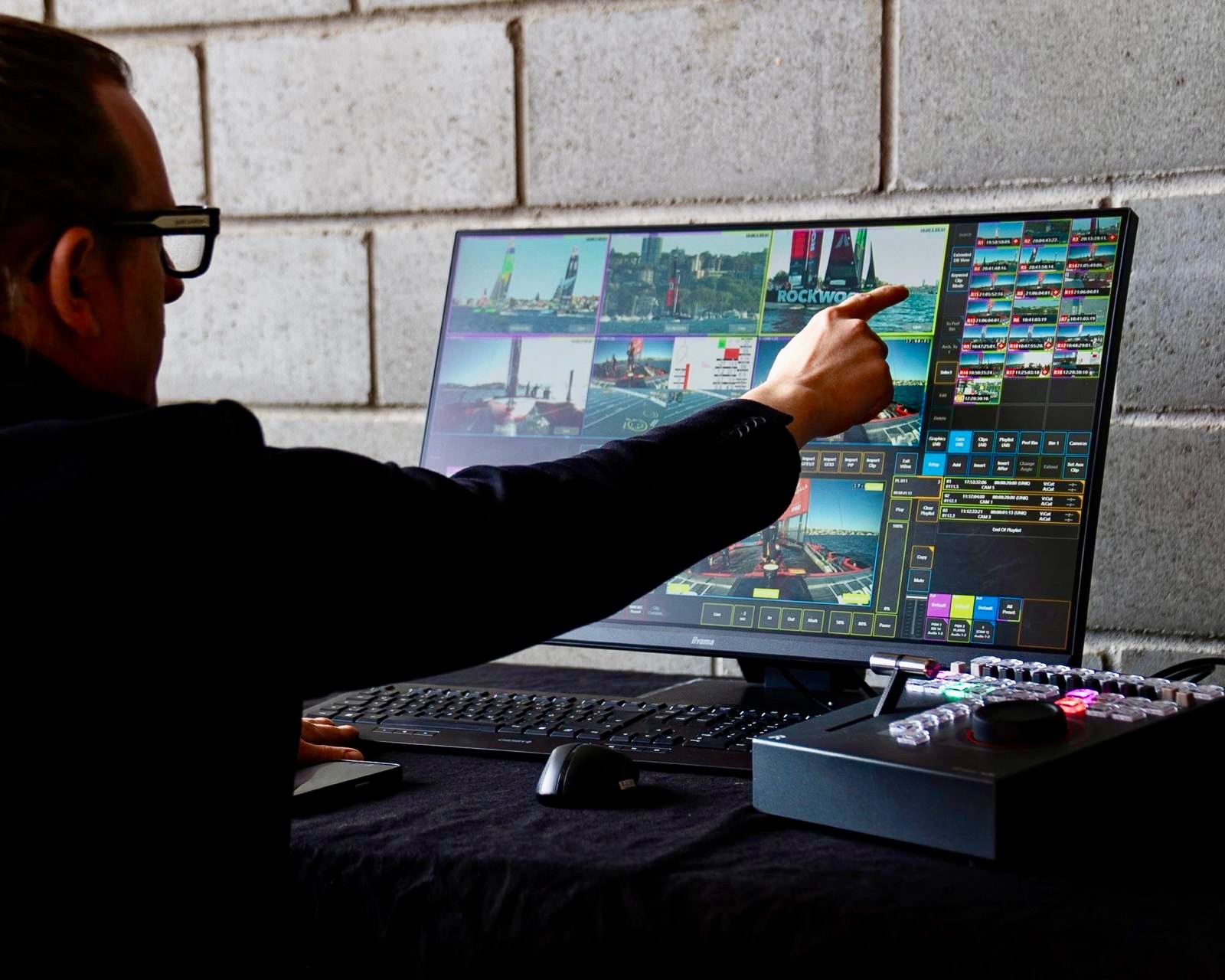
The touchscreen interface mirrors most of the functionality available on the replay controller, while adding a more direct and visual workflow. Operators can browse, select, and control replay elements simply by touching the screen.
The system is designed to be flexible, supporting both experienced replay operators and users transitioning from traditional broadcast workflows.
Screen Layout and Navigation
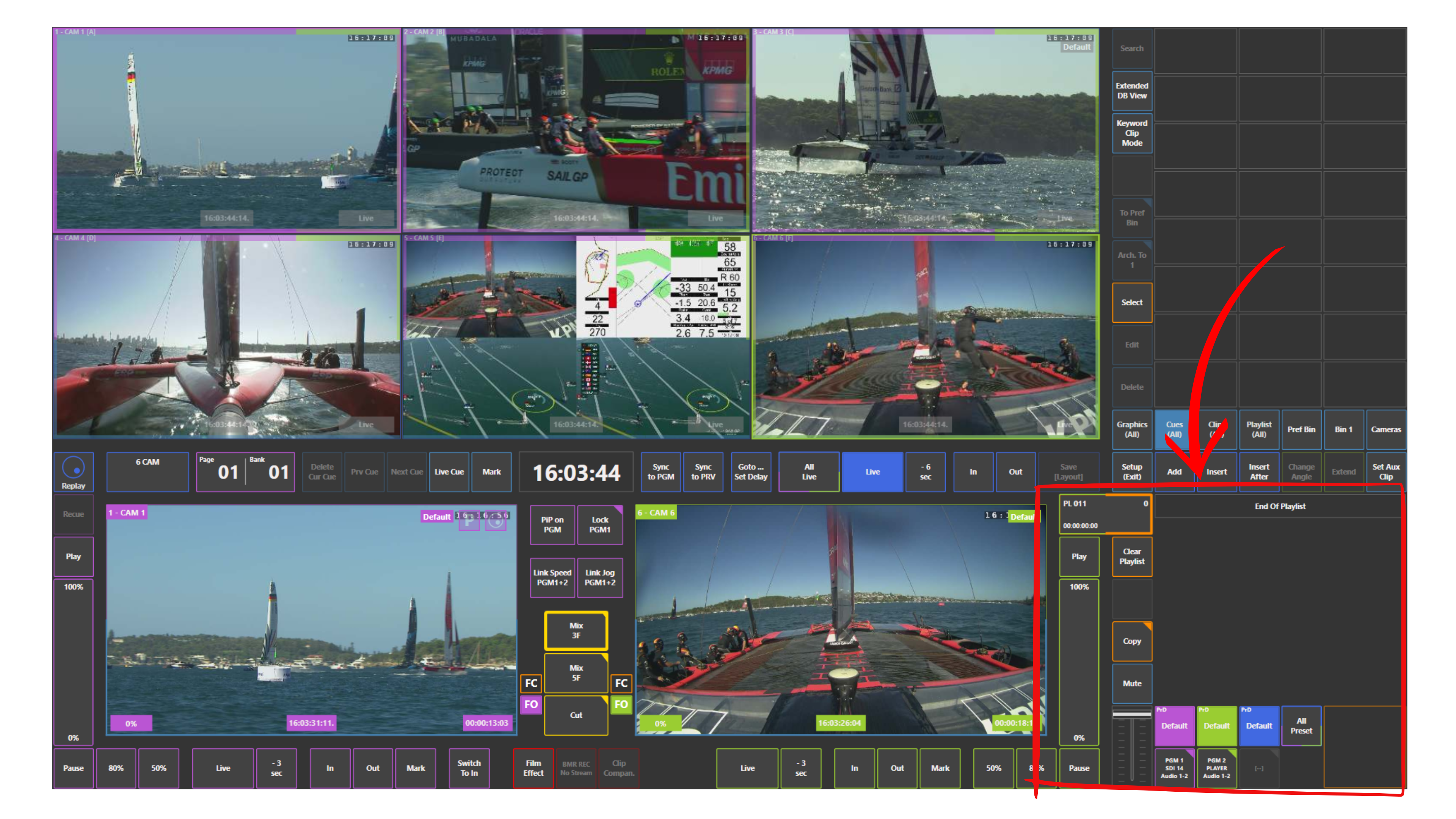
The touchscreen interface is divided into clearly structured areas:
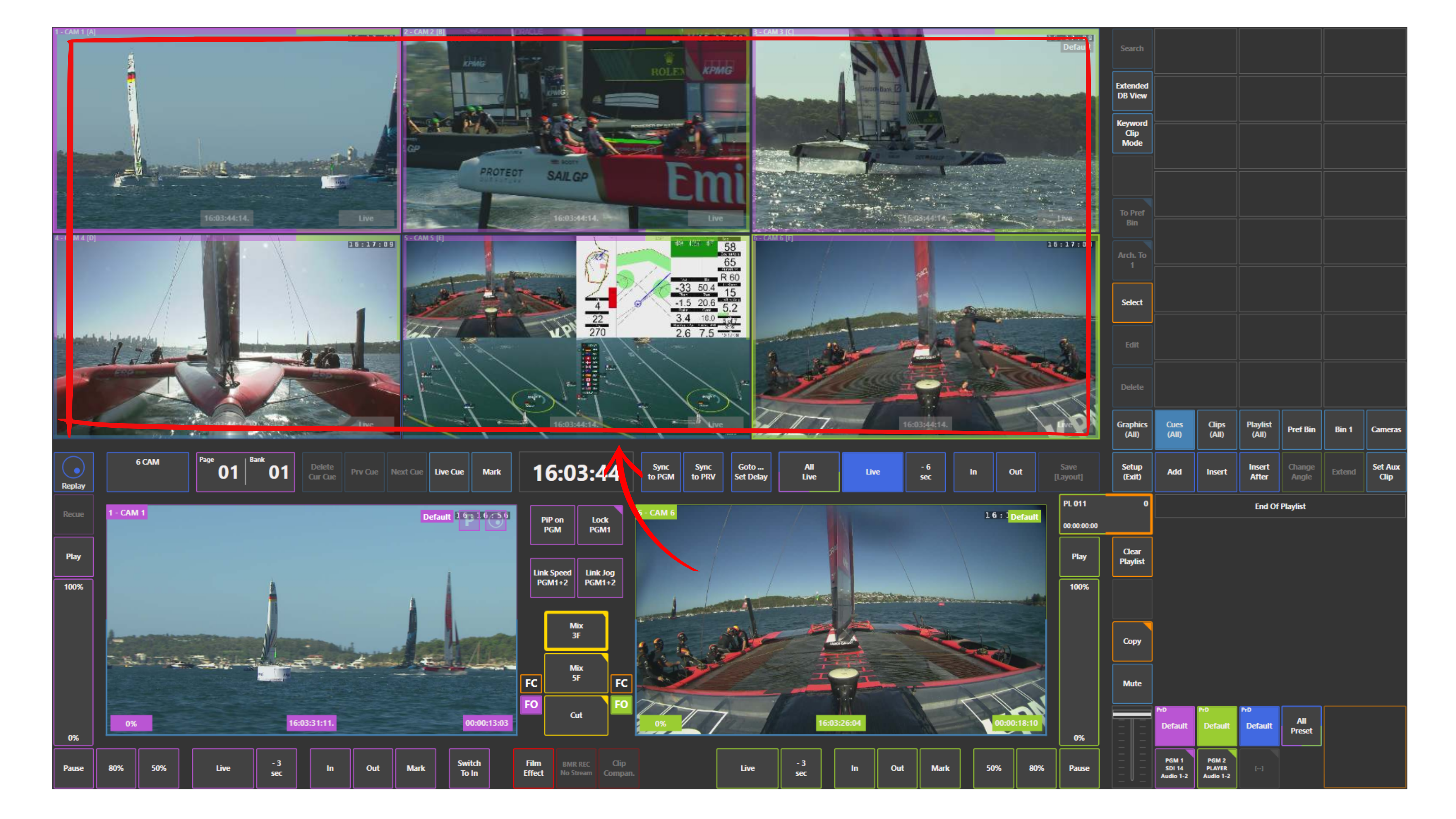
Upper Left – Inputs
Displays all available camera feeds. Each input can be directly touched to select or load, making it the primary source selection area.
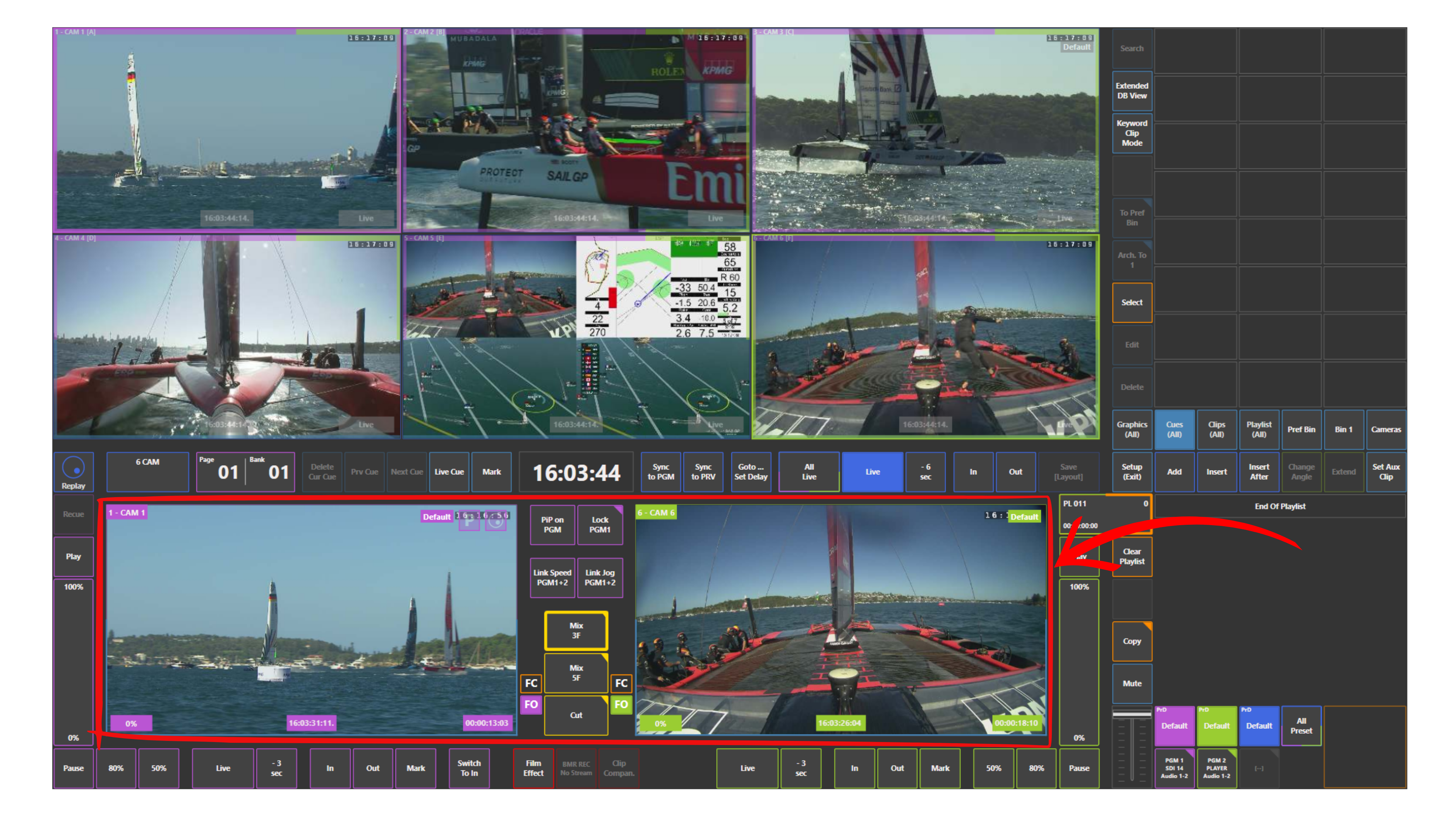
Lower Left – Outputs
Contains the main outputs:
-
Program (PGM): Active output
-
Preview (PVW): Next selected angle or secondary output (PGM2), depending on configuration
This area is used to control what is on-air and what is prepared next.
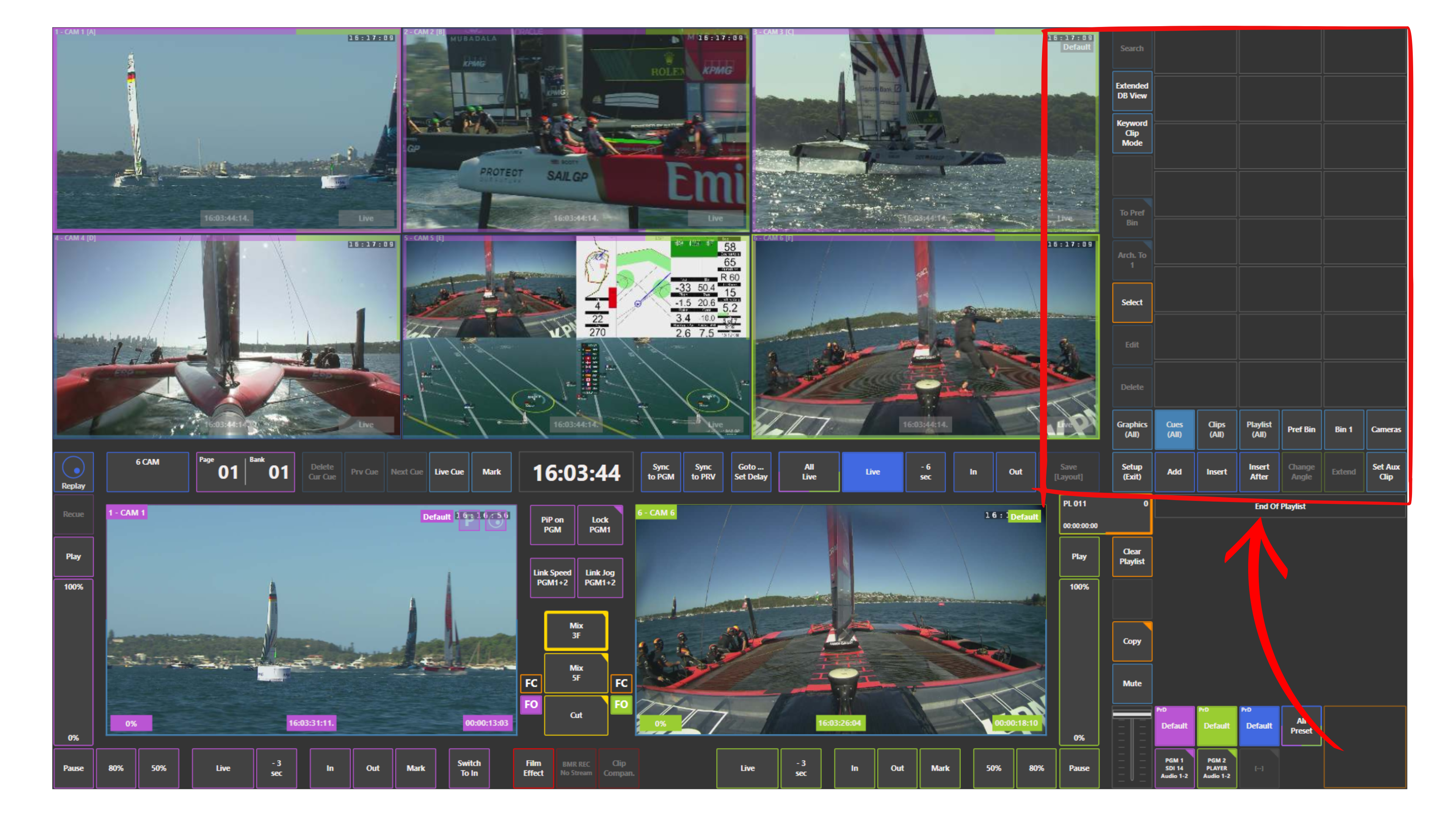
Upper Right – Tools and Content
Provides access to clips, playlists, bins, and additional functions such as search and keyword tools.
Lower Right – Playlist Window
Displays the active playlist and allows clip sequencing, playback control, and playlist management.
This layout ensures that all critical replay elements are visible and accessible at the same time.
Working with the Touchscreen
A typical touchscreen-based replay workflow follows these steps:
-
Use the replay timeline or swipe gestures to locate the desired moment
-
Touch a camera angle in the Inputs section to load it into Program
-
While the replay is running, select another angle to load into Preview
-
Switch between angles at the desired moment
-
Repeat the process to build multi-angle replay sequences
Because all camera angles are visible simultaneously, operators can instantly select the best shot without navigating through menus. This enables fast and fluid multi-angle storytelling.
Touch Interaction Principles
The touchscreen supports intuitive gestures:
-
Tap to select cameras, clips, or functions
-
Swipe to browse through replay content
-
Use on-screen controls for playback, marking, and navigation
All key replay actions such as marking points, setting IN and OUT, controlling playback speed, or returning to live can be executed directly on the touchscreen.
Working with Touchscreen and Replay Controller
For maximum efficiency, it is recommended to combine touchscreen operation with the replay controller.
The touchscreen is ideal for:
-
Fast visual selection of camera angles
-
Managing clips and playlists
-
Navigating content quickly
The replay controller is ideal for:
-
Precise control
-
Speed adjustments
-
Frame-accurate operations
Using both together allows operators to benefit from the speed of touch interaction and the precision of physical controls, resulting in a faster and more efficient workflow.
Pro Tip
For the best operational efficiency, always combine the touchscreen with the replay controller.
Use the touchscreen for fast angle selection, browsing, and playlist management, while relying on the replay controller for precise timing, speed control, and frame-accurate actions.
This hybrid approach significantly improves speed, accuracy, and overall replay quality in live production.
Key Advantages
-
Immediate access to all camera angles
-
Faster and more intuitive operation
-
Efficient multi-angle replay creation
-
Full control without relying solely on hardware
-
Seamless integration with replay controller workflows