
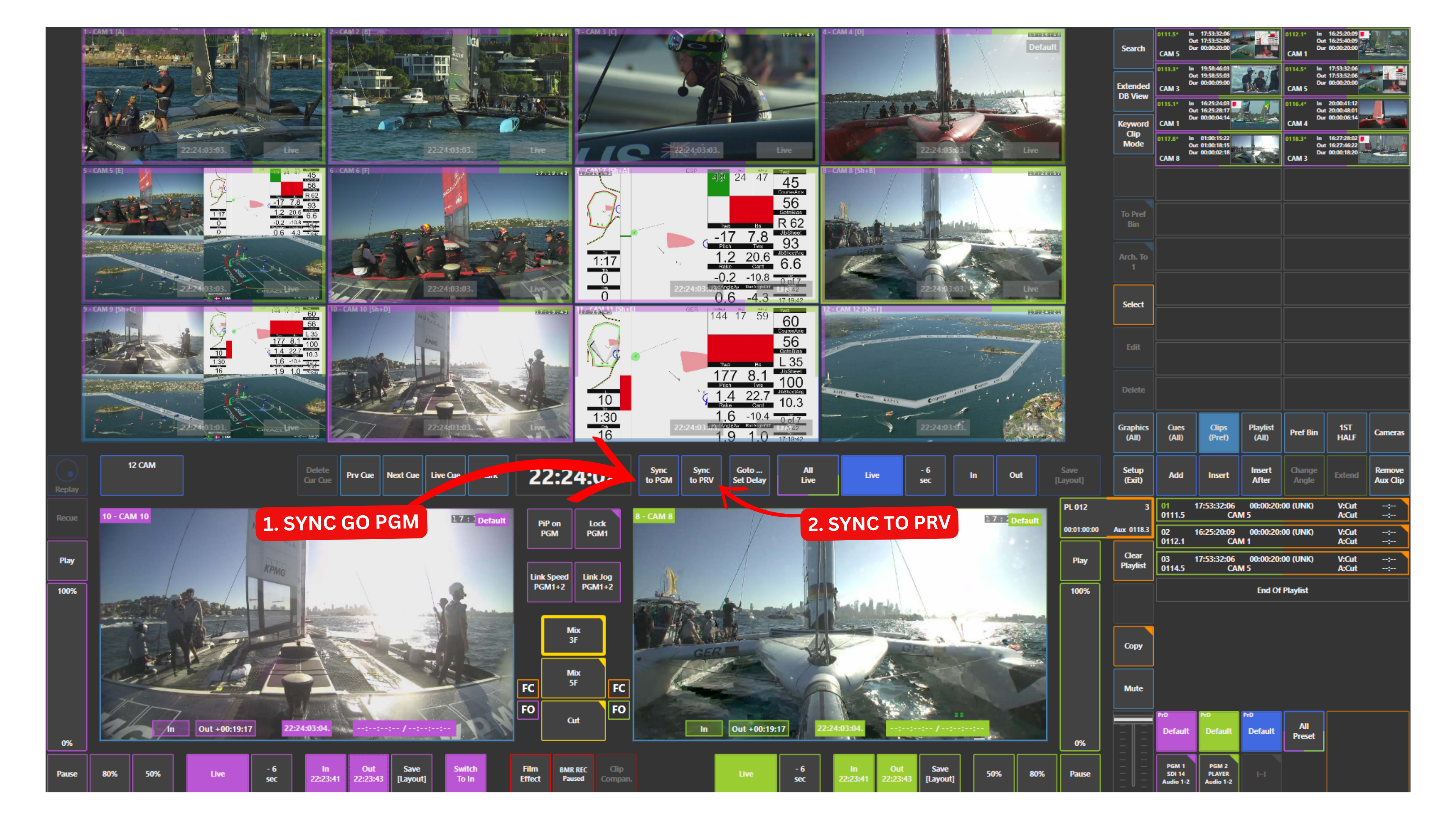
Sync to Program and Sync to Preview functions allow you to align all inputs to the same moment as your Program, Preview, or Program 2 (PGM2) output.
How to Use Sync
-
Navigate to the moment you want to sync on Program, Preview, or Program 2 (PGM2)
-
If you want to sync all inputs to Program, press Sync to Program
-
If you want to sync all inputs to Preview or Program 2 (PGM2), press Sync to Preview
All inputs will immediately align to the same time position.
Info
When using Sync to Program or Sync to Preview, all inputs match the exact frame of the selected output.
Pro Tip
Using sync allows you to quickly move beyond clip boundaries and continue working on the next angle without being limited by the original clip range.
This is especially useful when preparing additional angles for replay or extending your sequence naturally.
Info
You can also use the functions Sync Preview to Program and Sync Program to Preview, which are accessible via the function keys on the replay controller.