
Going to live means jumping back to the current moment of the event — what is happening right now on the field or in the action.
It allows you to move from replay or clip playback directly back to the live timeline.
How to Go to Live
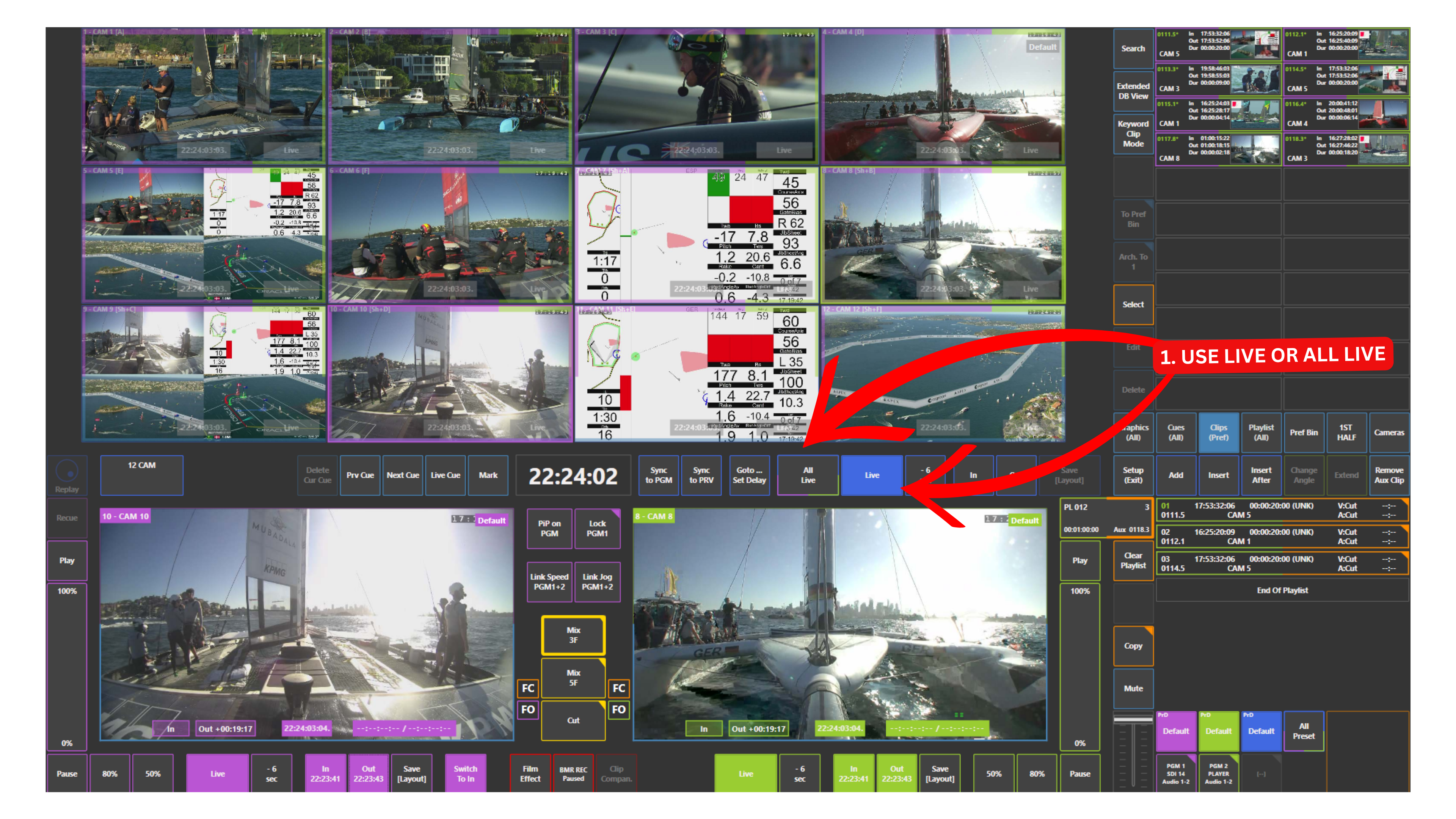
To send an output to live, press the Live panel.
This will bring Program or Preview / Program 2 (PGM2) to the current live position.
How to Send Everything to Live
If you want to send all inputs and outputs to live at once:
-
Press the All Live panel
All channels will immediately jump to the current live moment.
How to Go to Live on Program or Preview / Program 2 (PGM2) Separately
You can send Program or Preview / Program 2 (PGM2) to live independently of each other.
To do this, use the Live panel located directly underneath each output screen.
-
Use the Live panel under Program to send Program to live
-
Use the Live panel under Preview / Program 2 (PGM2) to send Preview / Program 2 to live
This allows you to go live on one output while keeping the other on a replay or a different moment.
For example, you can have Program on live while Preview / Program 2 (PGM2) stays on your last replay.
Pro Tip
Use All Live when you want everything — both inputs and outputs — to jump back to the live action immediately.
Pro Tip
You can send Program or Preview / Program 2 (PGM2) to Live while still browsing past moments on the inputs.
This allows you to stay on the Live action while continuing to prepare replays on the input channels.
This is a unique function in SimplyLive, allowing you to browse and prepare replays directly on the inputs, not only on the outputs.
Pro Tip
You can also send inputs and outputs to live, keep the inputs live, and browse back on Program or Preview / Program 2 (PGM2) to look for moments from the past.
This gives you full flexibility to follow the live action while still working on replay material.