
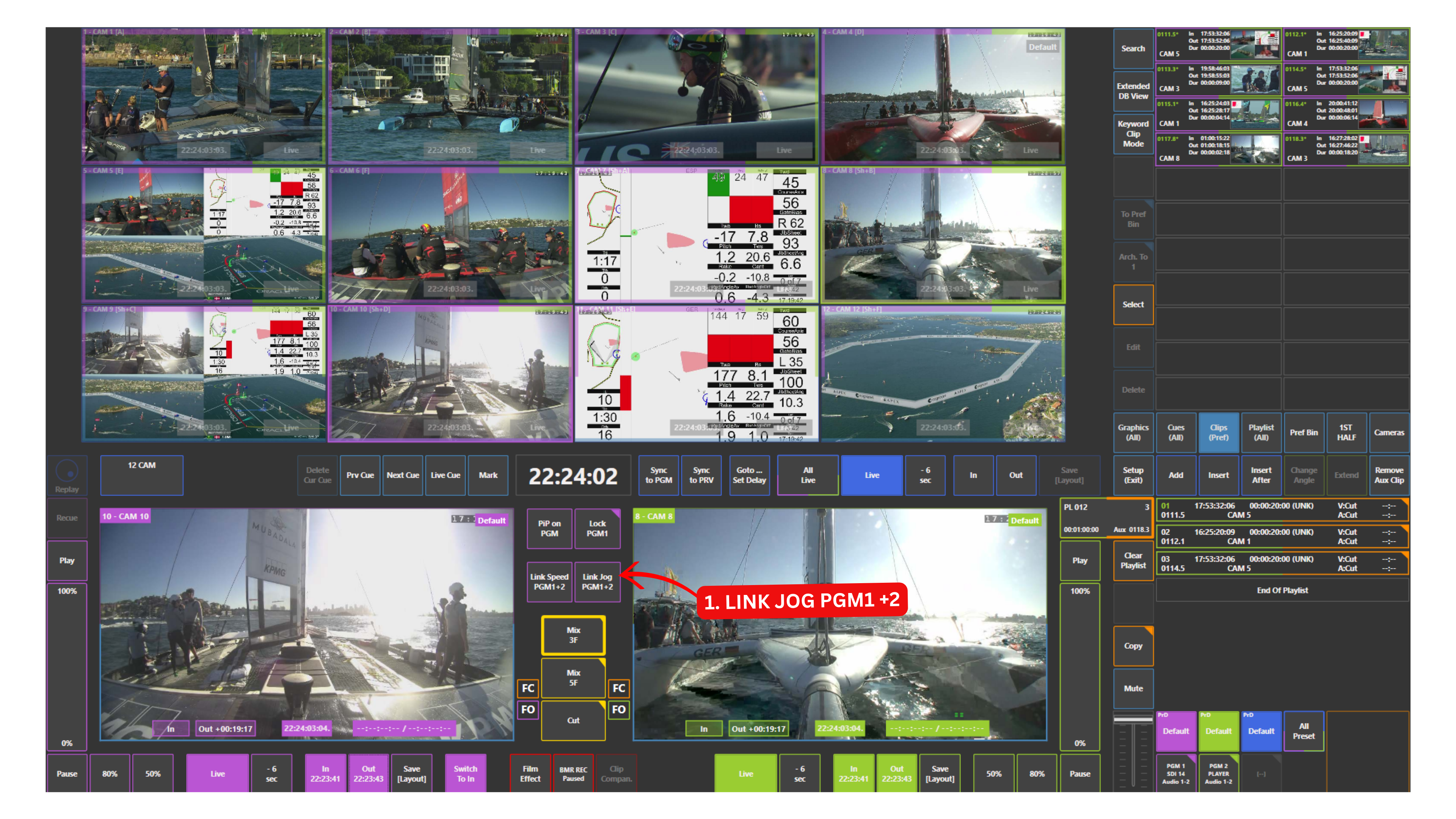
The Link Jog PGM1 + 2 panel allows you to link Program and Preview / Program 2 (PGM2) so they move together.
When enabled, both outputs respond to the same navigation and playback actions.
How to Use Link Jog
-
Activate the Link Jog PGM1 + 2 panel
-
Navigate using swipe gestures on the touchscreen
Both Program and Preview / Program 2 (PGM2) will move together through the record train.
What Happens When Linked
-
Going to Live moves both outputs to live together
-
Jogging back or forward moves both outputs at the same time
-
Playback stays synchronised on both outputs
Pro Tip
You can also load different clips on each output and control their position together.
This is very useful when working with two related angles, for example an interview and B-roll, or when preparing parallel replay outputs.
Pro Tip
You can use this function for fill and key workflows by keeping both outputs perfectly synchronised during playback.
Info
You can also link speed of Program and Preview / Program 2 (PGM2) by using Link Speed PGM1+ 2 panel.
Warning
When working with fill and key clips, make sure they are clearly named and correctly paired. Mixing fill and key from different clips will result in incorrect graphics on air.