
Bins allow you to organise your clips in a clear and structured way.
Instead of working only with banks and pages, you can group clips based on the logic of your production.
For example, you can create bins such as First Half and Second Half, and assign clips accordingly. This makes it much easier to find the right material later.
How to Use Bins
-
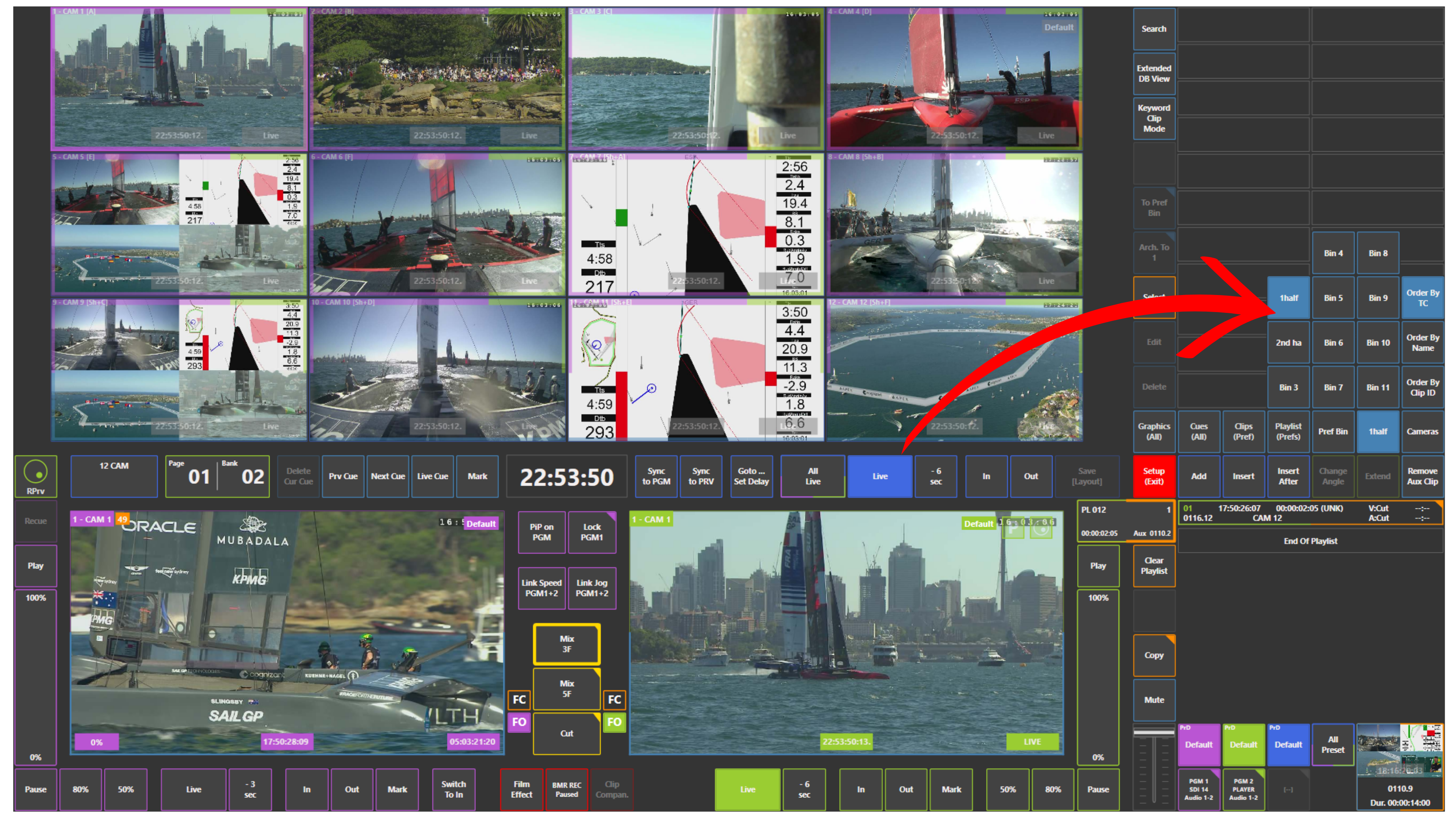
Open the Bins panel
-
Select the bin you want to work with
-
Assign clips to the selected bin
Info
To open a bin, tap on its name.
You can also press and hold on the bin name to expand and view all available bins.
Creating Bins
To create or rename bins:
-
Go to Setup → Prefs → Bins
Pro Tip
Use bins to organise clips by players, teams, or situations.
For example, create bins for Player A, Player B, and Player C, and send clips to each one during the game.
This allows you to quickly build playlists later from already organised material.
Pro Tip
You can assign replay controller function keys to send clips directly to bins.
For example:
-
Assign F3 to Player A bin
-
Assign F4 to Player B bin
-
Assign F5 to Player C bin
This lets you organise clips instantly without using the touchscreen.