
Creating playlists and adding clips using the touchscreen is simple and fast, allowing you to build sequences directly from the interface.
How to Create and Load a Playlist
-
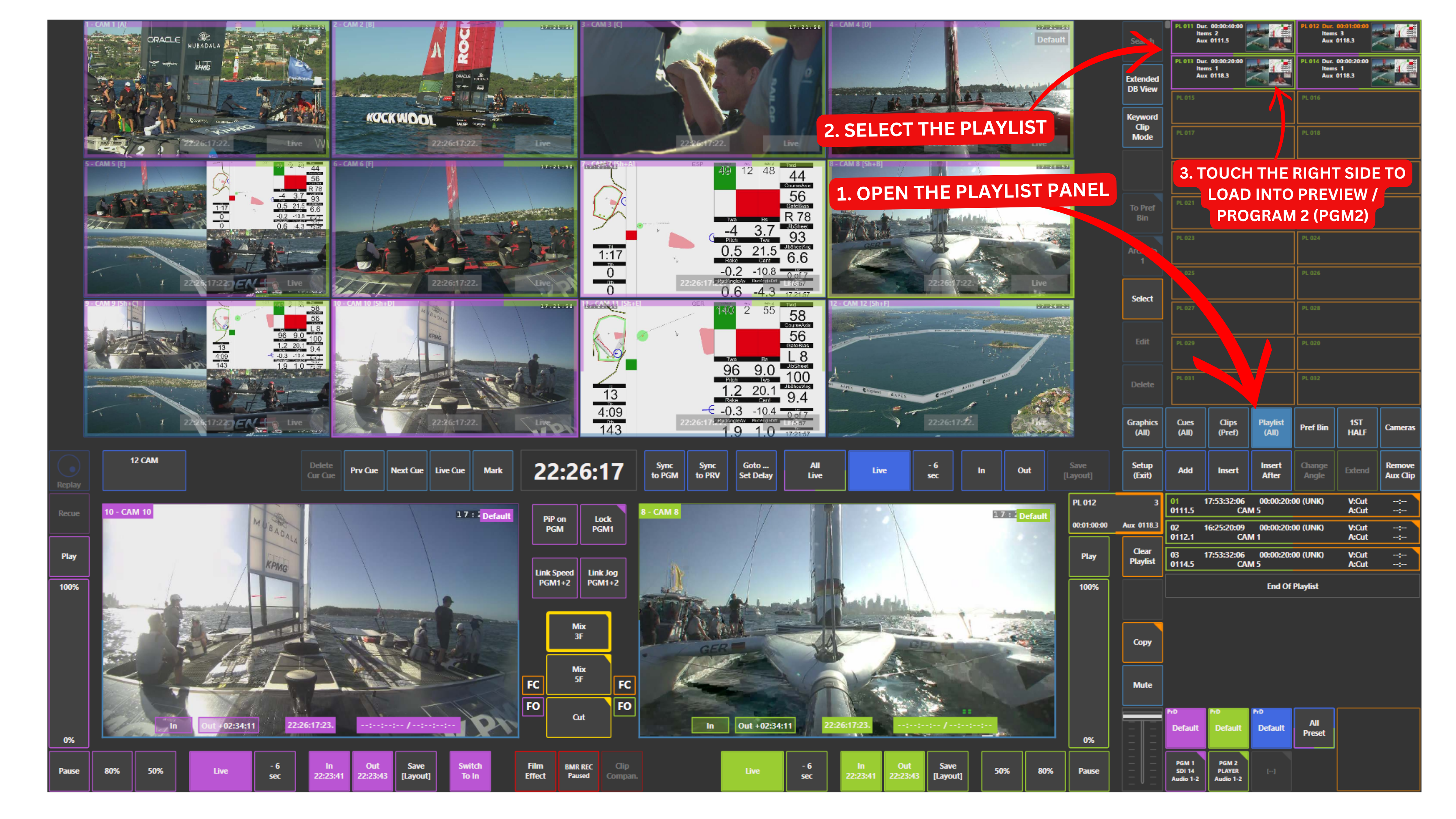
Open the Playlist panel in the upper right section of the screen
-
Select the desired playlist
-
Touch the right side of the playlist thumbnail to load it into Preview or PGM2
-
Alternatively, touch the left side of the thumbnail to load it into Program
Each playlist thumbnail is divided into two active areas:
-
Left side (pink): loads to Program
-
Right side (green): loads to Preview or PGM2
Once loaded, the playlist will appear in the playlist window in the lower right part of the screen.
Info
Colours may vary depending on system configuration and user setup.
For example, Program (PGM) may appear as red instead of pink.
Warning
Editing a playlist is only possible when it is loaded on Preview or Program.
Adding Clips to a Playlist
-
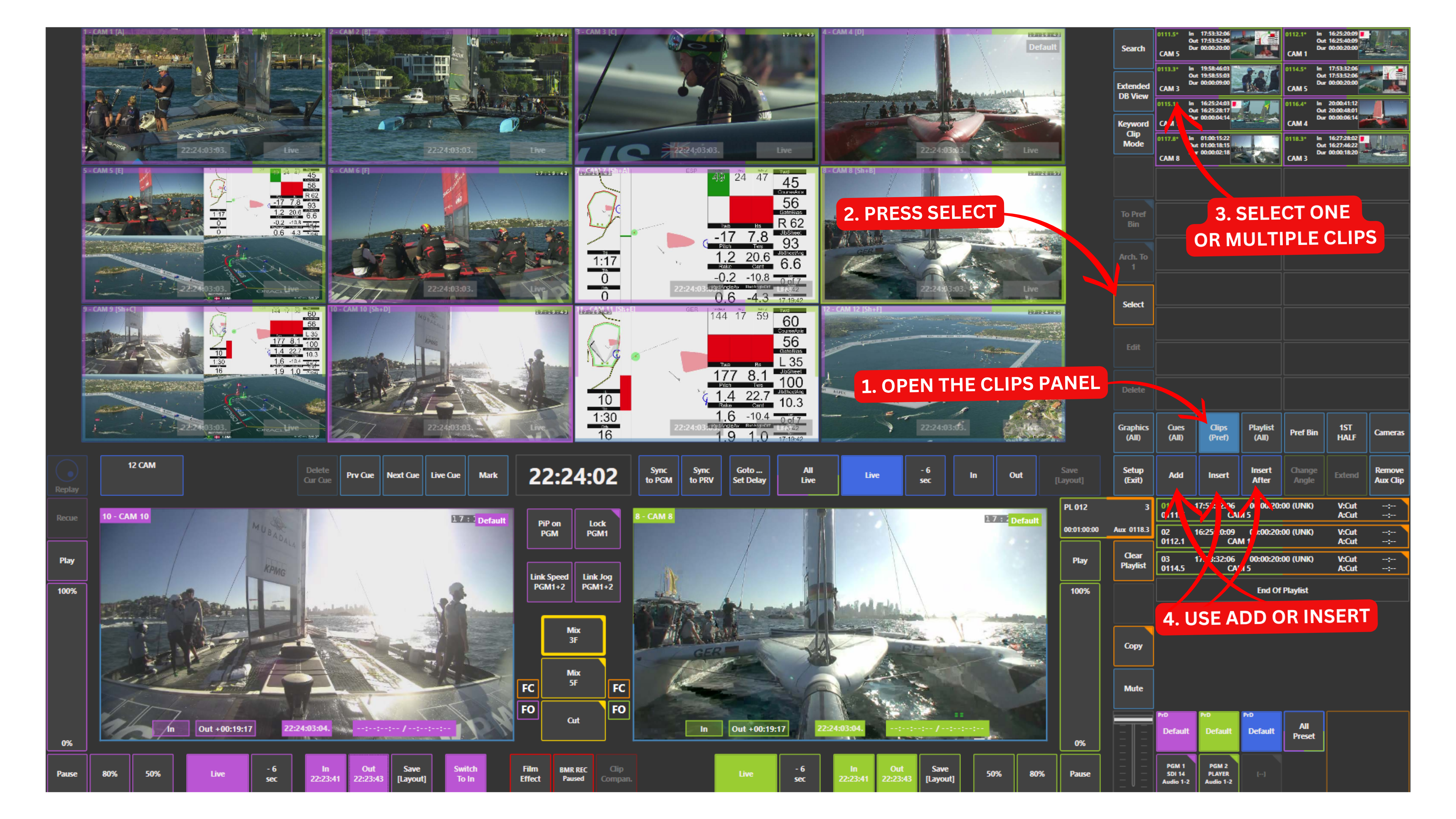
Open the Clips panel
-
Touch Select
-
Choose one or multiple clips by touching them
-
Use Add or Insert to place the clips into the playlist
The clips will be added directly to the active playlist.
If you want more control over placement, you can insert clips relative to the current playlist item:
-
Use the Insert panel to place clips before the current playlist item
-
Use the Insert After panel to place clips after the current playlist item
Warning
The color assigned to Program may vary depending on the user configuration.
For example, depending on the user profile, the Program color may differ from pink.
Pro Tip
Select multiple clips at once using the touchscreen and add them in a single action.
This is significantly faster and more efficient than adding clips one by one, especially during live production.
Pro Tip
In many replay systems, insert behaviour is fixed by default — either before or after.
Here, you have both the Insert panel and Insert After panel, which gives you full control and lets you place clips exactly where you want, instantly.
This flexibility is key in fast-paced production, where timing and position in the playlist matter.