
Layouts are one of the biggest strengths of SimplyLive.
Think of them as flexible multiviewers. You decide how many cameras you see and how they are arranged.
In some situations, you want to see all cameras. In others, you only need a few key angles.
For example:
-
a full layout with all cameras
-
a focused layout with key angles for incidents
-
a layout for offside cameras
-
a single-camera layout for close-up analysis
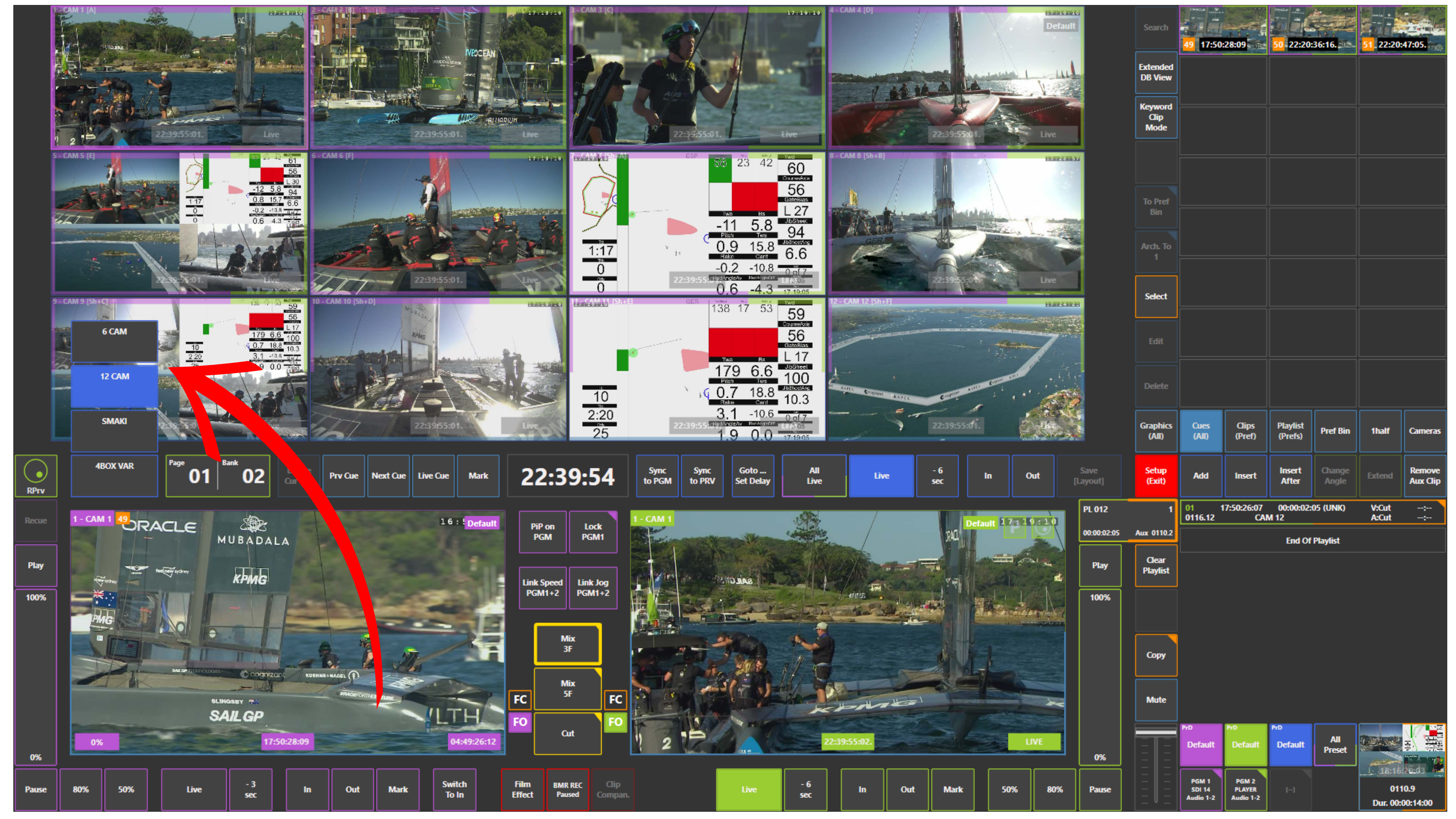
You can create multiple layouts and switch between them instantly during production.
Info
Changing layouts does not affect playback or recording.
You can switch layouts freely while on air.
How to Switch Layouts
Create your layouts in Setup → Prefs.
Once they are ready and named:
-
Use the Layout panel to switch between layouts
-
Select the layout you want to activate
You can change layouts at any time, depending on what is happening in the game.
Info
When you switch to a layout, for example a 4-camera layout, you only work with those cameras.
If you have 12 inputs and move to a 4-camera layout, you now choose only from those 4 cameras. It keeps your view clean and makes decisions faster.
Info
You can assign cameras from a layout to the replay controller’s A–F keys.
For example, in a 2-camera layout, the cameras can be accessed on A and B. In a 4-camera layout, they can be accessed on A–D.
You can also map these cameras to different keys if needed, for example C and D, depending on your workflow.
This means you can switch between cameras in your layout using either the touchscreen or the replay controller.
Pro Tip
You can assign specific layouts to different users.
For example, one operator can work with 6 cameras, while another has access to only 4.
This helps you control the workflow and keep each operator focused on the cameras they need.
Pro Tip
Think about your production in advance and prepare your layouts.
Set up layouts for the key situations you expect — wide view, incidents, offside, and close-ups.
This way, you always see exactly what you need without searching through small thumbnails.
Pro Tip
You can save your layouts and settings and reuse them later.
Load them for the next production to keep your workflow consistent and ready from the start.