
An AUX clip allows you to attach a music or support clip to a playlist, making it ideal for highlights, video closers, or montage sequences synced to music.
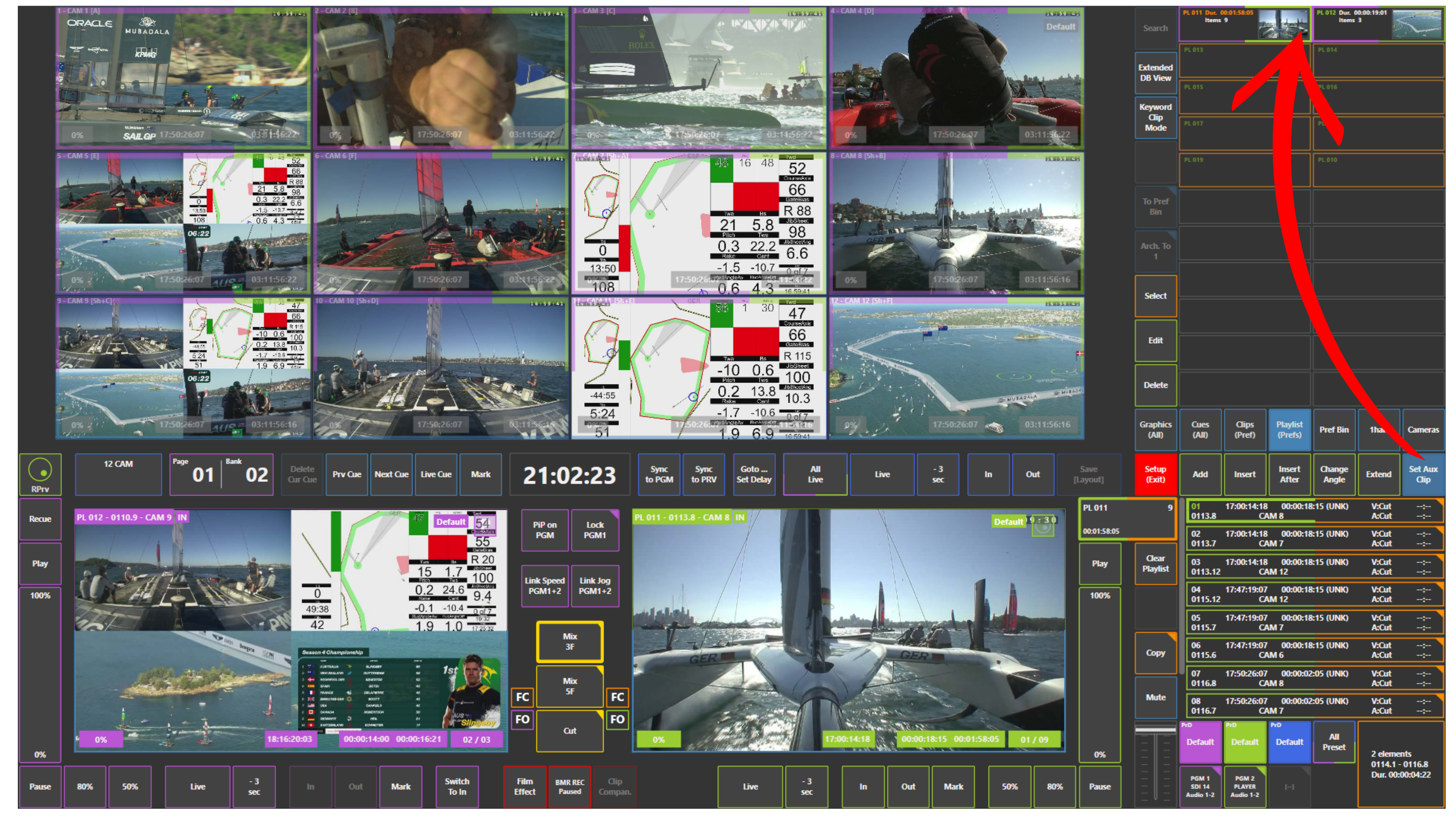
How to Set an AUX Clip
-
Select the desired playlist using the Playlist panel
-
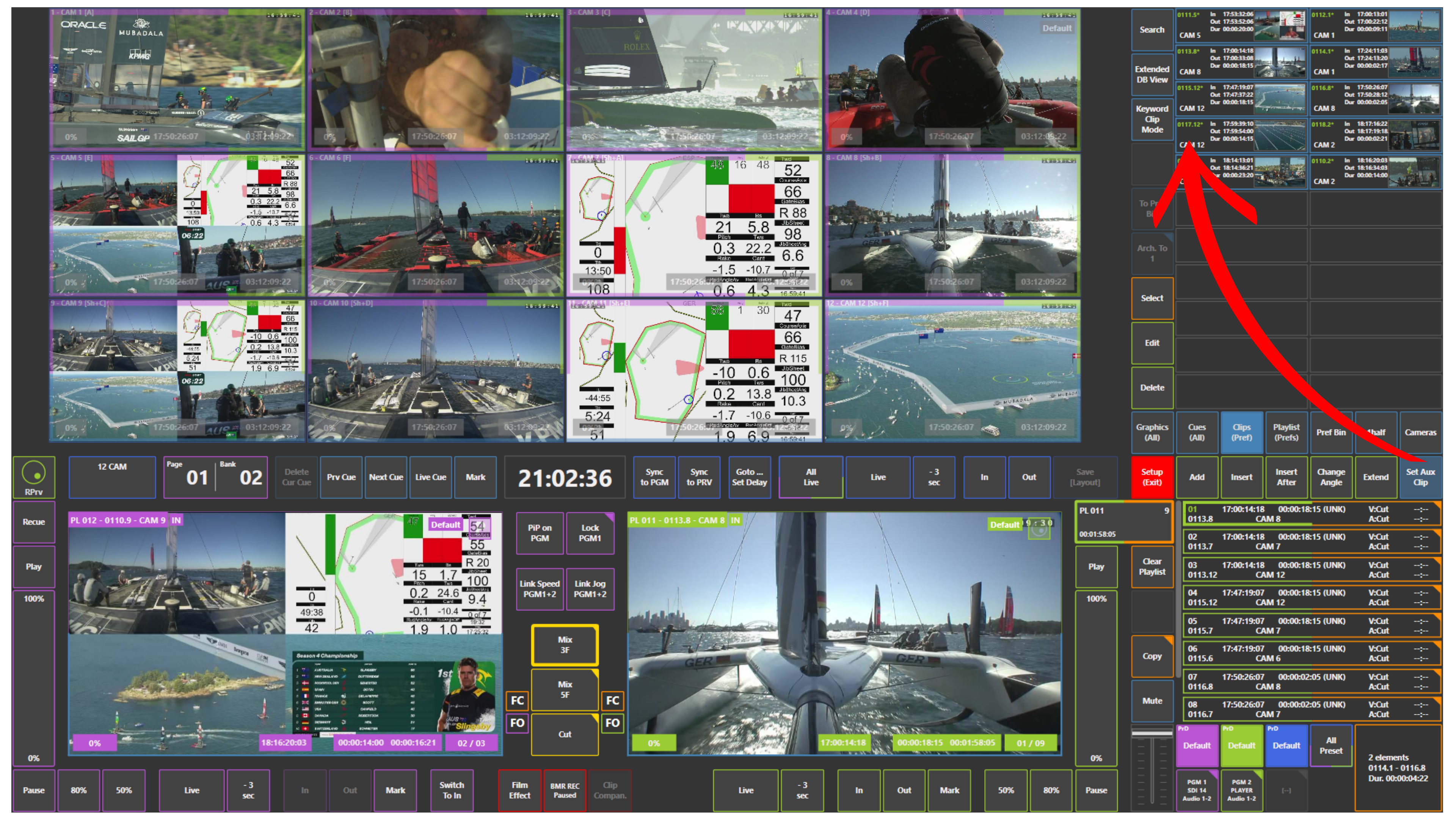
Go to the Clips panel
-
Open the Set Aux Clip panel
-
Choose the clip you want to assign as the AUX clip
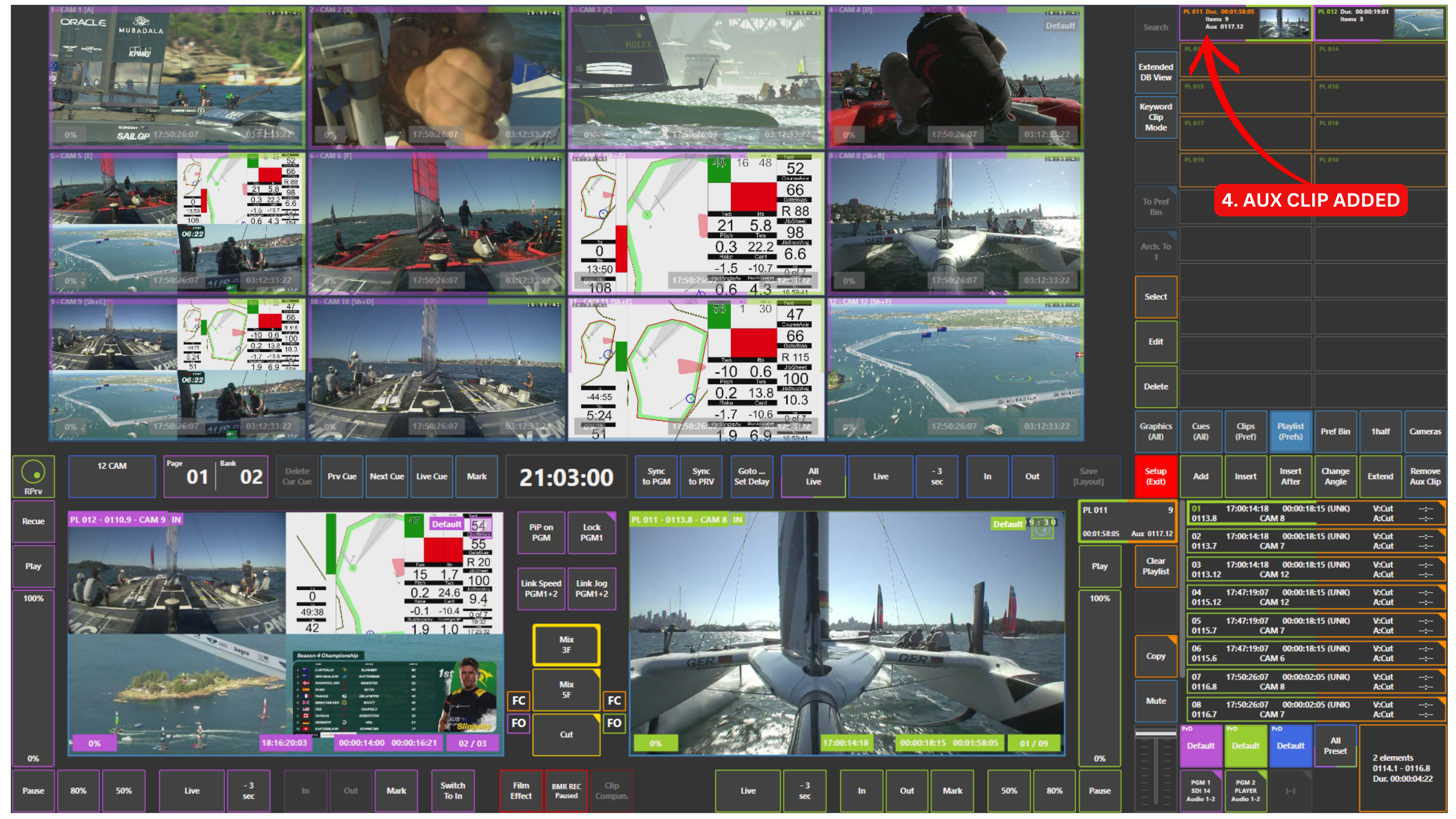
The selected clip will be attached as the AUX clip to the active playlist.
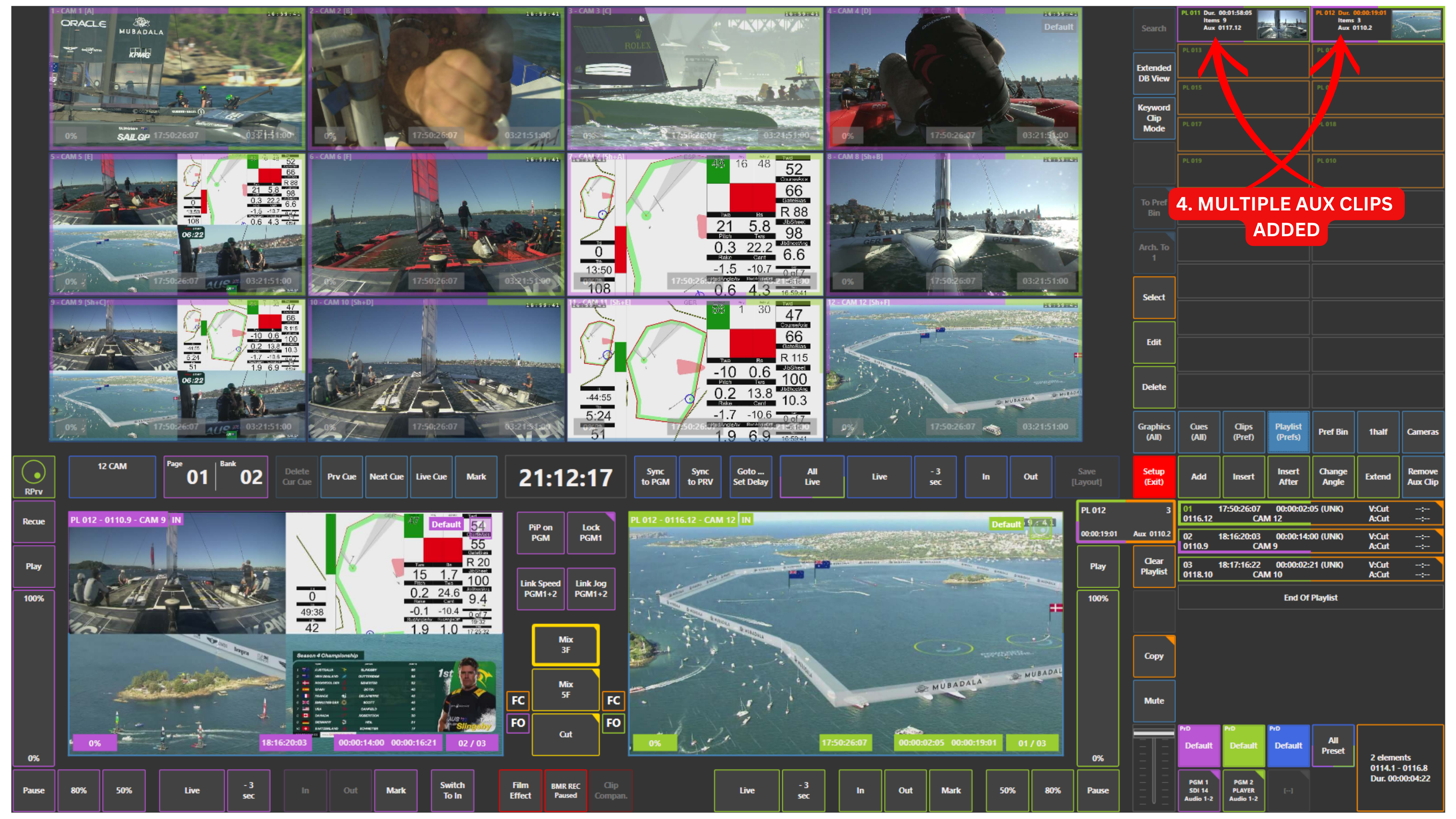
If multiple playlists are selected, the AUX clip can be assigned to all of them at once.
How to Remove an AUX Clip
-
Select the playlist from which you want to remove the AUX clip
-
Open the Remove Aux Clip panel
The AUX clip will be removed from the selected playlist.
Info
Multiple AUX clips can be removed from multiple playlists. You just have to select the playlists you want to remove AUX clips from and use the Remove Aux Clip panel.
Pro Tip
You can assign different AUX clips to different playlists, allowing you to create multiple highlight packages with different music tracks.
Pro Tip
Managing AUX clips using the touchscreen is very intuitive. You can quickly browse multiple playlists and clearly see which AUX clip is assigned to each one, making it easy to organise your content during production.