
Loading and playing playlists using the touchscreen is intuitive and fast, giving you full control directly from the interface.
How to Load a Playlist
-
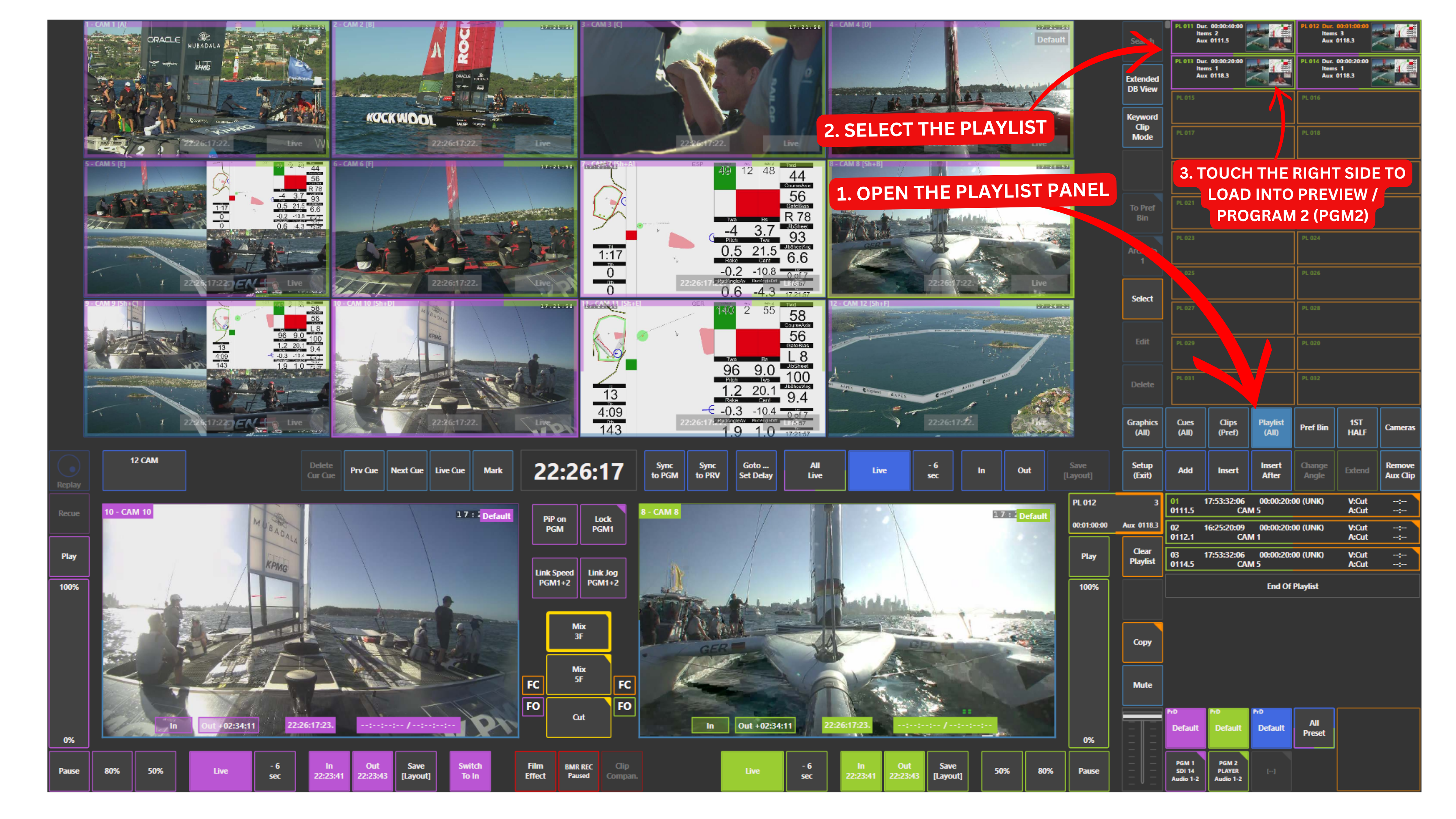
Open the Playlist panel
-
Select the desired playlist
-
Touch the playlist thumbnail:
-
Left side (pink): loads to Program
-
Right side (green): loads to Preview or PGM2
-
The active playlist will appear in the lower right part of the screen.
Info
Colours may vary depending on system configuration and user setup.
For example, Program (PGM) may appear as red instead of pink.
Warning
Editing a playlist is only possible when it is loaded on Preview or Program.
How to Play a Playlist
-
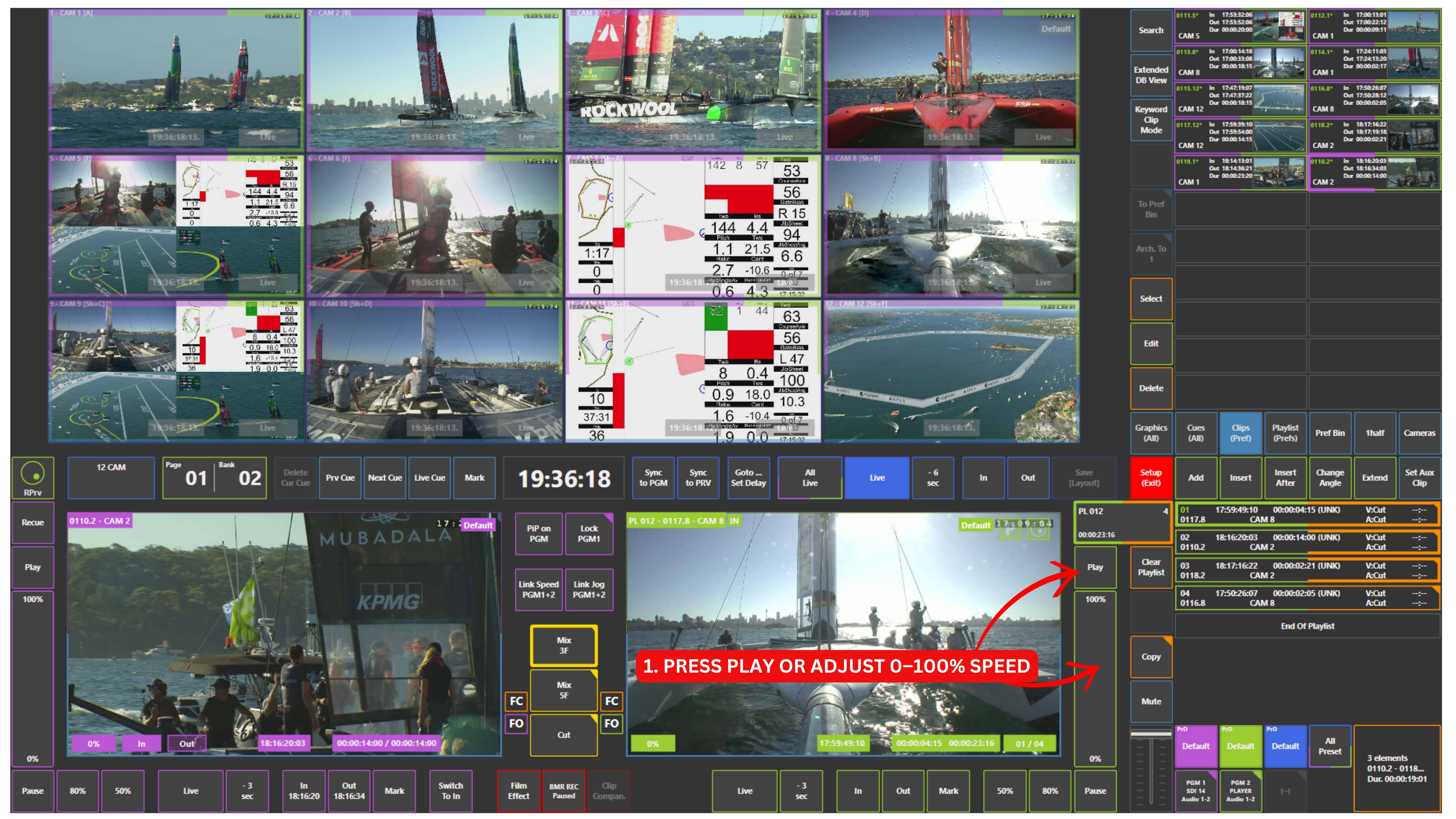
Make sure the playlist is active in the lower right section
-
Select the clip you want to start from
-
Press the Play button
Playback can also be controlled using the 0–100% speed control, allowing slow motion or normal speed playback.
Pro Tip
You can select multiple clips using the touchscreen and add them to a playlist in one action.
Pro Tip
You can also select multiple clips and delete them from a playlist directly using the touchscreen.