
Renew an Offline License Identity Lease
Overview
Use the request/confirmation workflow when a virtual installation cannot contact the validation service directly. The request can be transferred to a workstation with access to the Riedel licensing workflow. This identity-lease exchange uses a request file (.ilr) and its matching confirmation file (.ilc), as described in Offline Activation and Renewal. Do not substitute a license file (.lic) for the confirmation.
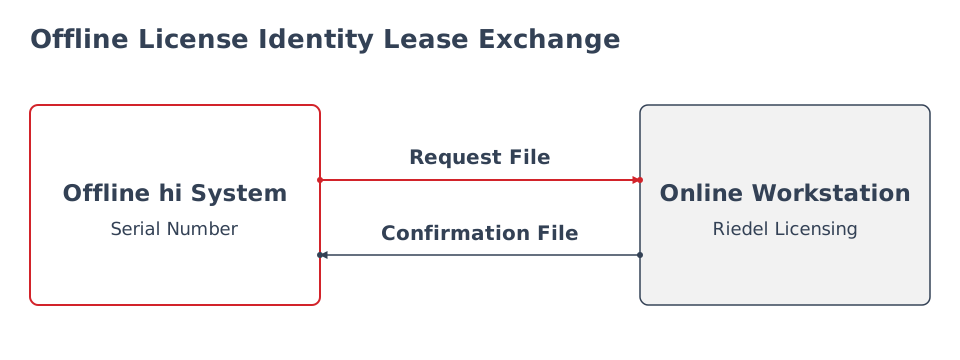
Transfer the request to the online workstation, then return its matching confirmation to the same installation. The arrows represent file transfers, not a direct network connection from the offline hi system.
Prerequisites
-
hi version 3.0.0 or later and Licensing admin.
-
The installation's Serial Number and access to the Riedel licensing workflow.
-
A workstation that can process the request and transfer the resulting confirmation back to the installation.
-
An installation eligible for the manual identity-lease method. The Customer Licensing Portal supplies this method for eligible virtual devices that do not use host signatures. If the method is unavailable or the generated request differs from this method, confirm the supported procedure with Riedel Customer Success.
Exchange the Request and Confirmation
Caution
Use only files from the current installation and request cycle. Keep the matching request and confirmation together, and do not edit or reuse them. Select Download a request once for each renewal, because each new request cancels the previous one. If the installation renews automatically before you upload the confirmation, the confirmation is rejected and you need a new request.
-
Open System > Licensing and confirm the intended Serial Number.
-
When Validation Service shows Unavailable, select Download a request.
-
Transfer the request to the workstation and process it through the supplied Riedel licensing workflow. See Offline Activation and Renewal.
-
Download the resulting confirmation file and transfer it back to the installation.
-
Return to System > Licensing and select Upload a confirmation.
-
Select the confirmation file and review the resulting identity-lease and validation states.
See the offline request and confirmation example.
Constraints
The two offline actions appear when the validation service is unavailable.
Verify the Result
Confirm the License Identity Lease and validity information have updated as expected. Review the required Option states and test the intended licensed workflow. If the confirmation is rejected or the state remains invalid, retain the complete message and use Customer Support.
Next Steps
Use License Status and Warnings Reference to distinguish an activation warning from an identity-lease or Option warning.