
Manage Multicast Addresses
Overview
The NMOS Node holds the multicast networks and address ranges. On its Multicast Addresses tab, define the multicast networks and, for each network, the address ranges for Video, Audio, and Other signals. On the IP tab of a Node, review the multicast address of each IP Port and change the address of an output Port.
Prerequisites
-
Use Node admin and open Inventory > Nodes.
-
Open the NMOS Node. The Multicast Addresses tab appears only on the NMOS Node. See NMOS Core Integration for the license requirements and NMOS behavior.
-
Know the subnet of each network and the first and last address of each range. Use the installation's planned multicast allocation.
Add or Edit a Network
-
Open the NMOS Node and select Multicast Addresses.
-
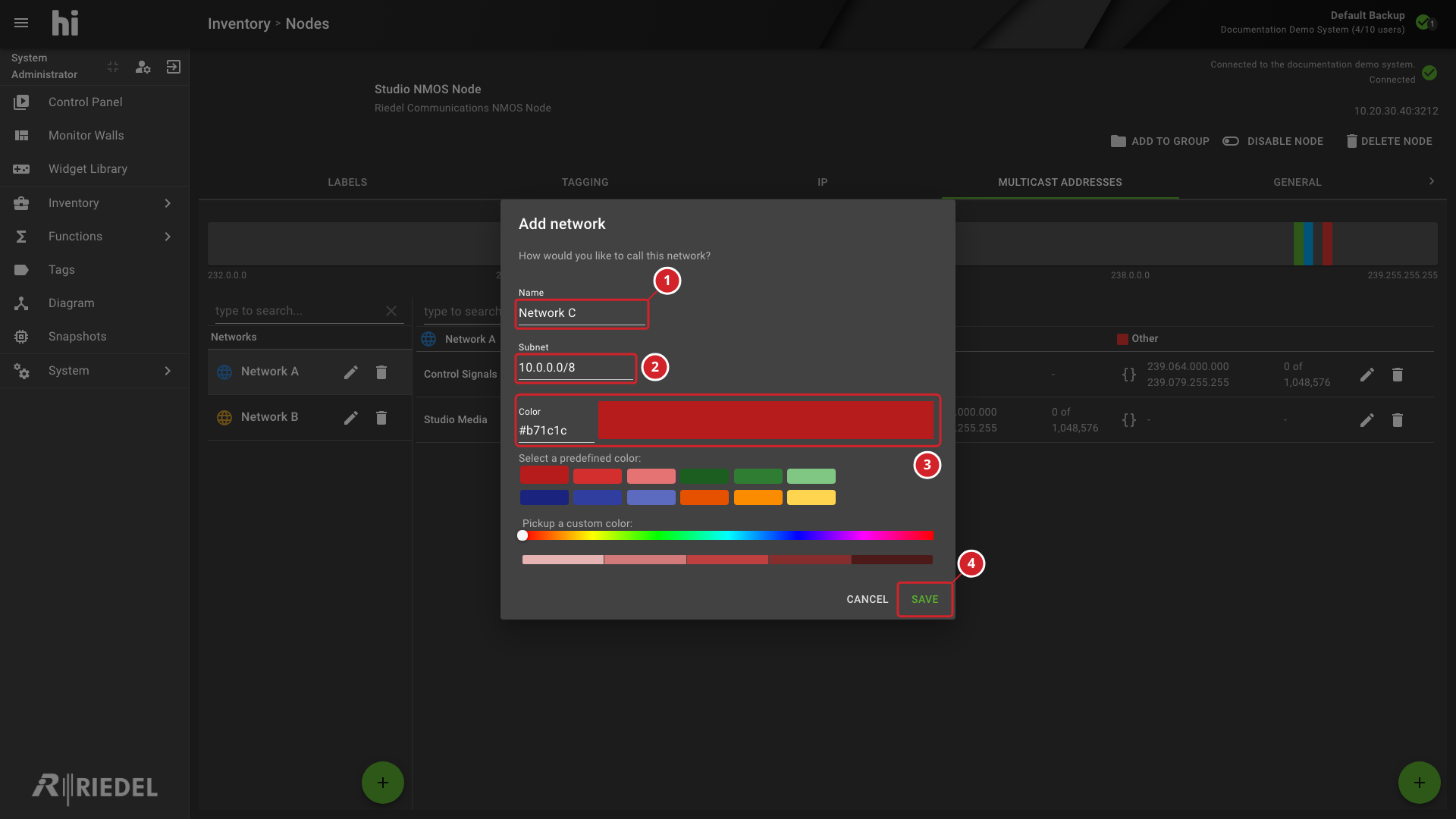
In the Networks list, select the round add button. To change a network, select Edit Network on its row. The dialog is titled Add network or Edit network.
-
Enter the Name.
-
Enter the Subnet in CIDR notation. A new network starts with
10.0.0.0/8. -
Set the Color. Enter a hex value, select a predefined color, or pick a custom color.
-
Select Save.
The button is unavailable while the name is empty, the color is incomplete, or the subnet is empty or not valid.
-
The Name of the network.
-
The Subnet of the network in CIDR notation. A new network starts with
10.0.0.0/8. -
The Color of the network, with a preview of the color.
-
Save, which creates the network.
Use type search... to filter the networks. To remove a network, select Delete Network on its row and confirm Delete Network. An empty list shows "No networks in system. Start by adding one!".
Add or Edit a Multicast Address Range
A range has three address spans for a network: Video, Audio, and Other.
-
Select a network in the Networks list. The range list shows each range with its spans for the selected network.
-
Select the round add button of the range list. In Add Multicast Address Range, enter the Multicast Address Range name and select Add.
-
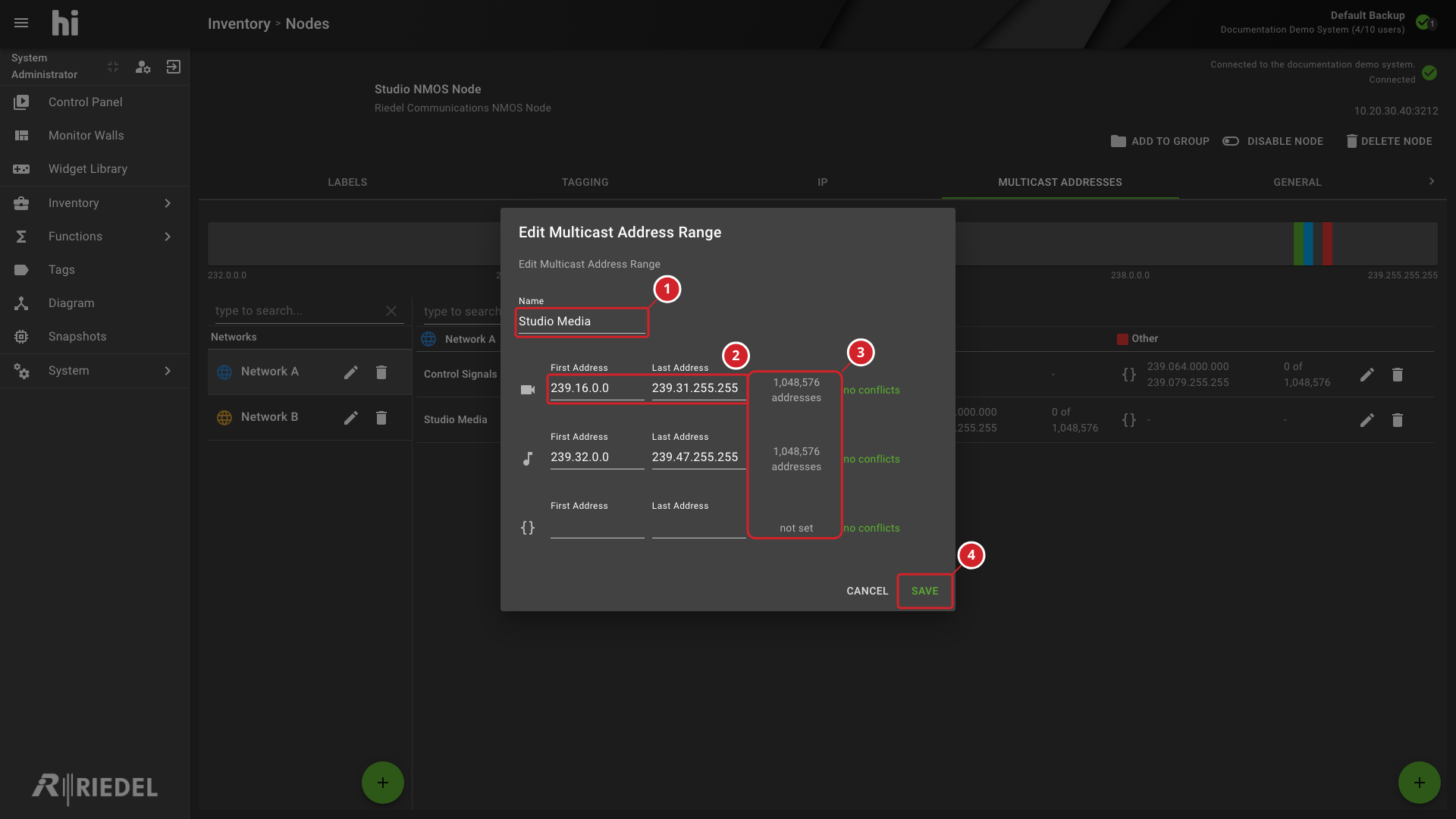
On the range row, select Edit Range. The Edit Multicast Address Range dialog opens.
-
Enter the range Name.
-
For each of Video, Audio, and Other, enter a First Address and a Last Address. The dialog shows the number of addresses in the span, or not set or invalid range.
-
If the dialog shows range overlaps existing ranges!, change the addresses so that they do not overlap another range.
-
Select Save.
Save is unavailable while the name is empty or an address, range, or overlap error remains. To remove a range, select Delete Range and confirm Delete Multicast Address Range.
-
The Name of the range.
-
The First Address and Last Address of the Video span. The Audio and Other spans use the same fields.
-
The number of addresses in each span. A span without addresses shows not set.
-
Save, which applies the range.
Read the Address Space
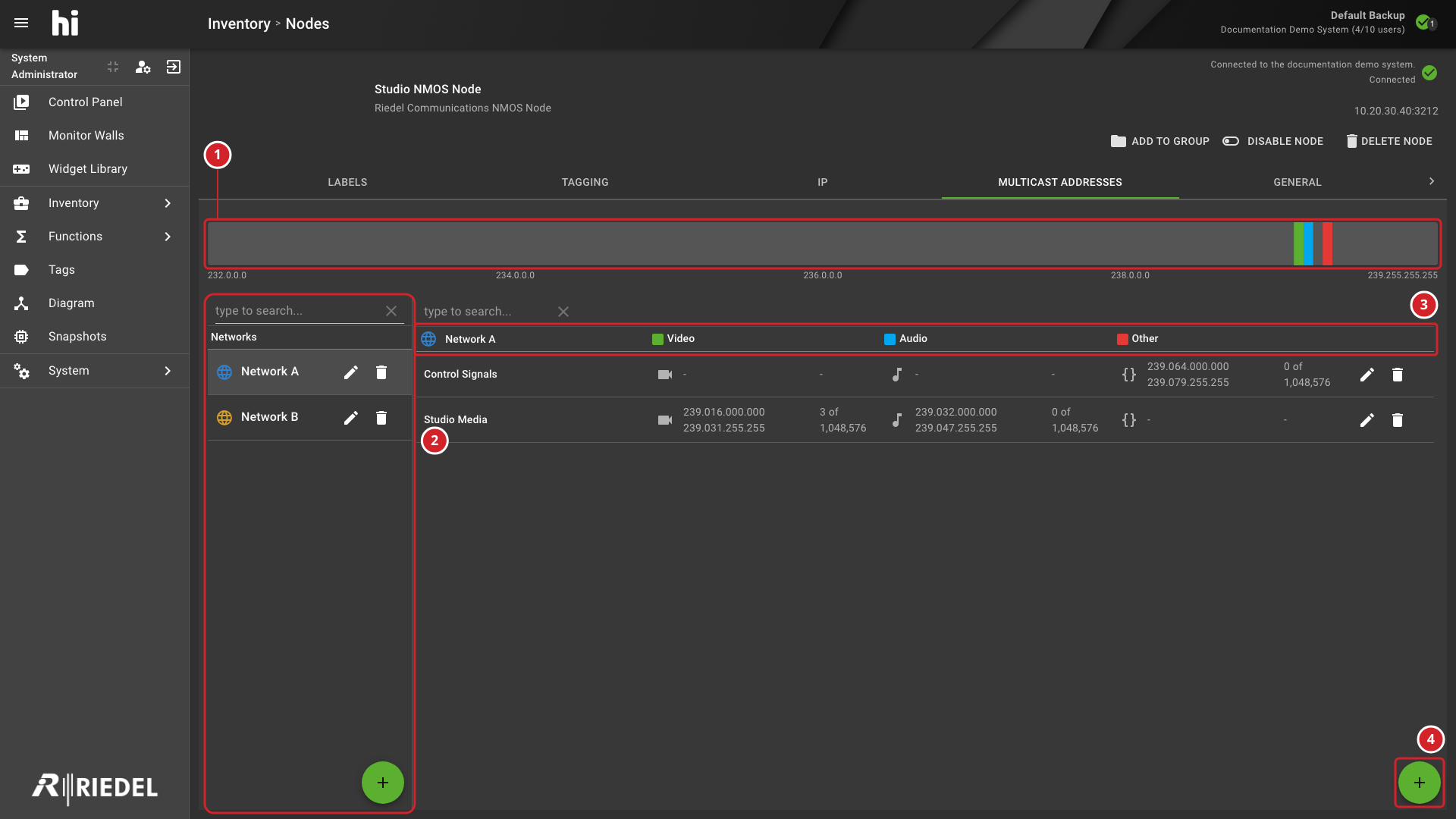
Above the lists, a bar shows the multicast address space of the selected network. Each span is labeled with the range name and its type, Video, Audio, or Other, and shows its first and last address. Unused space is unlabeled. A scale below the bar shows the addresses that it covers. On a narrow screen, hi hides the bar and shows the Networks list in a side drawer.
In the range list, the header shows the selected network and the Video, Audio, and Other column colors. Each cell shows the span of the range and how many of its addresses are reserved.
-
The address space bar of the selected network.
-
The Networks list, where you select, add, edit, and delete networks.
-
The range list header, with the selected network and the Video, Audio, and Other columns.
-
The round add button of the range list, which adds a range.
Change the Multicast Address of an Output Port
-
Open a Node with IP Ports and select IP.
-
Find the output Port. Its Multicast Address column shows the address.
-
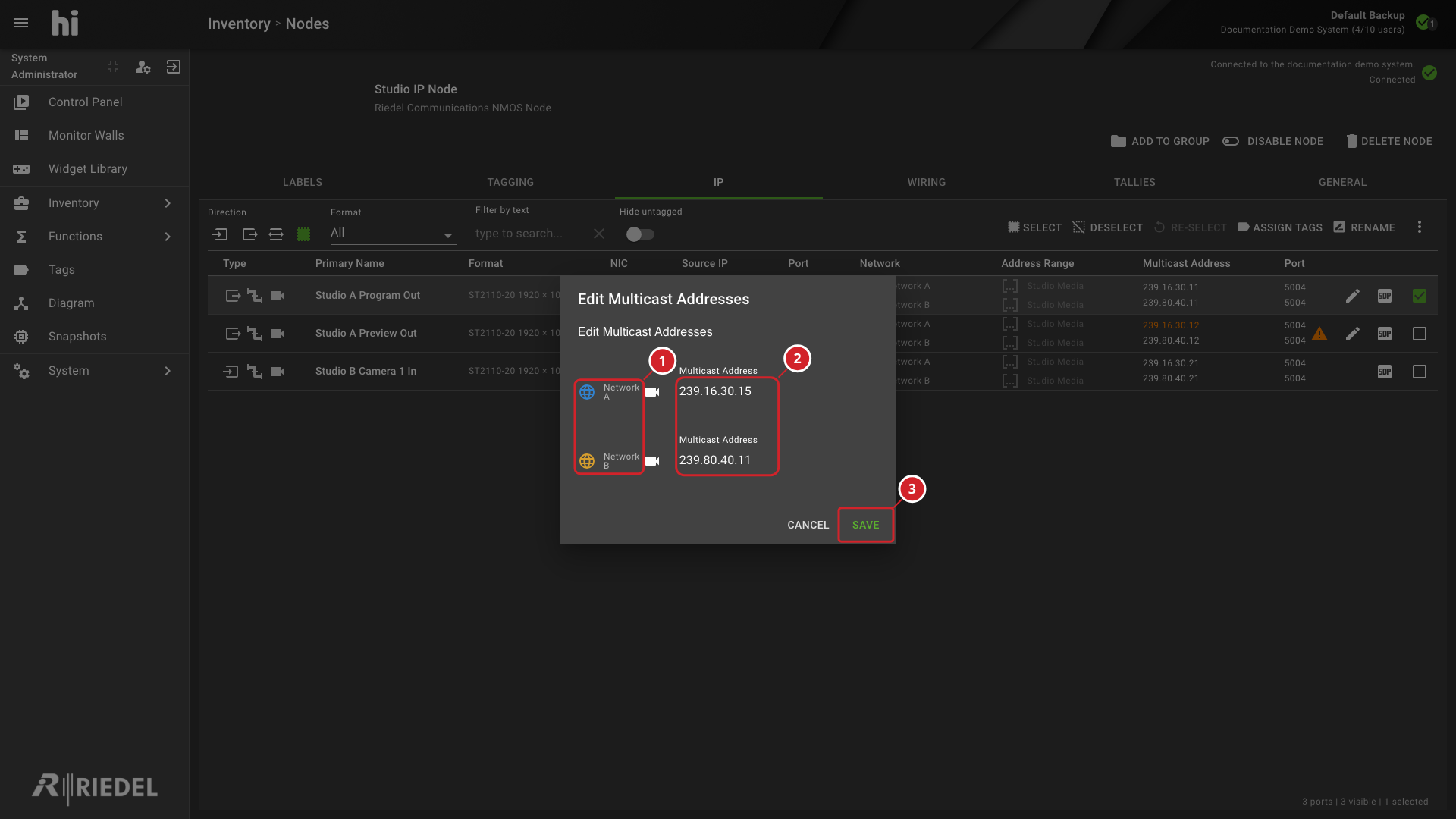
Select the edit icon at the end of the row. The icon appears only on output Ports that have a multicast address.
-
In Edit Multicast Addresses, enter the new Multicast Address for each leg. Each row shows the network of the leg.
-
Select Save.
A warning icon appears on a row and Save is unavailable while an address is not valid or conflicts with the address of another Port on the same network.
-
The network of each leg.
-
The Multicast Address field of each leg.
-
Save, which applies the new addresses.
Verify the Result
Return to the IP tab and confirm that the Network, Address Range, and Multicast Address columns show the intended values and that no warning icon remains. For the columns, see IP Tab Columns.
Next Steps
Use Map Baseband Ports to IP Ports to relate baseband Ports to the IP Ports.