You can add video transitions between clips in a playlist to create smoother playback.
The system supports transitions such as CUT and MIX.
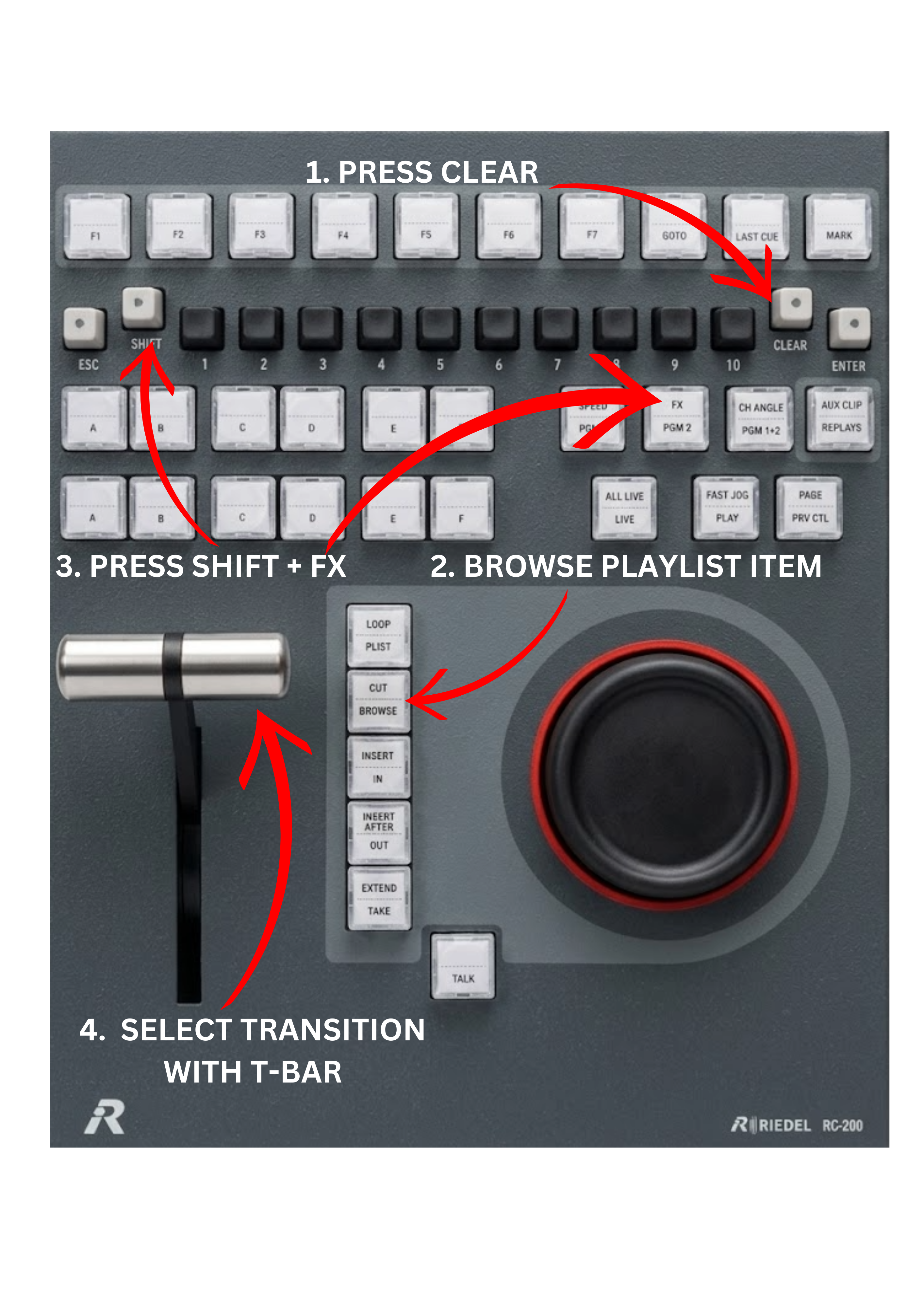
To add a transition to a playlist item, follow these steps:
-
Load the playlist by pressing the PLST (Playlist) key.
-
Browse to the clip in the playlist where you want to add the transition.
-
Press SHIFT + FX on the replay controller.
The FX key will blink green, and the properties window will open.
-
Use the T-BAR to select the transition type:
-
Lower position → CUT
-
Other positions → MIX
-
-
If you choose MIX, enter the transition duration in frames using the BANK keys (1–10).
Use CLR as a backspace if needed.
-
Press ENTER to apply the transition to the current playlist item.
-
Press SHIFT + ENTER to apply the transition to all items in the playlist.
-
Press ESC to exit without applying changes.