
Playlists allow operators to group multiple clips together and play them back as a continuous sequence. This is especially useful when preparing highlight packages during live production.
Once a playlist has been created, it can be quickly loaded and played directly from the replay controller.
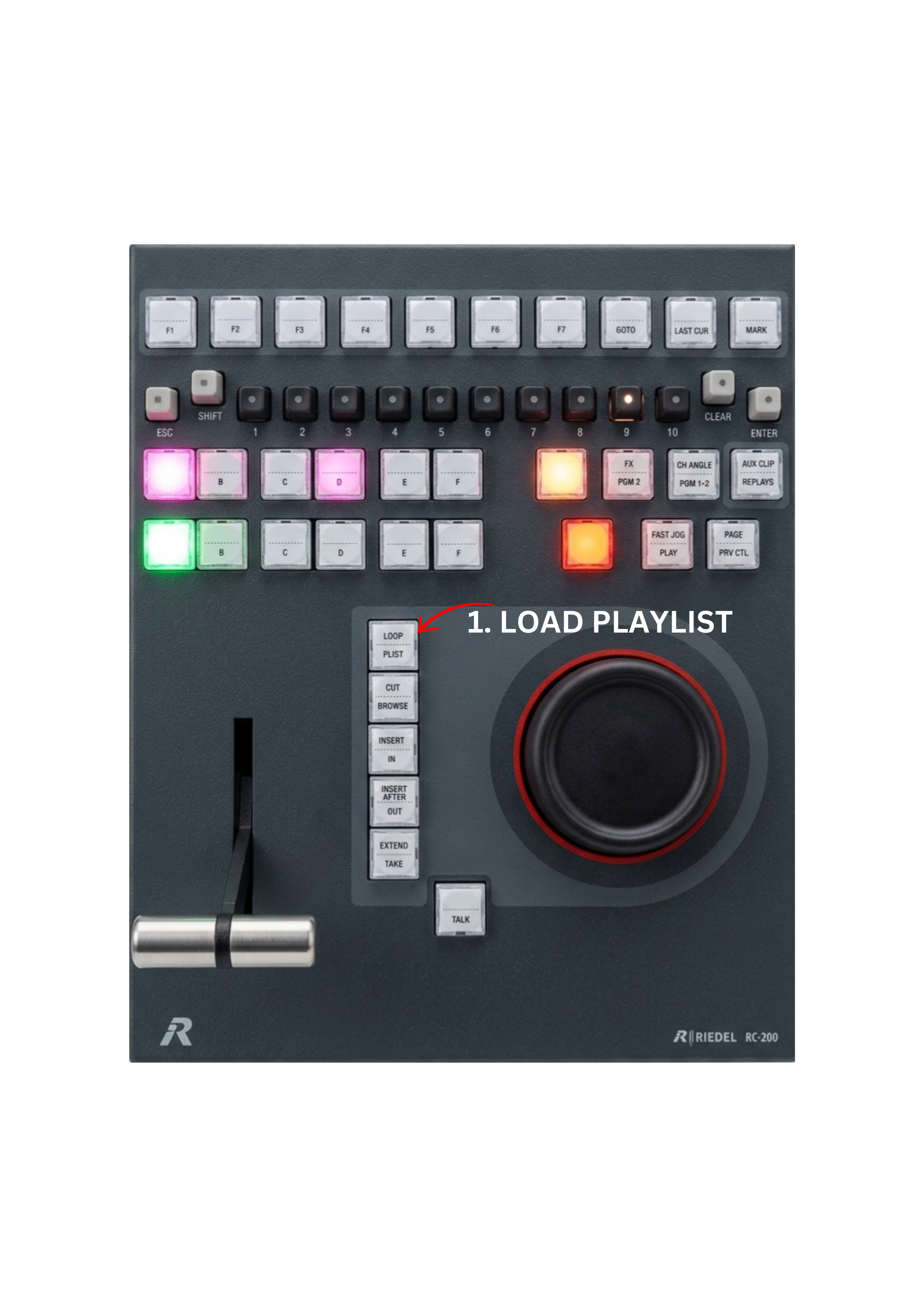
To Load the Active Playlist
Press the PLST key.
This loads the currently active playlist (the last playlist that was used or edited) into the replay channel.
To Load a Different Playlist
Navigate to the PAGE where the playlist is stored.
Press SHIFT + 10 to open the playlist selection.
Select the desired playlist using one of the 1–10 keys.
Press the PLST key to load the selected playlist.
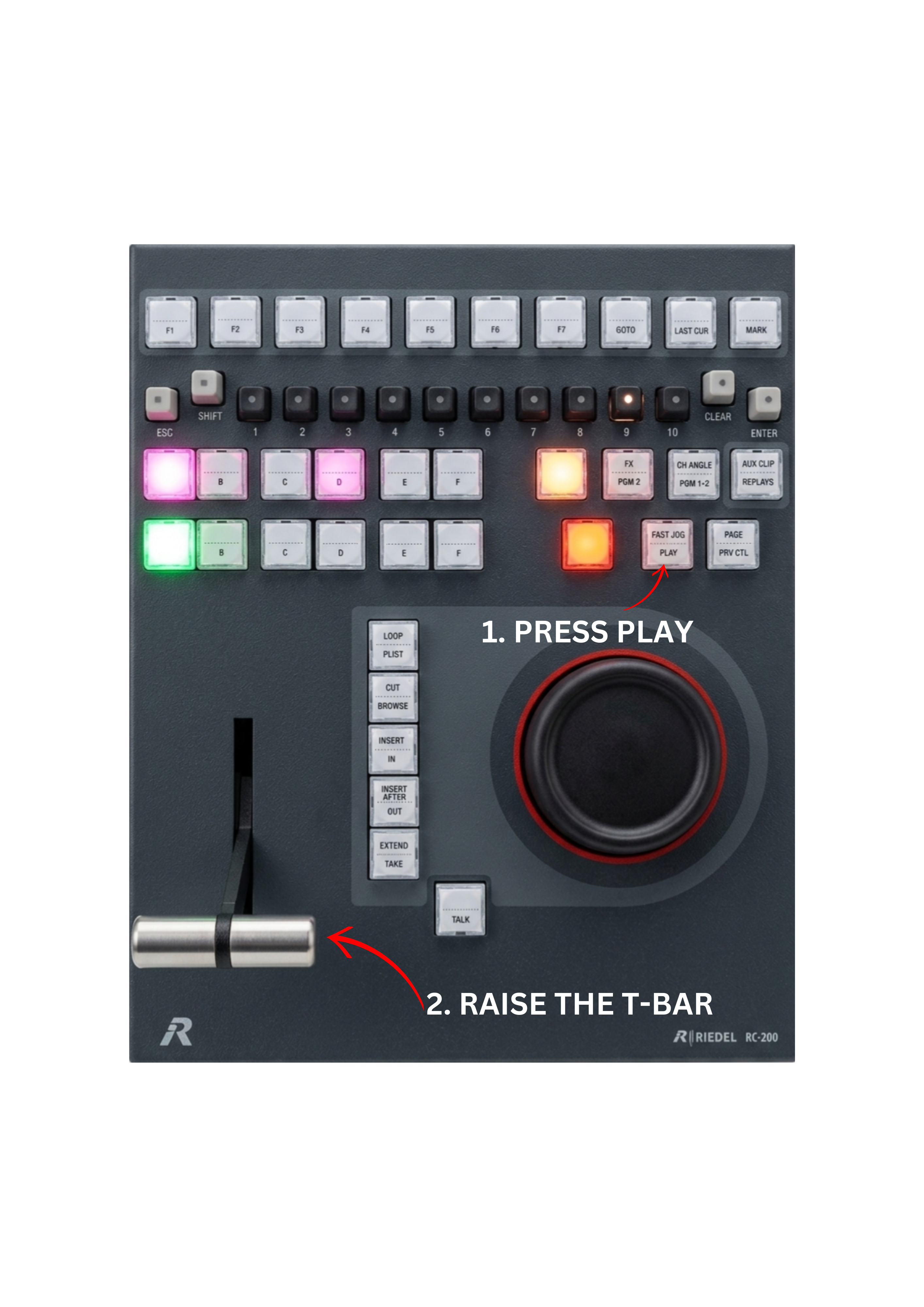
To Play the Playlist
Press the PLAY key to start playback automatically.
or
Raise the T-BAR to begin playback manually and control the playback speed.
Info
Clips can be added to different positions in the playlist depending on the command used.
Press ENTER to add the clip to the end of the playlist.
Press SHIFT + INSERT to add the clip before the currently active clip in the playlist.
Press INSERT AFTER to add the clip after the currently active clip in the playlist.
Pro Tip
If you frequently build highlight packages during a match, keep your main playlist active. This allows you to instantly load it by pressing the PLST key without navigating through playlist selection again.
Pro Tip
A single playlist can contain a maximum of 99 clips.
When building highlight packages during live production, keep this limit in mind and split longer highlight packages into multiple playlists if needed.
Info
Double-tap the PLST key to load the playlist from the beginning.