
While reviewing the record train, playing clips, or browsing playlists, you may need to return instantly to the current live moment of the event.
In SimplyLive, this can be done immediately using the LIVE or ALL LIVE keys on the controller.
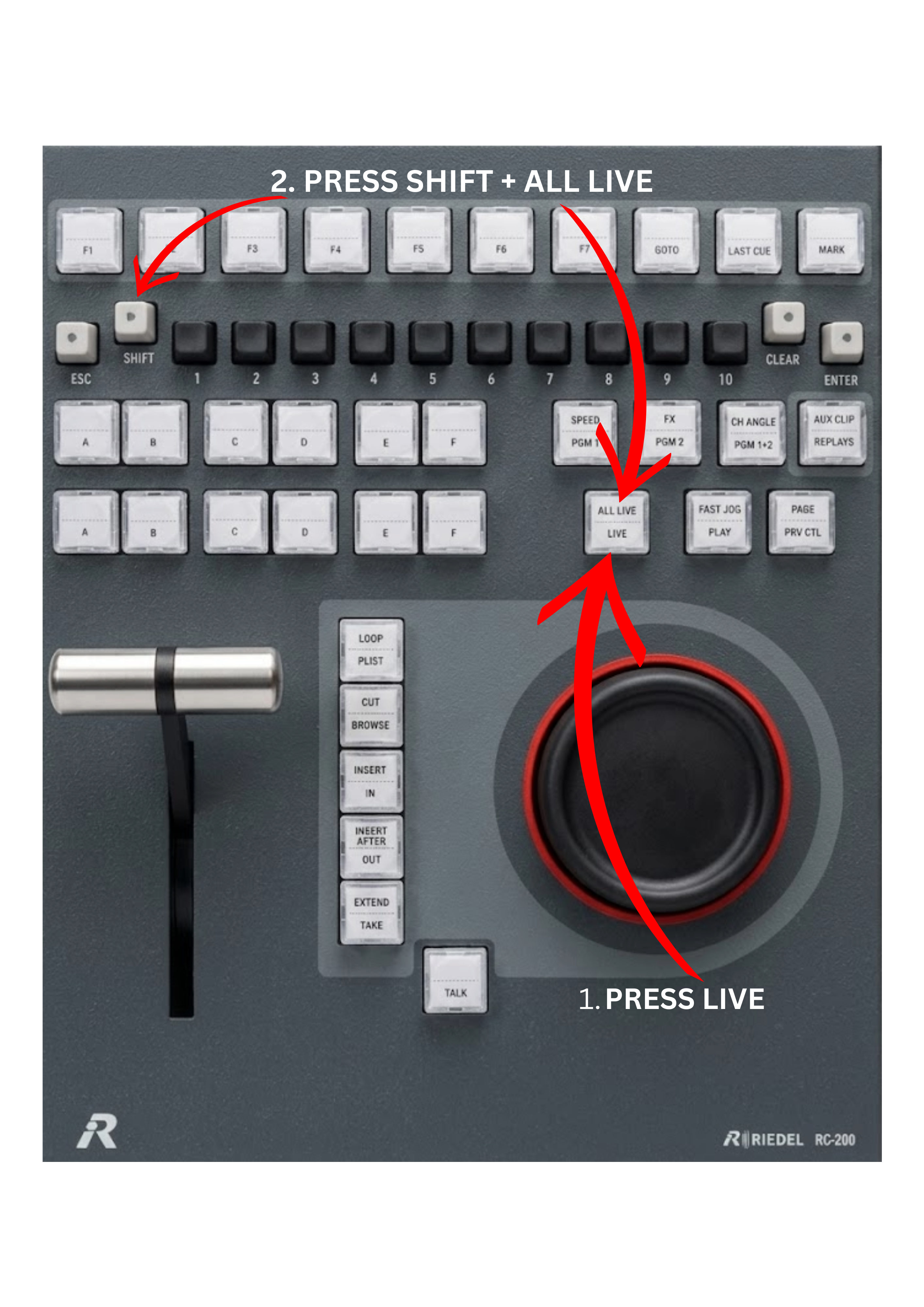
To return the Program outputs to the live position, press the LIVE key.
If you want to return both the inputs and outputs to the live moment, press SHIFT + ALL LIVE.
-
LIVE → sends the Program outputs to live
-
SHIFT + ALL LIVE → sends all inputs and outputs to live
This allows operators to instantly see what is happening in the live event after browsing through recorded material.
Pro Tip
You can return the outputs to live while still browsing through earlier moments on the inputs. This allows operators to keep the broadcast on the current live action while continuing to search the record train for new replay material.
If you want the inputs to return to the same position as the outputs, use the REPLAYS key to synchronise them.
Pro Tip
Normally, pressing LIVE or ALL LIVE clears the IN and OUT points.
If you want to return to live without losing the IN/OUT points, press:
GOTO + LIVE
or
GOTO + SHIFT + ALL LIVE
This returns the channel to live video while keeping the existing IN and OUT points, which is especially useful during rehearsals or when preparing clips for replay.