
Clips inside a playlist can be adjusted without removing them from the playlist. Operators can easily shorten or extend clips directly while browsing the playlist.
This allows fast editorial adjustments during live production without interrupting the workflow.
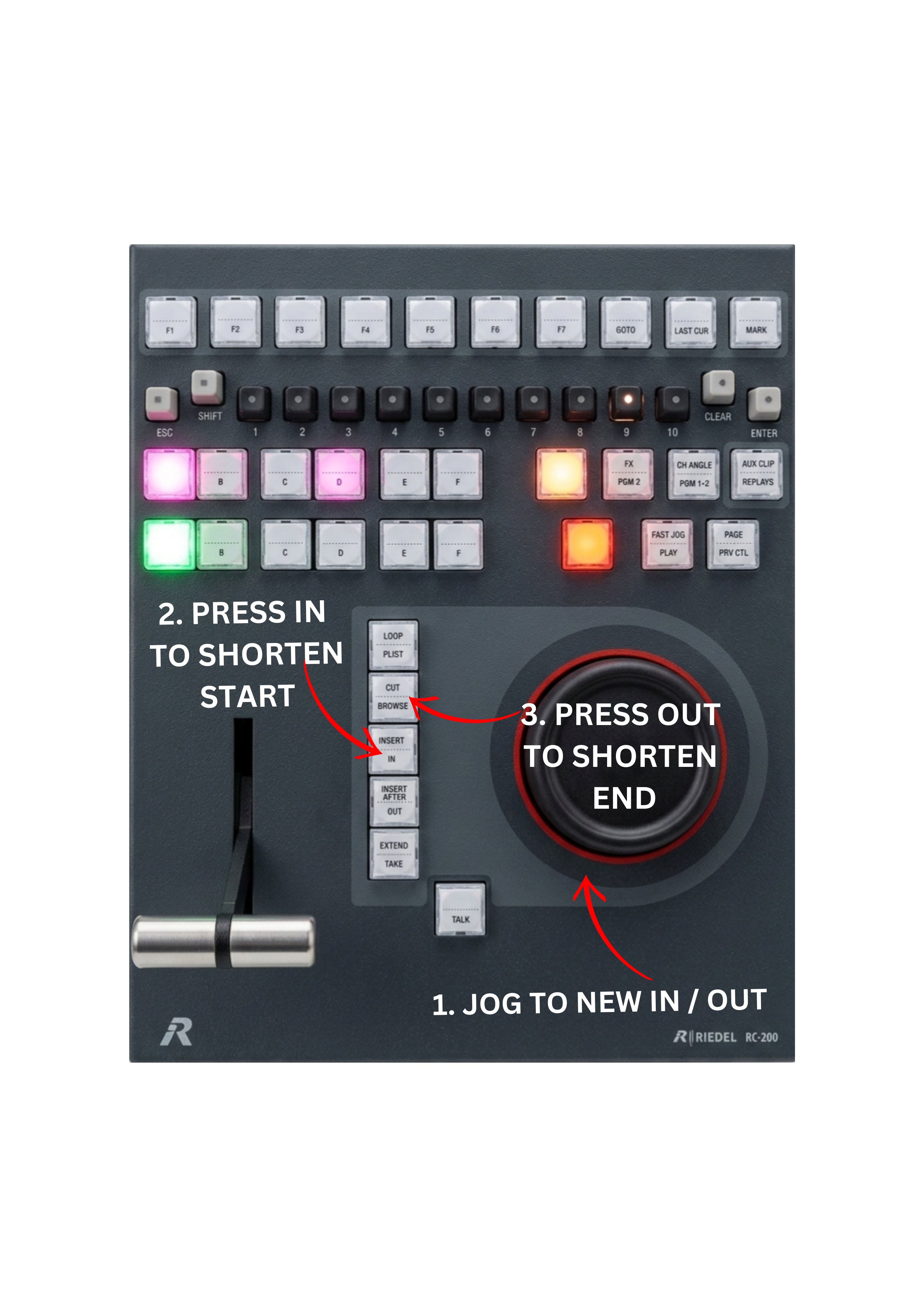
Shortening a Clip in a Playlist
-
Browse to the desired clip in the playlist.
-
Use the JOG wheel to locate the new IN or OUT position.
-
Press the IN key to shorten the beginning of the clip.
-
Press the OUT key to shorten the end of the clip.
The playlist item will be updated immediately.
Extending a Clip Using Guardbands
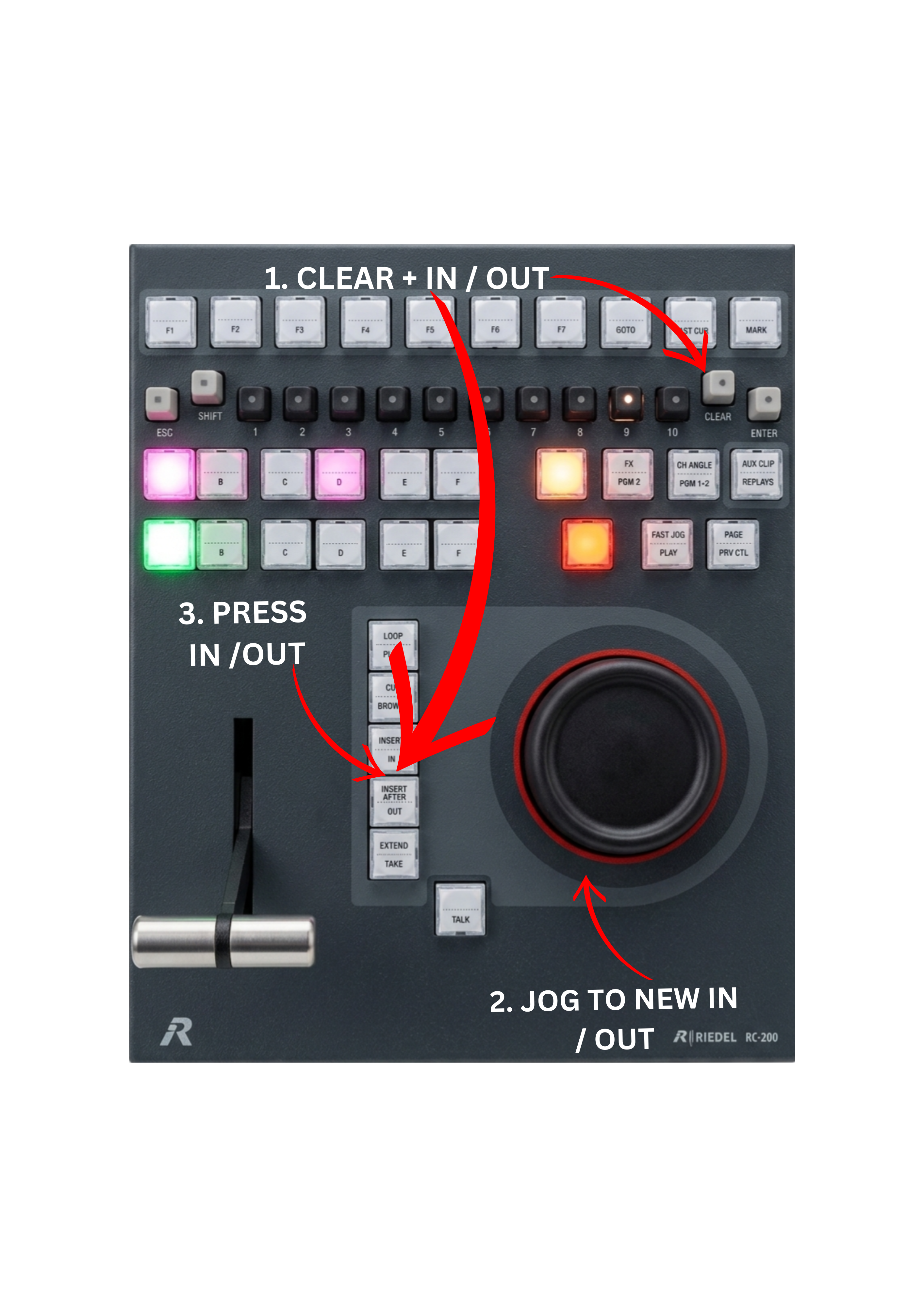
If additional material exists inside the guardbands, the clip can be extended.
-
Press CLEAR + IN to remove the IN point.
-
Use the JOG wheel to locate the new IN position.
-
Press the IN key to mark the new start point.
-
Press CLEAR + OUT to remove the OUT point.
-
Use the JOG wheel to locate the new OUT position.
-
Press the OUT key to mark the new end point.
The extension is limited by the available guardbands around the clip.
Extending a Clip Using EXTEND
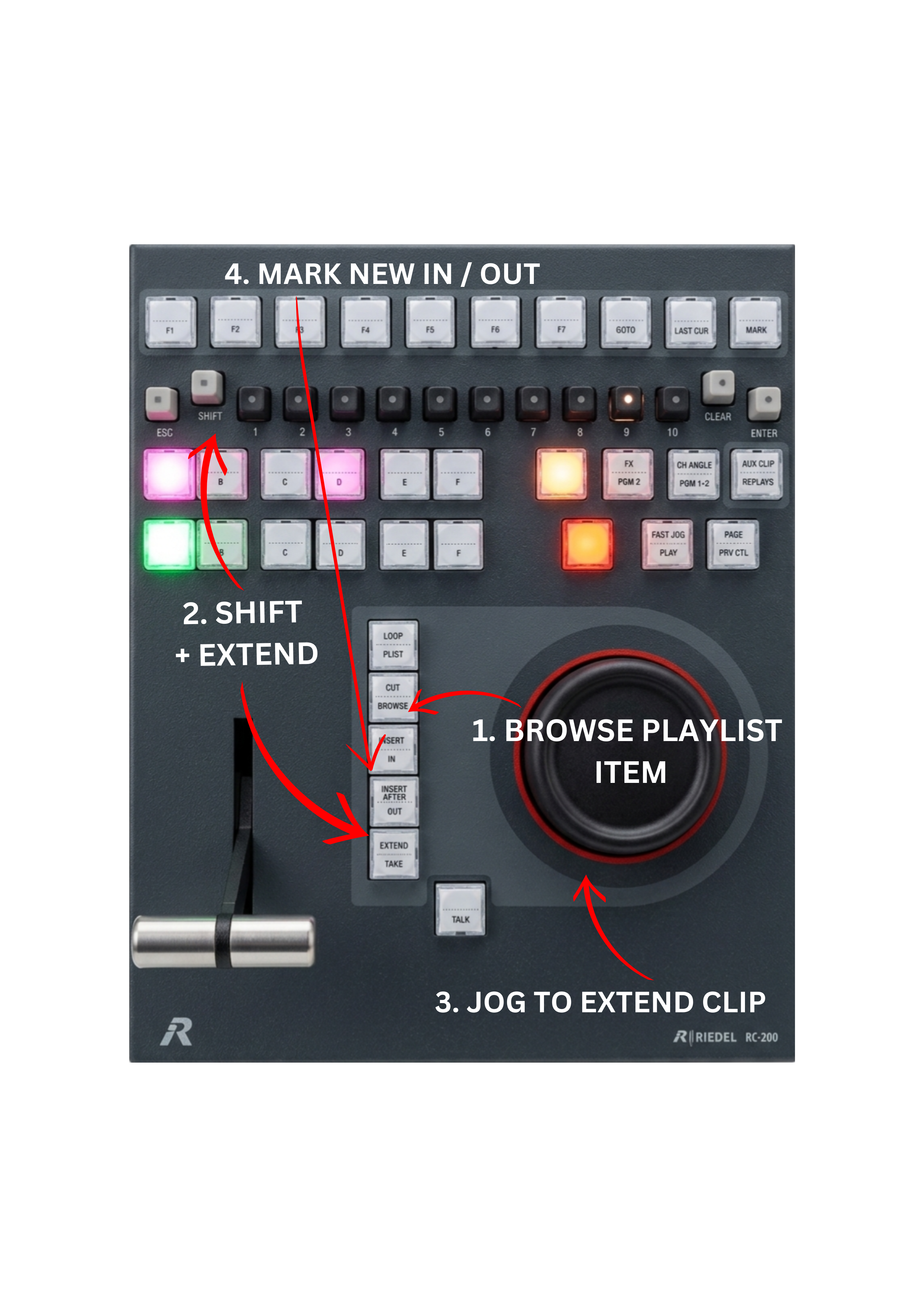
SimplyLive provides a dedicated EXTEND function that allows clips in a playlist to be extended quickly.
-
Browse to the playlist item you want to extend.
-
Press SHIFT + EXTEND.
-
Use the JOG wheel to extend the clip beyond the original boundaries.
-
Mark the new IN or OUT.
The clip can be extended as long as material exists in the record train.
Info
The EXTEND function is a unique workflow feature of SimplyLive. It allows operators to extend playlist clips directly without removing them from the playlist or creating a new clip.
Pro Tip
Use the EXTEND function whenever you need to adjust a clip quickly.
On many replay systems, extending a playlist clip requires removing the clip, creating a new clip, and adding it back to the playlist. In SimplyLive, pressing SHIFT + EXTEND allows the clip to be extended instantly, saving valuable time during live production.