
Definition
A clip is a stored portion of recorded video defined by an IN point and an OUT point.
The IN point marks the beginning of the action, and the OUT point marks the end of the action.
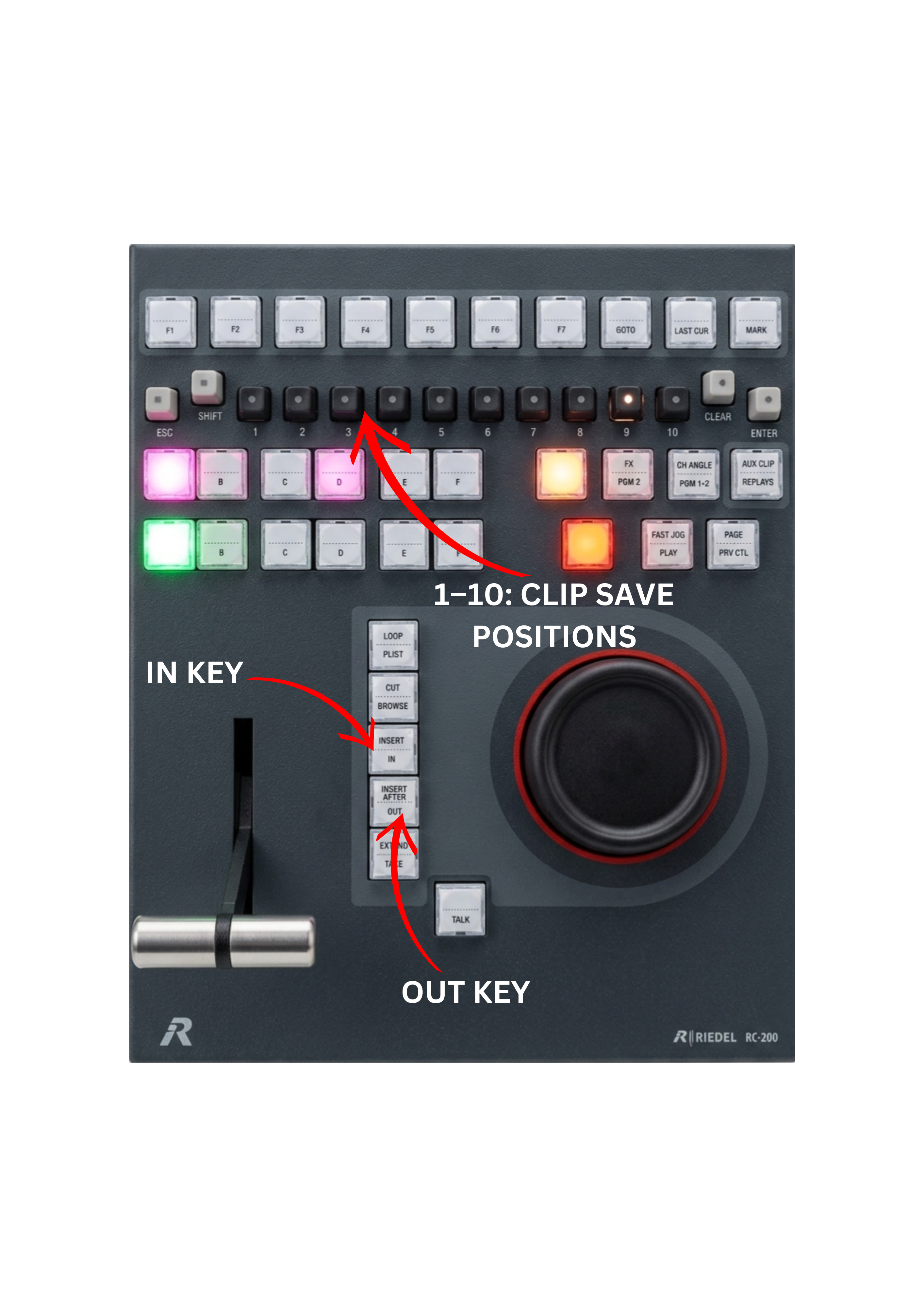
After defining the IN and OUT points, the operator stores the selected segment in one of the 1–10 clip locations, creating a clip that can be quickly recalled during production.
Clips allow replay operators to isolate important moments such as goals, fouls, key actions, or highlights, making them instantly available for replay or playlist creation.
To create a clip using the remote, follow these steps:
-
Use the JOG WHEEL to navigate to the desired IN point of the clip.
-
Press the IN key to mark the beginning of the clip.
-
Use the JOG WHEEL again to navigate to the desired OUT point.
-
Press the OUT key to mark the end of the clip.
-
Press one of the 1–10 keys to save the clip to the selected position (for example 1 or 2).
Warning
Pressing the [LIVE] or [ALL LIVE] key on the control panel to bring a channel back to live mode will automatically remove any existing IN or OUT point on that channel. To go back live without losing existing IN or OUT points, use the [GOTO]+[LIVE] or [GOTO]+[ALL LIVE] feature on the control panel or on the touchscreen.
This process is simple, fast, and efficient during live production. The operator can save clips to any available PAGE or BANK, depending on how the replay content is organized. With up to 100 pages available in SimplyLive, there is plenty of space to store and manage clips throughout the entire production.
Clip Status Indicators
Inside a clip bank, the 1-10 keys indicate the status of the corresponding clip:
-
If the key is off, it means the position is empty (no clip).
-
If the key is white, it means there is a clip associated with that position.
-
If the key is red or pink, the clip associated with that position is loaded on PGM1.
-
If the key is green, the clip associated with that position is loaded on PGM2/PRV.
Pro Tip
Pages and banks can be used to organize clips according to different parts of the production. For example, an operator may use PAGE 1 for the first half of a game and PAGE 2 for the second half, keeping the replay material clearly separated and easier to navigate during the broadcast.
Pro Tip
Markers vs. Clips
Simply setting an IN and OUT point does not create a clip—it only creates temporary virtual markers on your timeline.
To actually create a clip, you must save it to one of the 1–10 clip locations.
Segments vs Clips
A segment is a temporary portion of recorded material defined by an IN and OUT point on the timeline.
Segments are used as working markers while navigating through the recorded video.
If both IN and OUT points are defined, the segment represents a selected portion of video that can later be saved as a clip.
If only a single IN or OUT point is used, it can also function as a marker.
Operators often use these markers to identify important moments such as offsides, fouls, or other key events during the game.
Segments themselves are not stored clips.
A segment becomes a clip only after it is saved to one of the 1–10 clip locations.