
When working in SimplyLive, you can create clips directly from the inputs (record train) using the REPLAYS key, without the need to browse through individual camera angles.
This allows operators to quickly mark actions and create clips in a very fast and efficient way.
Creating a Clip from Inputs
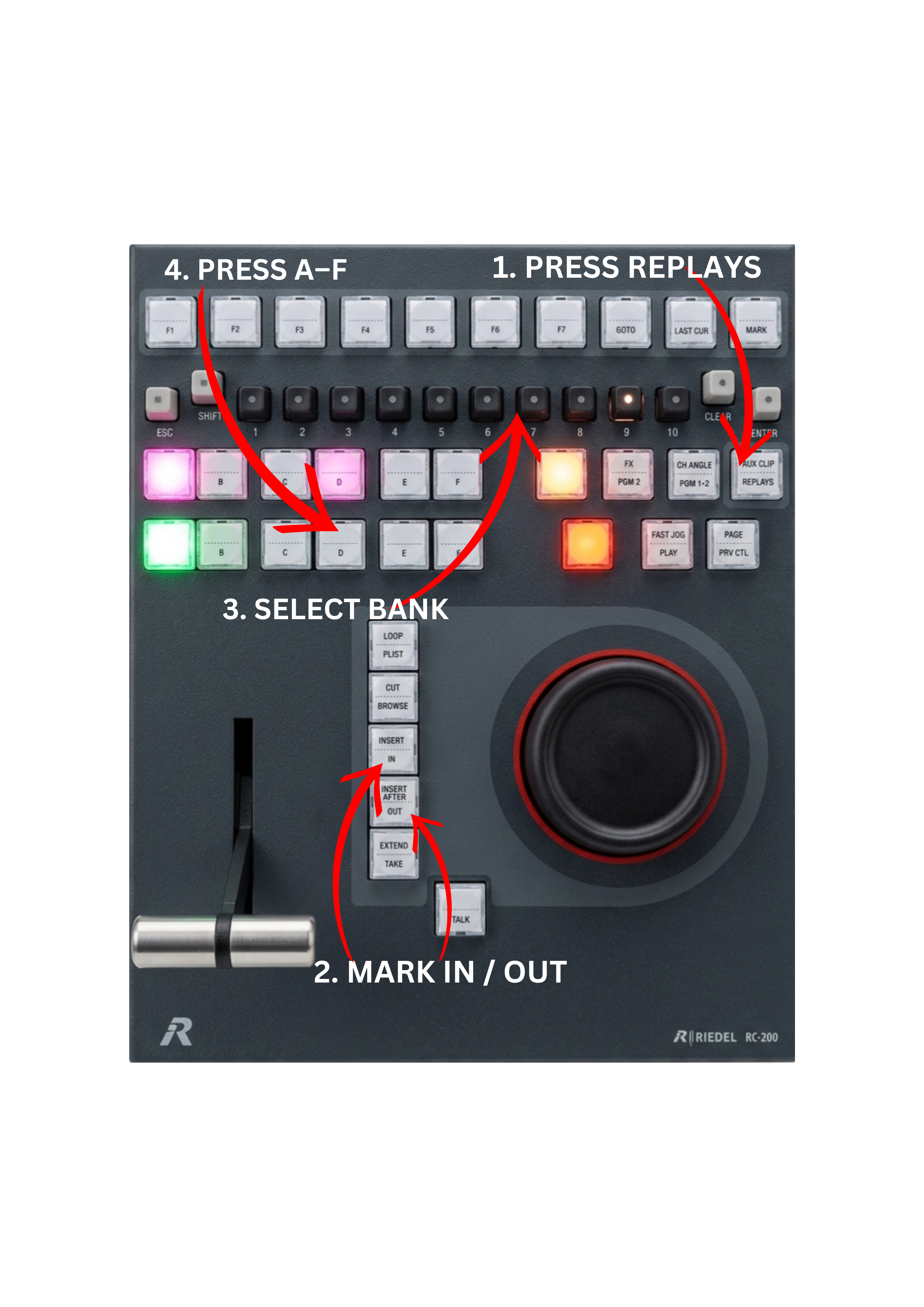
To create a clip directly from the inputs:
-
Press the REPLAYS key
-
Mark the IN point
-
Mark the OUT point
-
Select an unused BANK position
-
Press the desired A–F key to choose the primary camera angle
-
The clip will be created and stored in the selected bank.
Adding a Clip Directly to a Playlist
You can also create and insert a clip directly into a playlist without saving it manually first.
To do this:
-
Press the REPLAYS key
-
Mark the IN point
-
Mark the OUT point
-
Press the desired A–F key to choose the camera angle
-
Press SHIFT + INSERT or SHIFT + INSERT AFTER
The clip will be added directly to the playlist.
Info
When adding a clip directly to a playlist using the REPLAYS key, the system automatically creates and stores the clip in the background.
This means the clip is still available later, even if it was not explicitly saved to a bank.
Pro Tip
Using the REPLAYS key to create clips or add them directly to a playlist is one of the fastest workflows in SimplyLive.
It allows operators to work directly on the action across all camera angles, significantly speeding up replay creation during live production.