
In SimplyLive Production Suite Flex, AUX clips can be used to add background music to a playlist. This is commonly used for closing montages, highlight packages, or LED screen graphics, where a music track needs to accompany the video sequence.
For example, you can create a closing montage from several replay clips and place a music track on top of the playlist so the final output plays like a complete highlight video with audio.
SimplyLive allows multiple playlists to run with different AUX audio tracks. For instance, you can prepare four playlists, each with its own music track, depending on the type of content you want to play out.
In practice, music is usually imported as a standard media clip. An MP3 or WAV file can be converted into a clip with a black video background, which then behaves like a regular clip inside the system. This clip can then be assigned as an AUX clip to a playlist.
Adding an AUX Clip to a Playlist
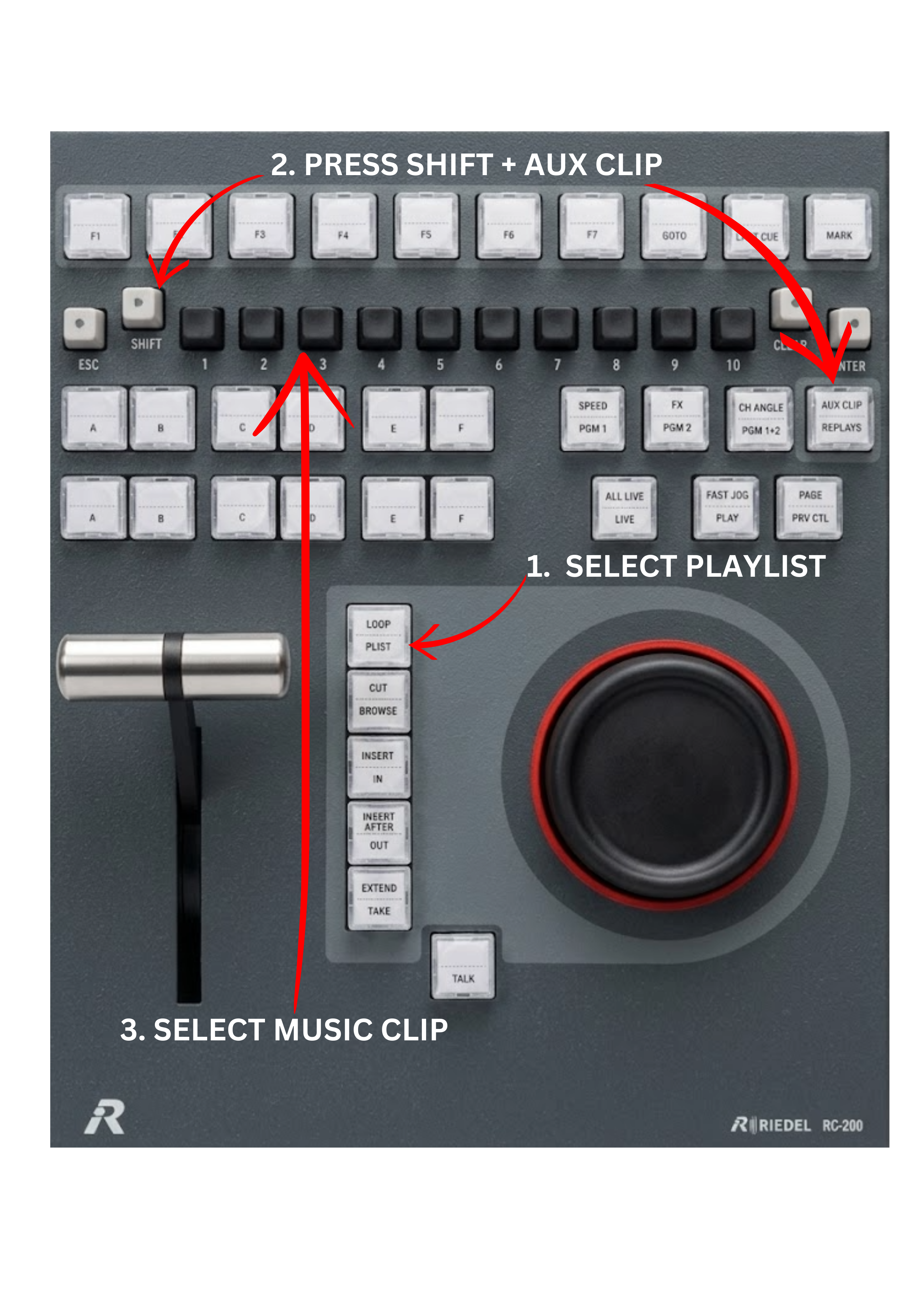
To add an AUX music clip to a playlist:
-
Select the playlist you want to use.
-
Press SHIFT + AUX CLIP on the controller.
-
Choose the clip that contains the music track.
The selected clip will now be attached to the playlist as an AUX audio source, allowing the music to play together with the video clips in the playlist.
If you want to assign different music to another playlist:
-
Load the second playlist.
-
Press SHIFT + AUX CLIP again.
-
Select the desired music clip for that playlist.
Each playlist can therefore have its own independent AUX music track, making it easy to prepare multiple highlight packages with different soundtracks.
Pro Tip
Always make sure the duration of the AUX music clip matches the duration of the playlist.
For example, if your closing montage playlist runs for one minute, the AUX music clip should also be approximately one minute long.
If the music clip is too short, the audio will end before the montage finishes. If it is too long, the music may continue after the video sequence has ended.