
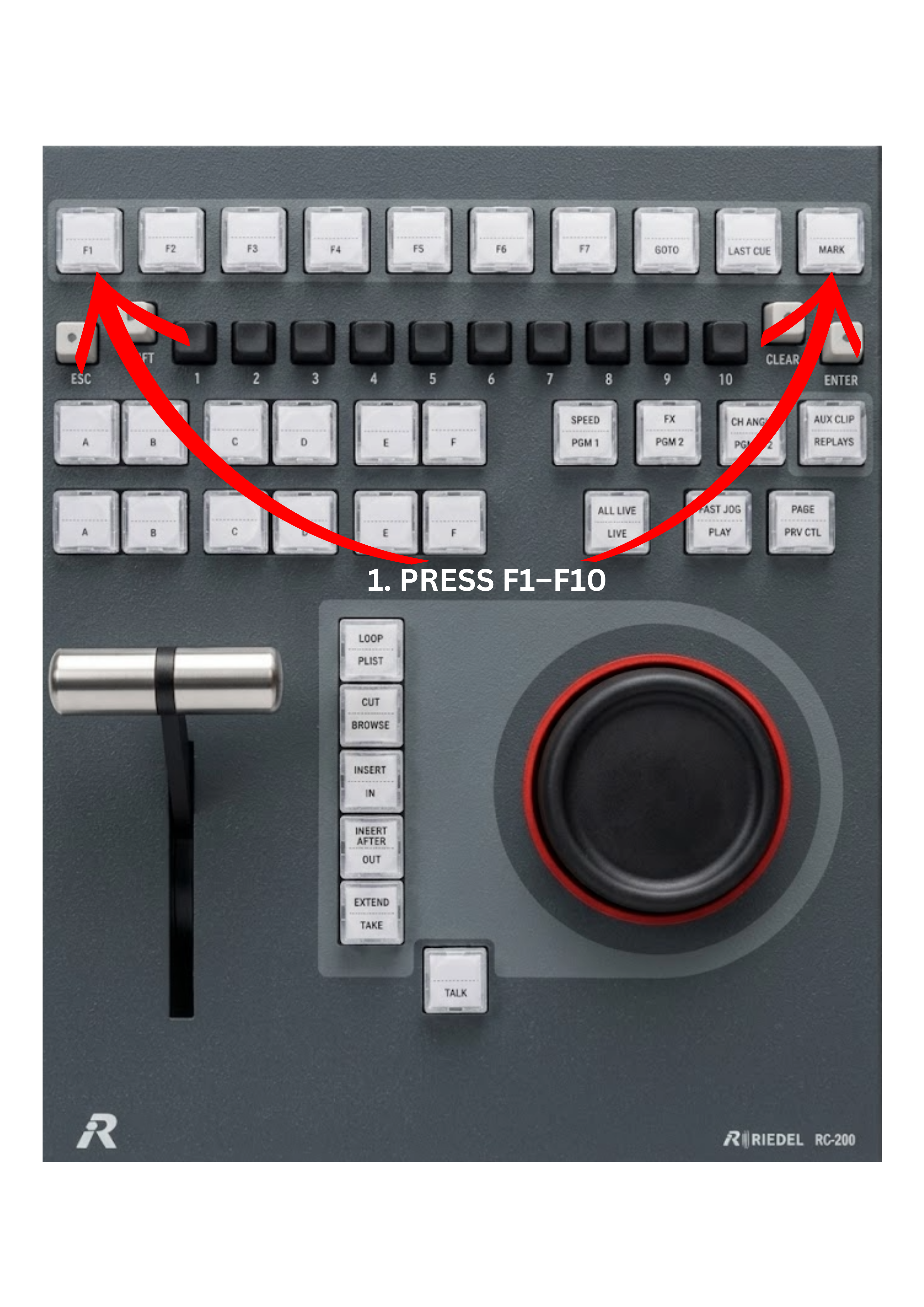
The top row of the controller includes the F1–F10 keys.
These keys act as customisable shortcuts that allow operators to quickly trigger clips, playlists, or other assigned actions. Their behaviour depends on how they are configured in the system.
You can configure these keys in Setup → Prefs → 1st RCU / 2nd RCU tabs within the system settings.
Because these keys are fully configurable, they can significantly simplify and accelerate your workflow. Operators can assign many different commands to them, making replay operation faster and more efficient.
Examples of functions that can be assigned to F keys include:
-
creating a time-lapse playback
-
sending a clip to a specific BIN
-
jumping to the next item in a playlist
-
triggering other frequently used replay actions
By configuring these shortcuts according to your workflow, you can greatly improve the speed and efficiency of your replay production.
Info
The Function Keys (F1–F10) also support a second layer of functions.
By pressing SHIFT + F1–F10, operators can trigger an additional set of commands configured in Setup → Prefs → 1st RCU / 2nd RCU.
This allows the same row of keys to access additional actions assigned in the system.
Cue Management Keys
The last three keys on the top row are dedicated to cue management.
GOTO – jumps to a specific moment in the record train.
Press the GOTO key, then enter the desired time using the numeric BANK keys (1–10).
The GOTO key can be used not only to jump to a specific timecode, but also to quickly navigate to the IN or OUT points of a clip.
To jump to a timecode:
-
Press the GOTO key.
-
The BANK keys (1–10) will blink
-
Red for PGM1
-
Green for PGM2 / PRV
-
Blue for Replay
-
-
Enter the timecode digits using the BANK keys.
-
Press ENTER.
Use CLR as a backspace if needed.
The entered timecode will be displayed on screen.
Going to the IN Point of a Clip
You can quickly jump to the IN point of the current clip.
To do this:
-
Press the GOTO key.
-
Press the IN key.
The system will immediately jump to the existing IN point of the clip.
Going to the OUT Point of a Clip
You can also quickly jump to the OUT point of the current clip.
To do this:
-
Press the GOTO key.
-
Press the OUT key.
The system will immediately jump to the existing OUT point of the clip.
MARK – places a cue point (mark) on the record train or within a clip. These marks allow operators to quickly identify and return to important moments.
LAST CUE – jumps directly to the most recently created mark, allowing fast navigation back to the last important moment.
Pro Tip
Marks are commonly used to highlight important moments during a live event.
For example:
-
marking a potential offside moment in football
-
marking the finish line in athletics
-
marking the final crossing in motorsport or speedway
These marks allow operators to quickly return to key moments for replay or analysis.
Pro Tip
Marks can be configured so that playback stops automatically when the system reaches the mark.
This behaviour is particularly useful when analysing critical moments in sport. For example, operators may place a mark exactly on the offside frame in football, the finish line in athletics, or the final frame of a close race in motorsport. When playback reaches that mark, the system stops precisely at the defined frame, allowing accurate analysis of the action.