
Sometimes, while editing a playlist, you may want to replace the camera angle of an existing clip with another one that shows the same action from a better perspective. For example, you might have a wide shot in the playlist but decide that a close-up of the same moment tells the story better.
Instead of deleting the clip and inserting a new one, you can simply replace the camera angle while keeping the same IN and OUT points.
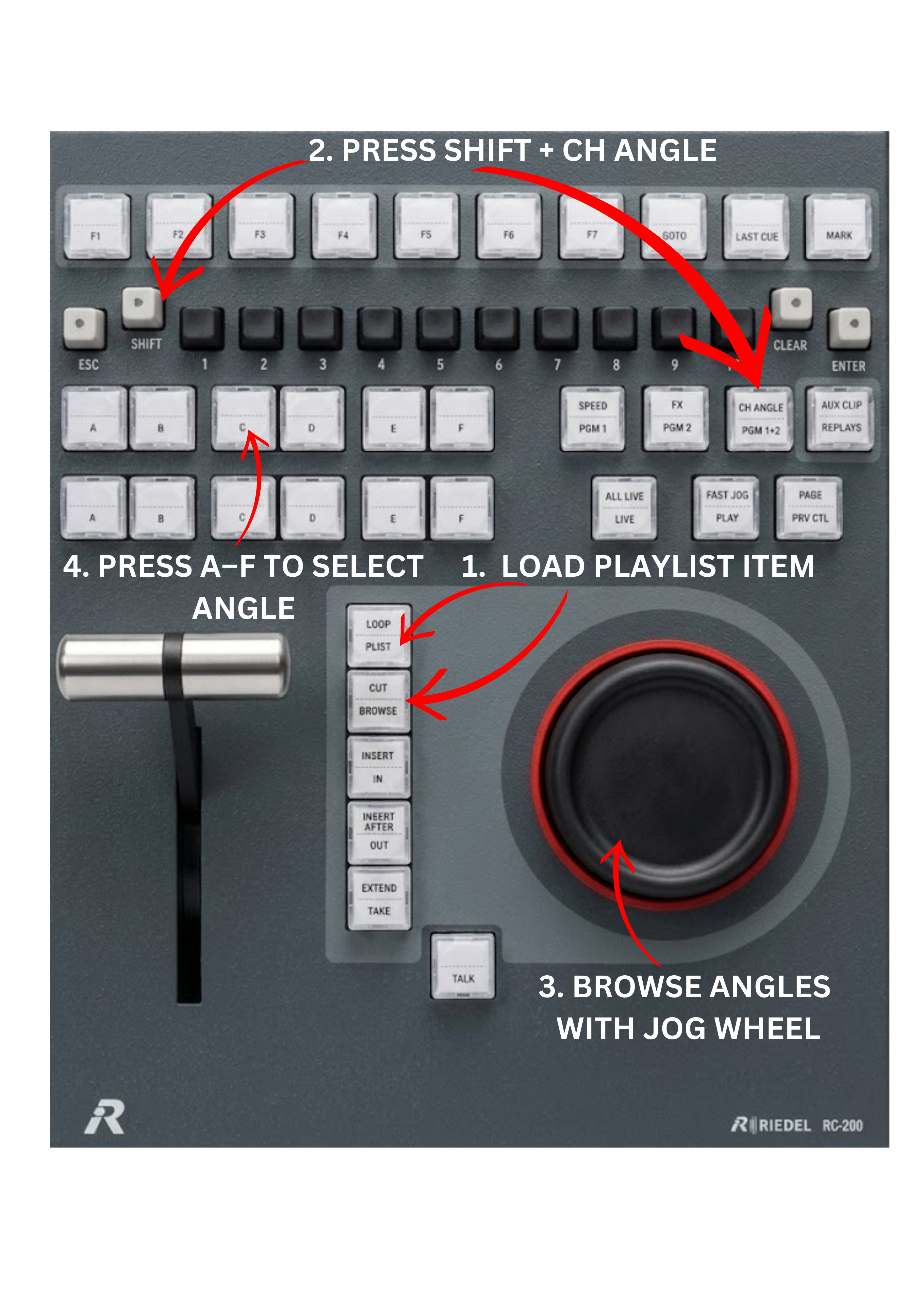
The CH ANGLE key allows operators to replace the camera angle in a playlist item.
To change the camera angle
-
Load the desired playlist item.
-
Press SHIFT + CH ANGLE on the control panel.
The CH ANGLE key starts blinking green, and the replay channels load all available camera angles at the current timecode.
-
Use the JOG wheel to browse the action across all cameras.
-
The upper row [A]–[F] keys will blink blue.
-
Press the desired [A]–[F] key to select the new camera angle.
The selected camera angle replaces the current one, while keeping the same IN and OUT points.
To exit without making changes, press ESC.
Info
Change Angle is only available for playlist items based on clips that still exist in the record trains.
Pro Tip
Use CH ANGLE to quickly swap camera angles during playlist editing for better storytelling. You can browse through the available angles with the JOG wheel to compare them before selecting the best one.