
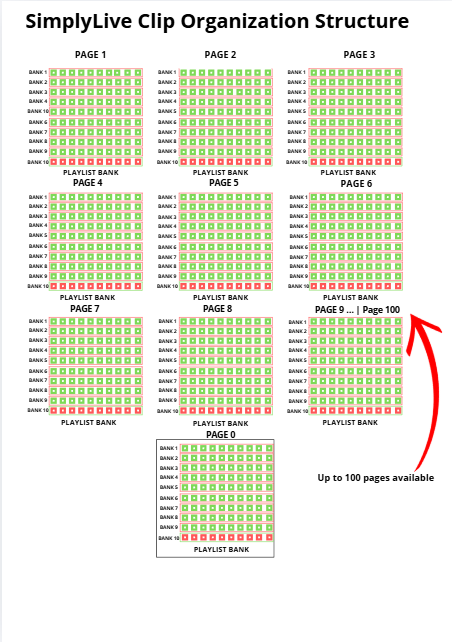
SimplyLive Server
├── PAGE (1–100)
│ ├── BANK (1–10)
│ │ ├── CLIP SLOTS
│ │ └── PLAYLIST BANK (last row)
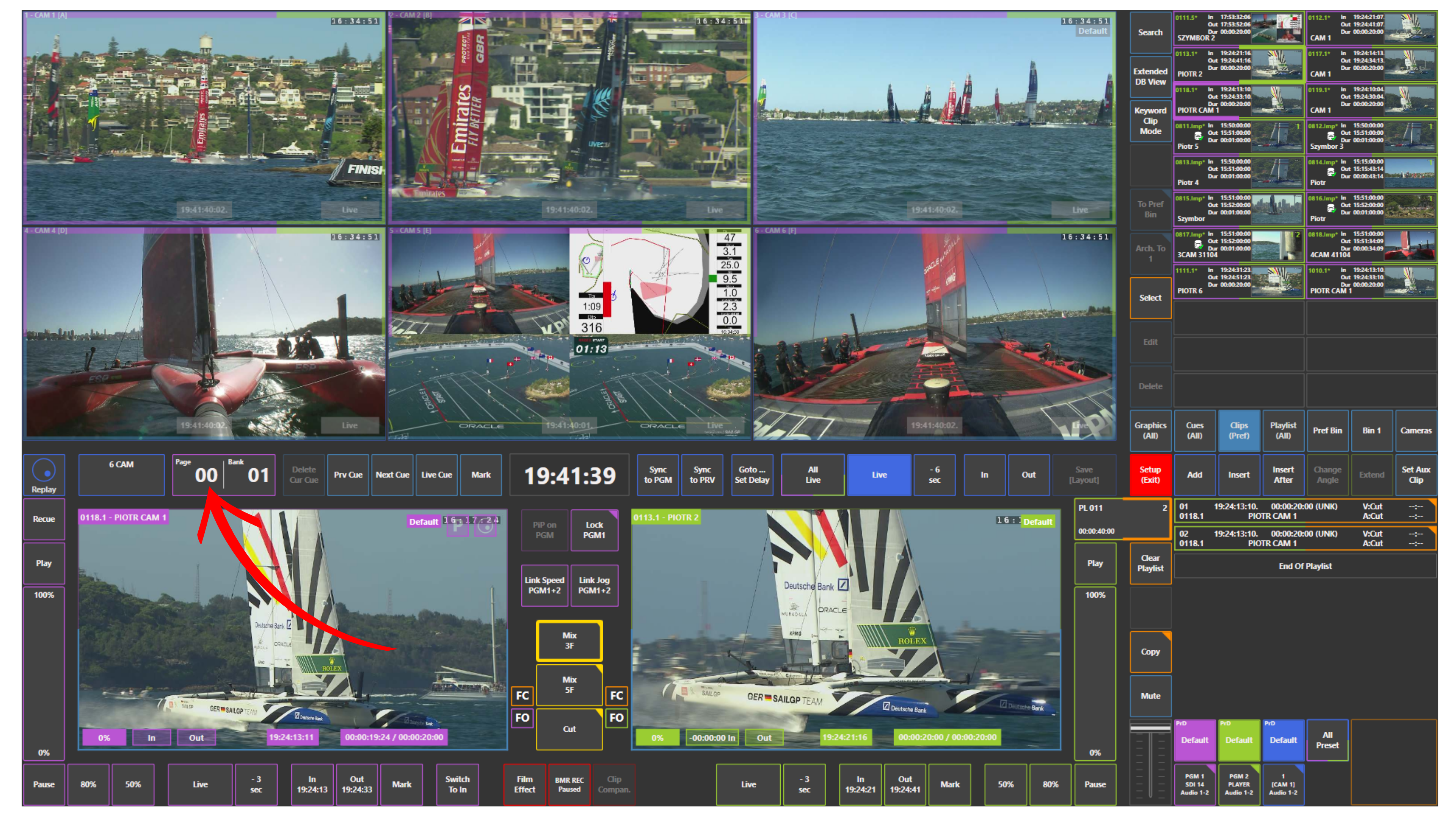
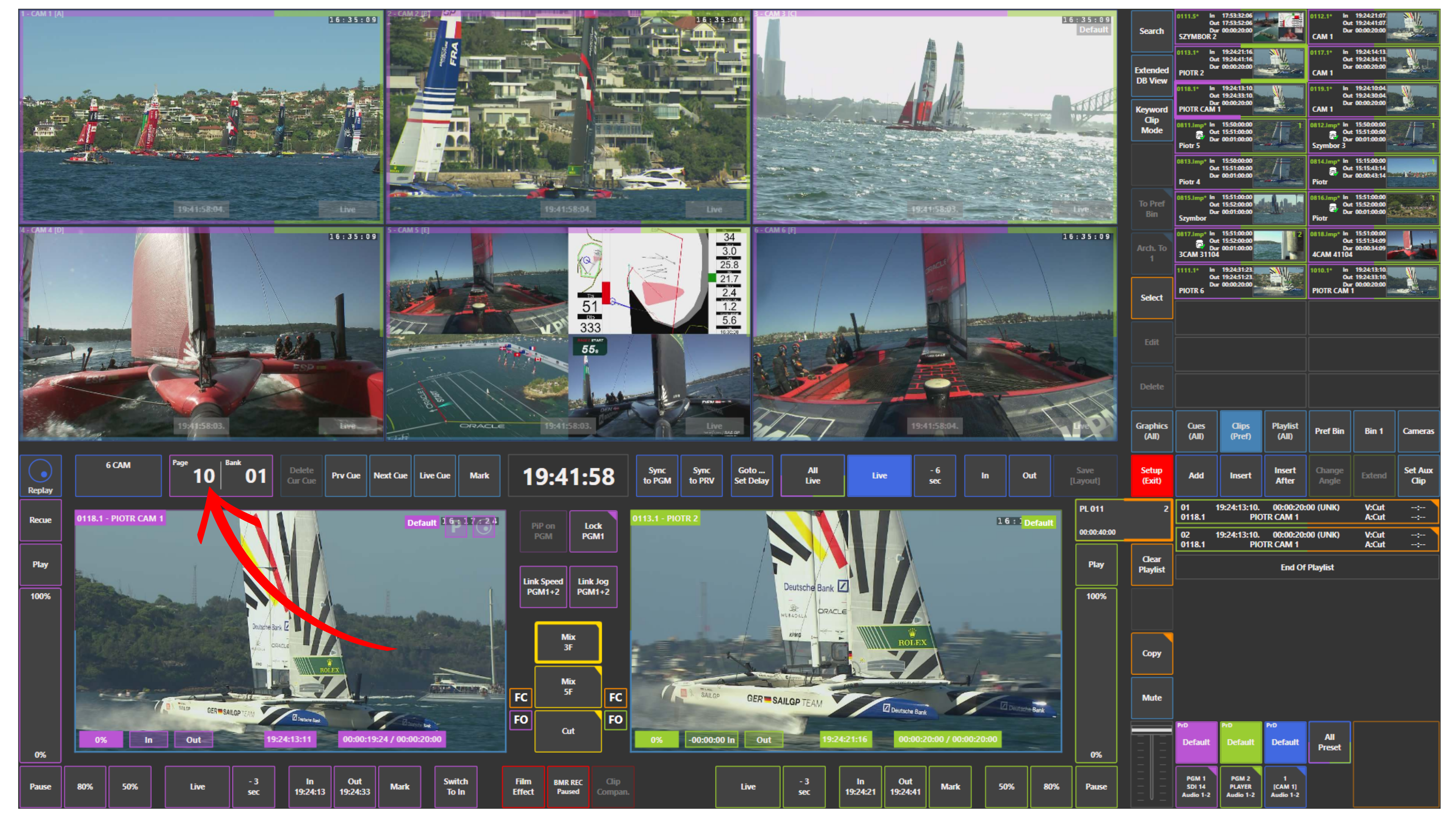
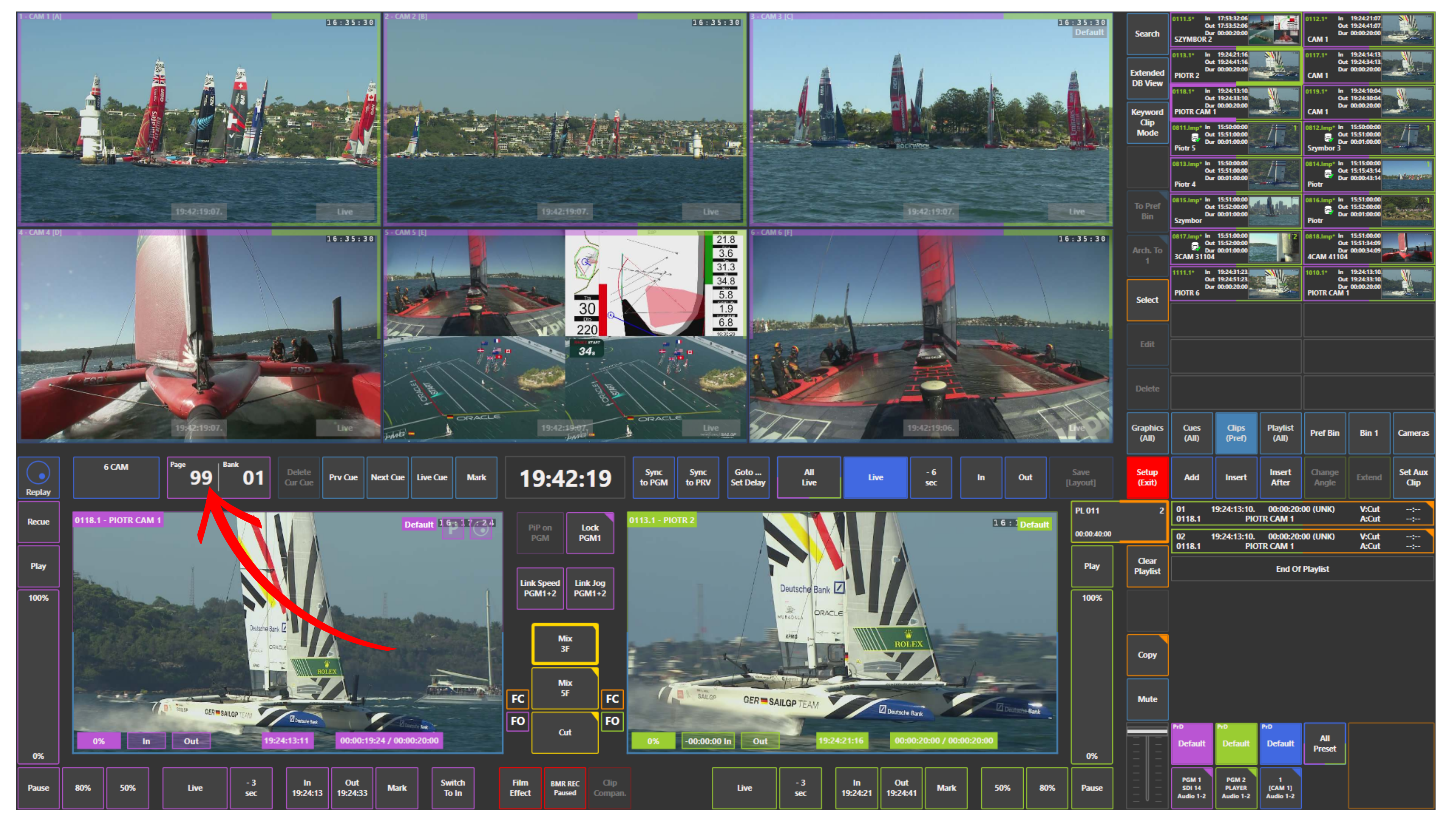
To efficiently manage clips and replay content during live production, the SimplyLive Slomo workspace uses a structured organization system based on Pages and clip locations.
This structure allows operators to quickly store, locate, and recall clips while working under the time pressure of live broadcasting.
Pages
SimplyLive provides up to 100 pages that can be used to organize clips and replay material.
Each page acts as a workspace where
clips can be stored and accessed during production. Operators can move between pages depending on the type of content they want to manage, for example:
-
Goals
-
Fouls
-
Player reactions
-
Key moments
-
Highlight preparation
This structure allows replay operators to keep their clips organized and avoid confusion during complex productions.
Selecting a Page
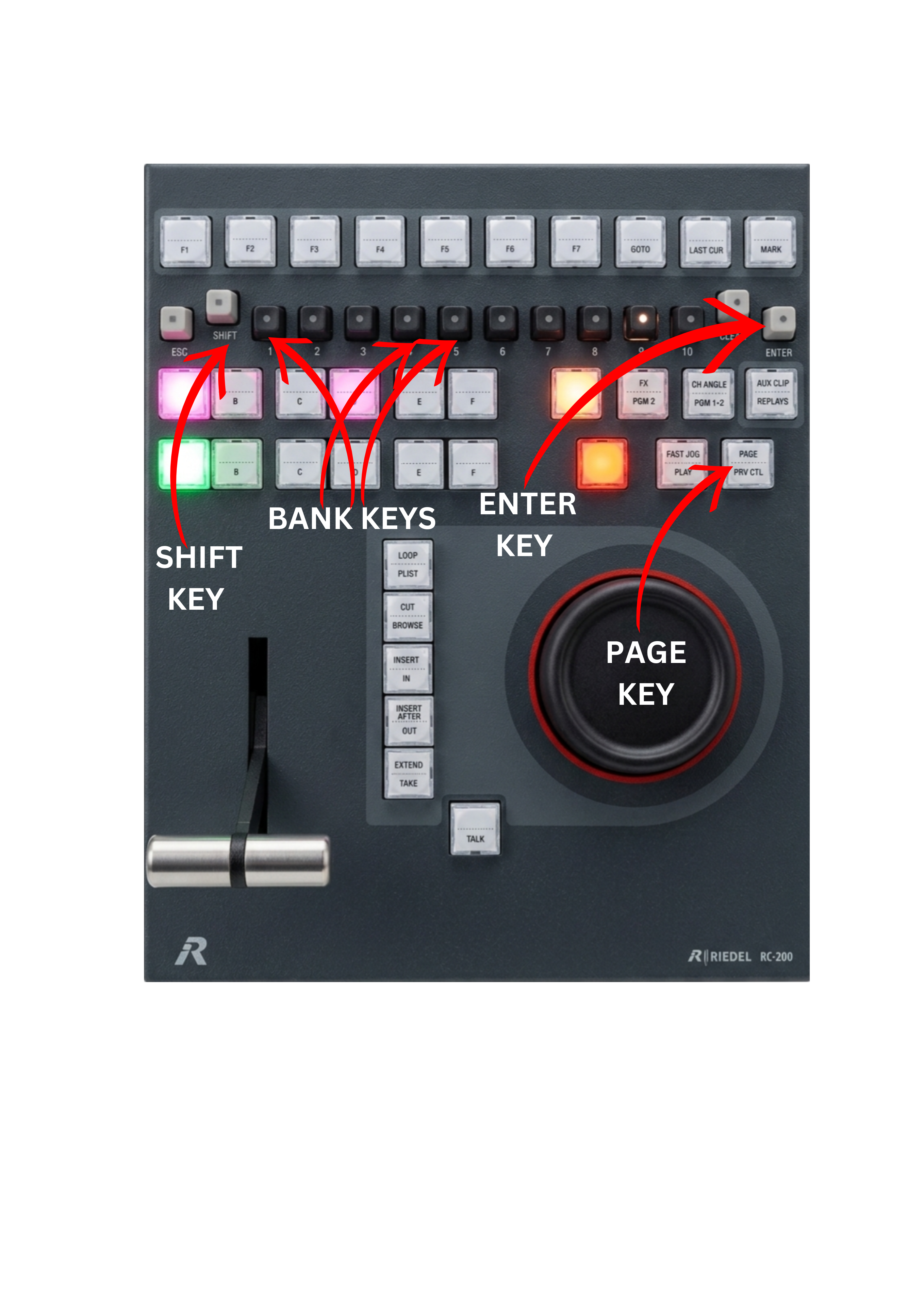
To select a page on the controller:
-
Press the SHIFT key
-
Press the PAGE key
-
Select the desired page using 1-10
-
Confirm by pressing ENTER
Each F key corresponds to a page number.
For example:
-
1 → Page 1
-
2 → Page 2
-
3 → Page 3
This allows operators to quickly switch between different clip workspaces.
Clip Locations
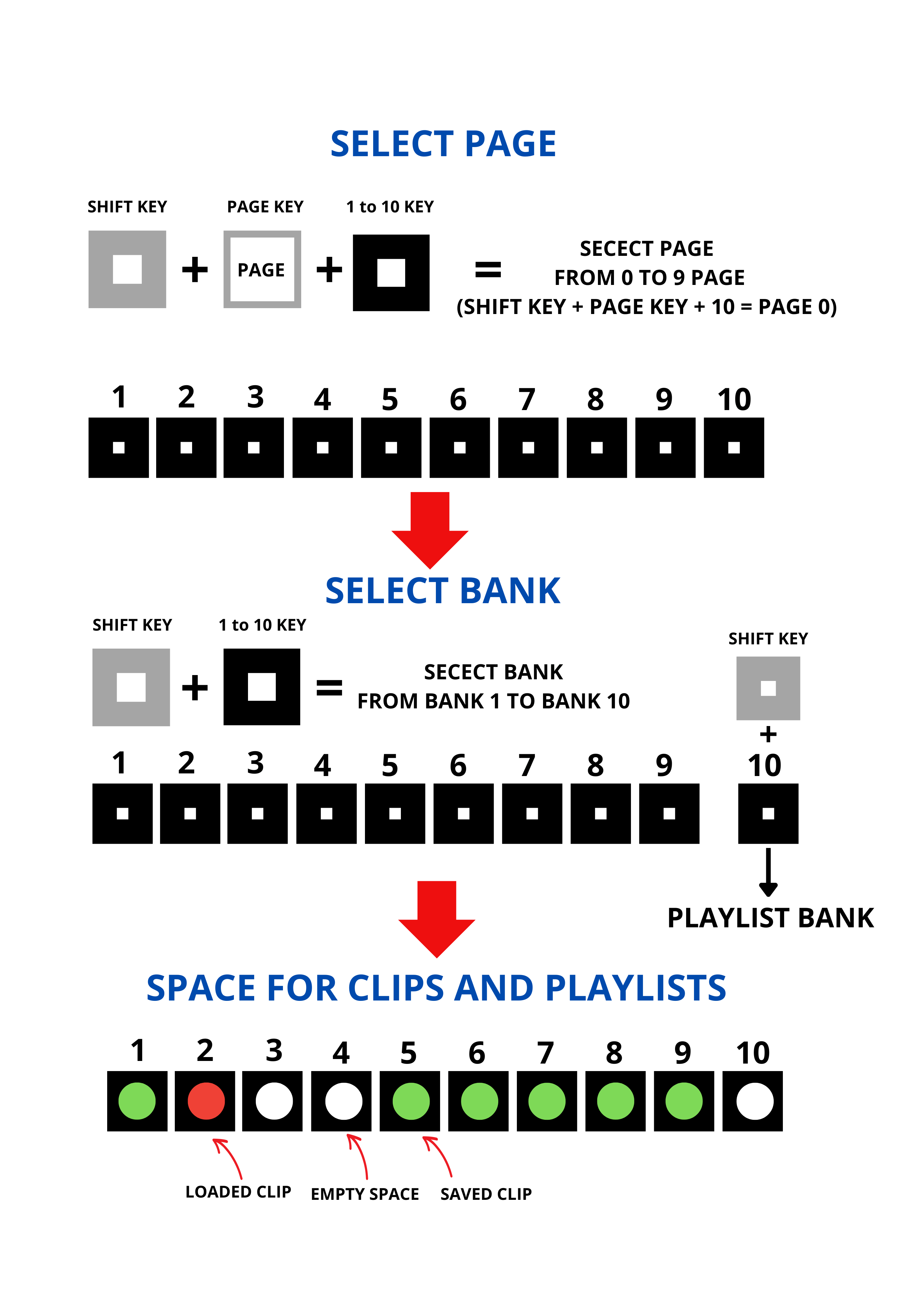
Inside each page there are 10 clip positions, represented by the 1 to 10 keys.
Each of these positions can store a clip created during the live production.
The controller interface allows operators to immediately see which positions are already used and which positions are still available for storing new clips. This makes it easier to organize material during the broadcast and quickly identify where important moments have been saved.
Because clips are stored directly in these positions, operators can instantly recall them by pressing the corresponding 1-10 key, making clip access extremely fast during live replay operations.
Why This Structure Matters
During live production, replay operators must manage many clips within a very short period of time.
The page and clip location structure allows operators to:
-
Keep replay content organized
-
Access clips instantly
-
Avoid overwriting important moments
-
Quickly build highlight sequences
A well-organized page structure significantly improves reaction time and helps maintain a smooth replay workflow during live broadcasts.
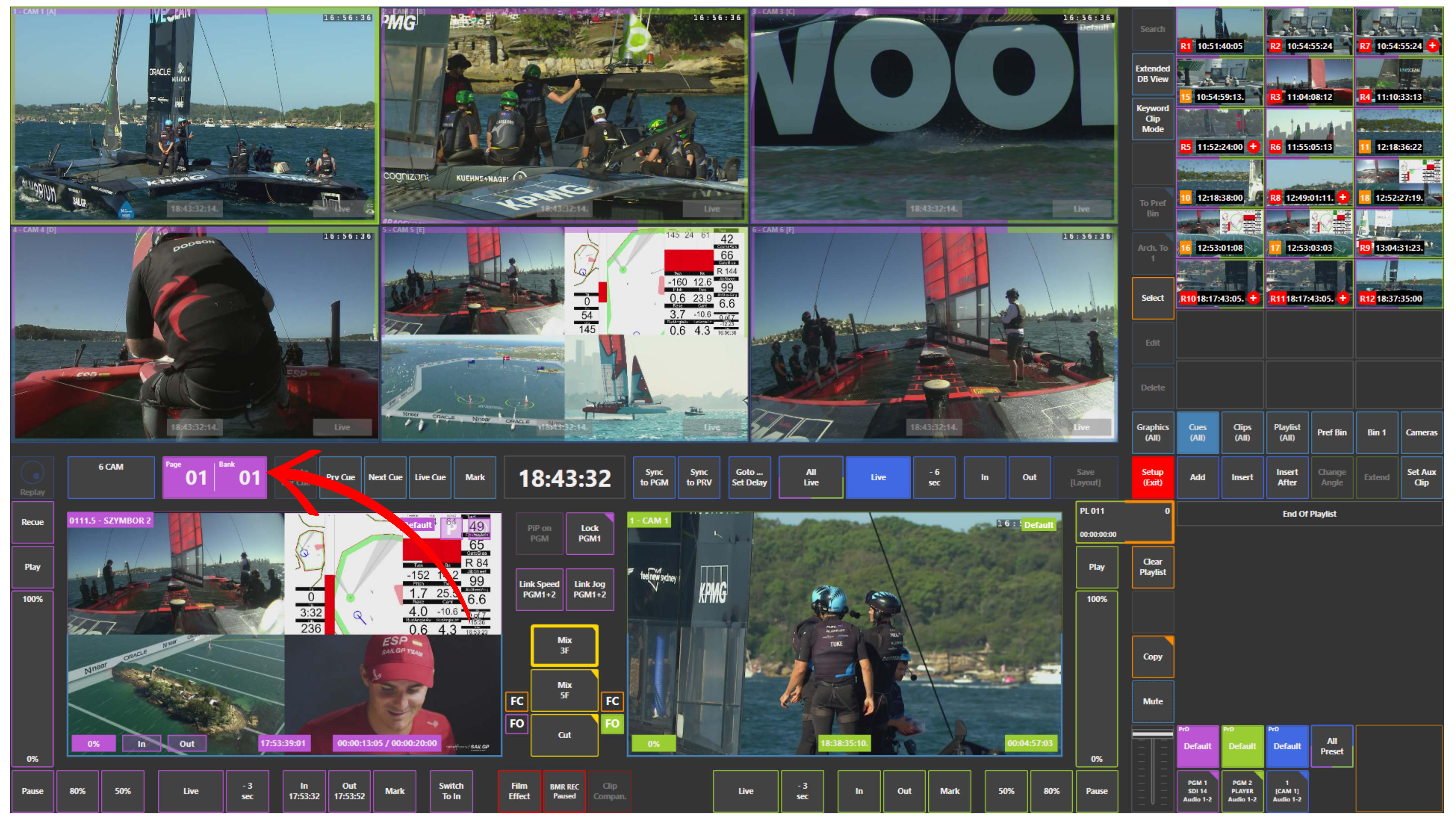
You can also use the arrow keys on the keyboard to navigate between pages and banks.
Up / Down = Pages
Left / Right = Banks
To enable this, make sure the Page / Bank selector is active.
If it is not selected, the arrow keys will not control page or bank navigation.
Pro Tip
SimplyLive provides up to 100 pages for organizing clips and replay content.
Pages are accessed in groups of ten using the SHIFT + PAGE command, followed by the 1–10 keys.