
Playlists allow operators to group important clips together and quickly build highlight sequences during live production.
Info
When a playlist is active, every clip that you select and confirm with ENTER key will be added to that playlist.
This allows operators to quickly build highlight sequences while the event is still in progress.
To create a playlist:
-
Press SHIFT + 10 to open the playlist selection.
-
Choose the desired playlist slot using one of the 1-10 keys (for example 1 or 2).
-
Return to your working PAGE and BANK (for example PAGE 1, BANK 1), where your clips are stored.
-
Select the desired clip.
-
Press ENTER key to add the clip to the active playlist.
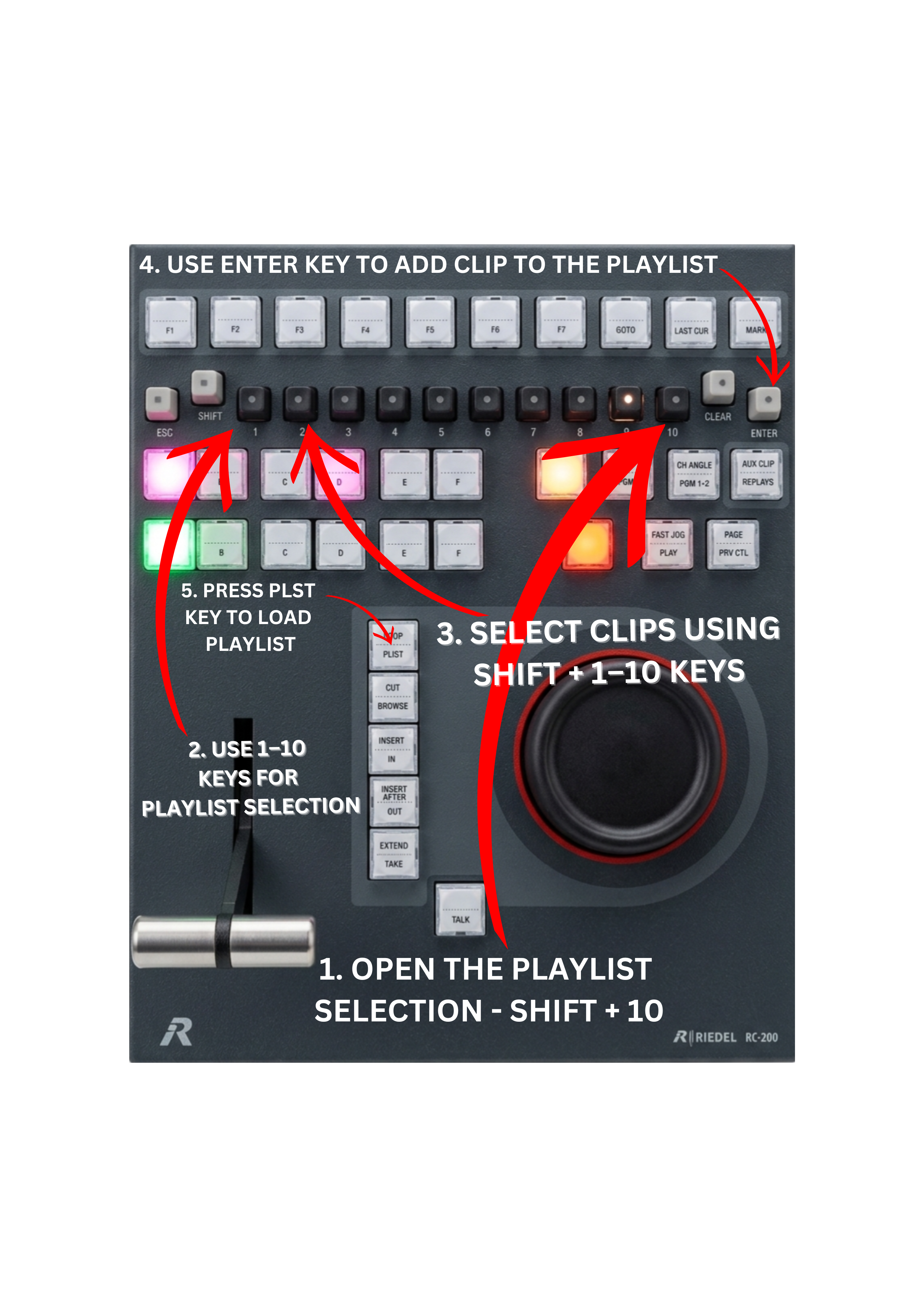
Each time you select a clip and press ENTER key, the clip is added to the currently active playlist.
If you want to create a different playlist with different clips, repeat the process:
-
Press SHIFT + 10 again to access the playlist bank.
-
Select another playlist slot (for example 2).
-
Return to your clip PAGE and BANK (for example PAGE 1, BANK 2).
-
Press ENTER key for each clip you want to add to that playlist.
To load and play the playlist, simply press the PLST key.
To Add Clips from Record Trains
-
Select the desired camera angle.
-
Mark IN and/or OUT.
-
Press SHIFT + ENTER, INSERT, or INSERT AFTER to add the clip to the active playlist.
The clip is automatically saved when it is added to the playlist. This allows the operator to work very quickly and efficiently, enabling fast creation of highlight packages directly from the record trains.
Warning
The maximum number of clips that can be stored in a single playlist is 99.
If the playlist already contains 99 clips, additional clips cannot be added until one or more existing clips are removed.
Operators should keep this limitation in mind when building very long highlight sequences during live production.
Inserting Clips Before or After the Current Playlist Item
While editing a playlist, operators may want to place a clip before or after the currently active playlist item instead of adding it to the end of the playlist.
To insert a clip in a specific position:
-
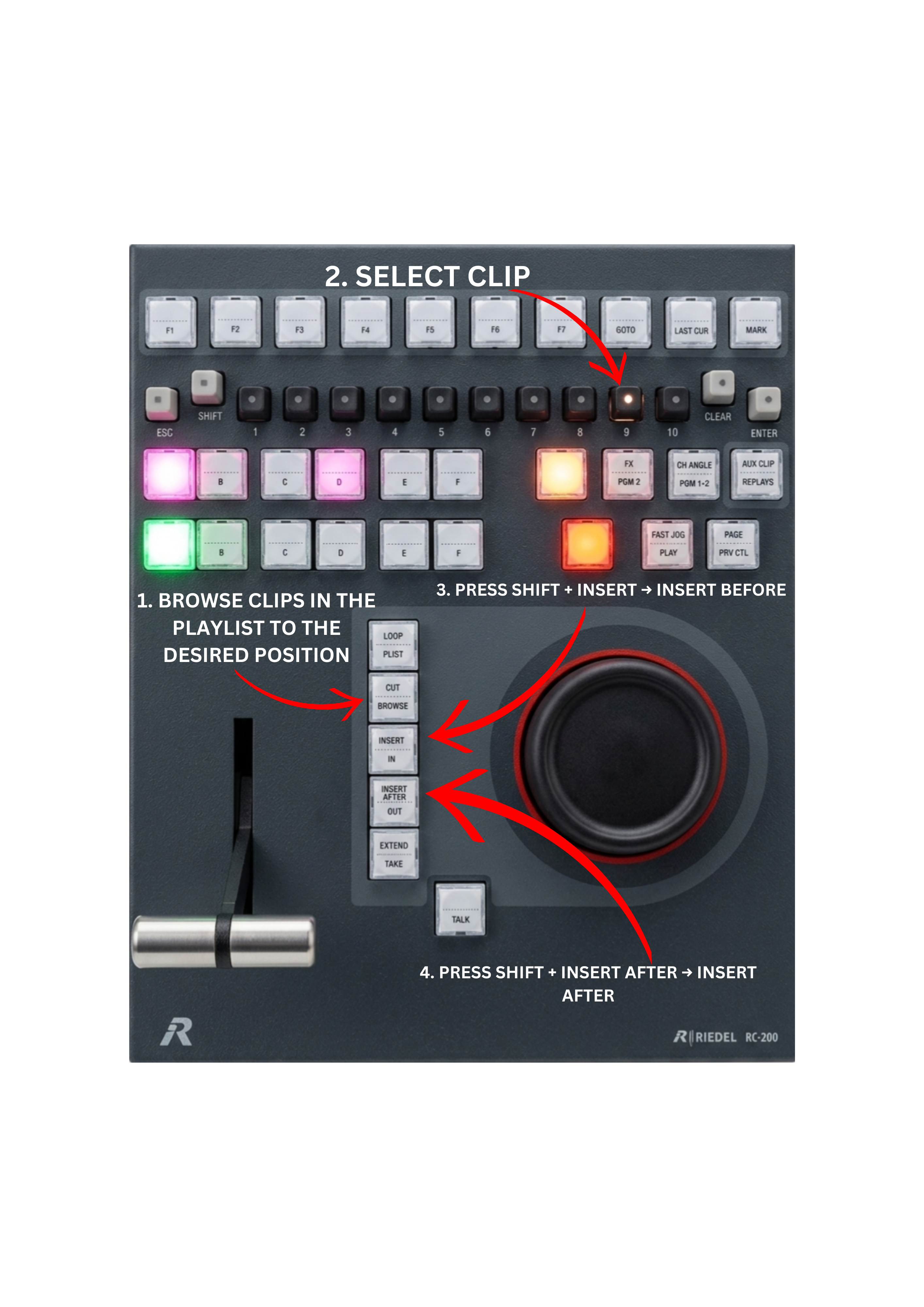
Browse clips in the playlist to the desired position
-
Select the clip you want to add from your PAGE and BANK.
-
Press SHIFT + INSERT to insert the clip before the current playlist item.
-
Press SHIFT + INSERT AFTER to insert the clip after the current playlist item.
This allows operators to quickly re-organise highlight sequences while building playlists during live production.
Pro Tip
When editing playlists during live production, inserting clips before or after the active item allows you to refine the highlight sequence without rebuilding the entire playlist. This is especially useful when the director asks for a different order of replays while the show is still on air.
Pro Tip
When working with very long playlists (for example 60 or more items), browsing manually to the end of the playlist can take time.
A faster method is to add a temporary clip to the playlist:
-
Select any clip from a BANK.
-
Press ENTER to add it to the playlist.
The clip will automatically be added to the end of the playlist. Then press the PLST key to reload the playlist. The playhead will now be positioned at the last item. You can then simply delete the temporary clip.
This entire operation usually takes less than two seconds, which is often much faster than browsing through a long playlist with dozens of items.
Pro Tip
Try to switch between PAGES, BANKS, and PLAYLISTS as often as possible while practicing. Over time this builds muscle memory, allowing you to operate the controller without looking at it.
A good replay operator should be able to use the remote almost instinctively — much like playing a piano.
Pro Tip
SimplyLive provides a very large capacity for playlist organization.
With 100 pages available (PAGE 0–PAGE 99) and 10 playlist slots per page (1–10), operators can create up to 1000 playlists.
This allows replay teams to organize highlights, thematic sequences, and editorial packages without worrying about running out of playlist space during large productions.
Warning
Editing playlists can only be done on PGM2 or PRV.