
Warning
Editing playlists can only be done on PGM2 or PRV
Clip duration can be adjusted by modifying the IN and OUT points of the clip. This allows operators to quickly shorten or extend a clip without creating a new one.
To begin, select the desired clip by navigating to the correct PAGE and BANK, then load the clip into the replay channel.
Adjusting the IN or OUT Points
Clip duration is adjusted by changing the IN or OUT points.
Depending on the operation, this allows the clip to be either shortened or extended.
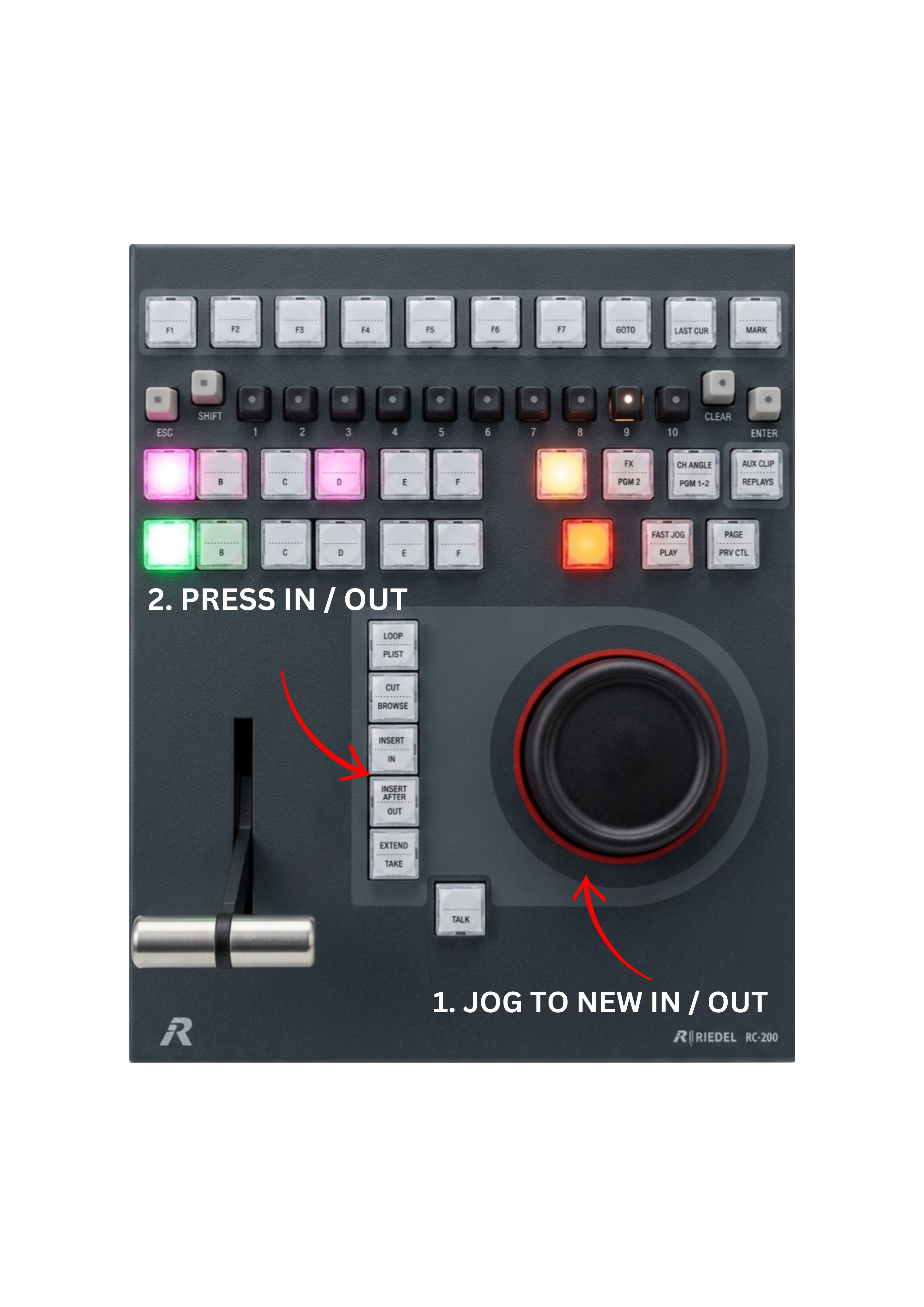
Shortening the Clip
-
Use the JOG wheel to locate the new IN or OUT position.
-
Press IN to shorten the beginning of the clip.
-
Press OUT to shorten the end of the clip.
Extending the Clip
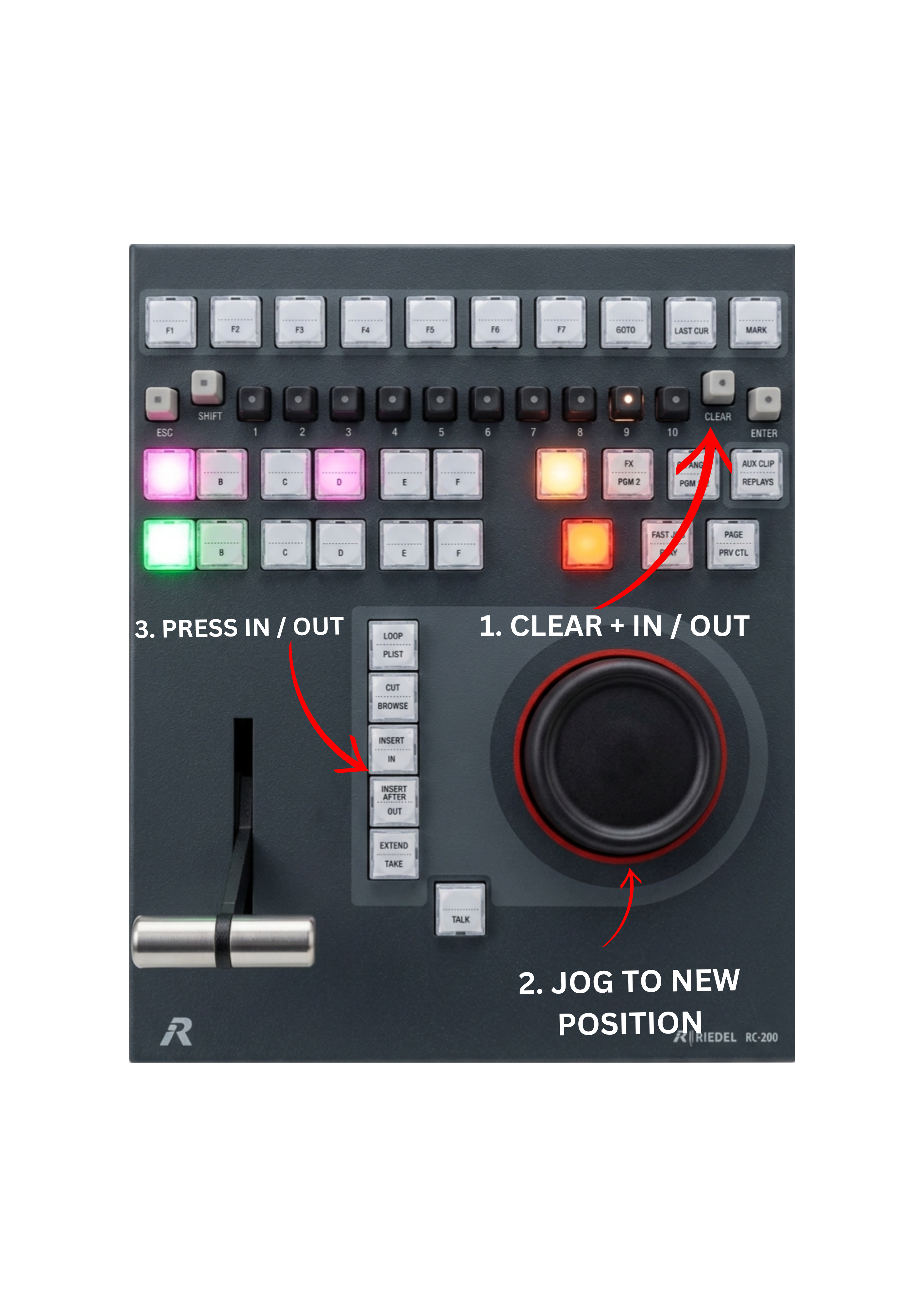
If the clip needs to be extended, the existing point must first be cleared.
-
Press CLEAR + IN to remove the IN point.
-
Use the JOG wheel to locate the new IN position.
-
Press IN to mark the new start point.
-
Press CLEAR + OUT to remove the OUT point.
-
Use the JOG wheel to locate the new OUT position.
-
Press OUT to mark the new end point.
Pro Tip
Keep in mind that adjusting clip duration is limited by the available guardbands.
Guardband size can be configured in the system settings by navigating to Setup → Prefs in the SimplyLive setup.
Pro Tip
You do not need to adjust both IN and OUT points. Depending on the situation, you can shorten or extend either the IN point or the OUT point individually. Adjust only the boundary that needs correction.
Pro Tip
Set longer guardbands for events with unpredictable action. This gives flexibility to trim or extend highlights without losing key moments.
Definition
A guardband is a predefined duration added to both ends of a clip. It allows operators to extend the clip later. Extension is possible even after record trains loop.