
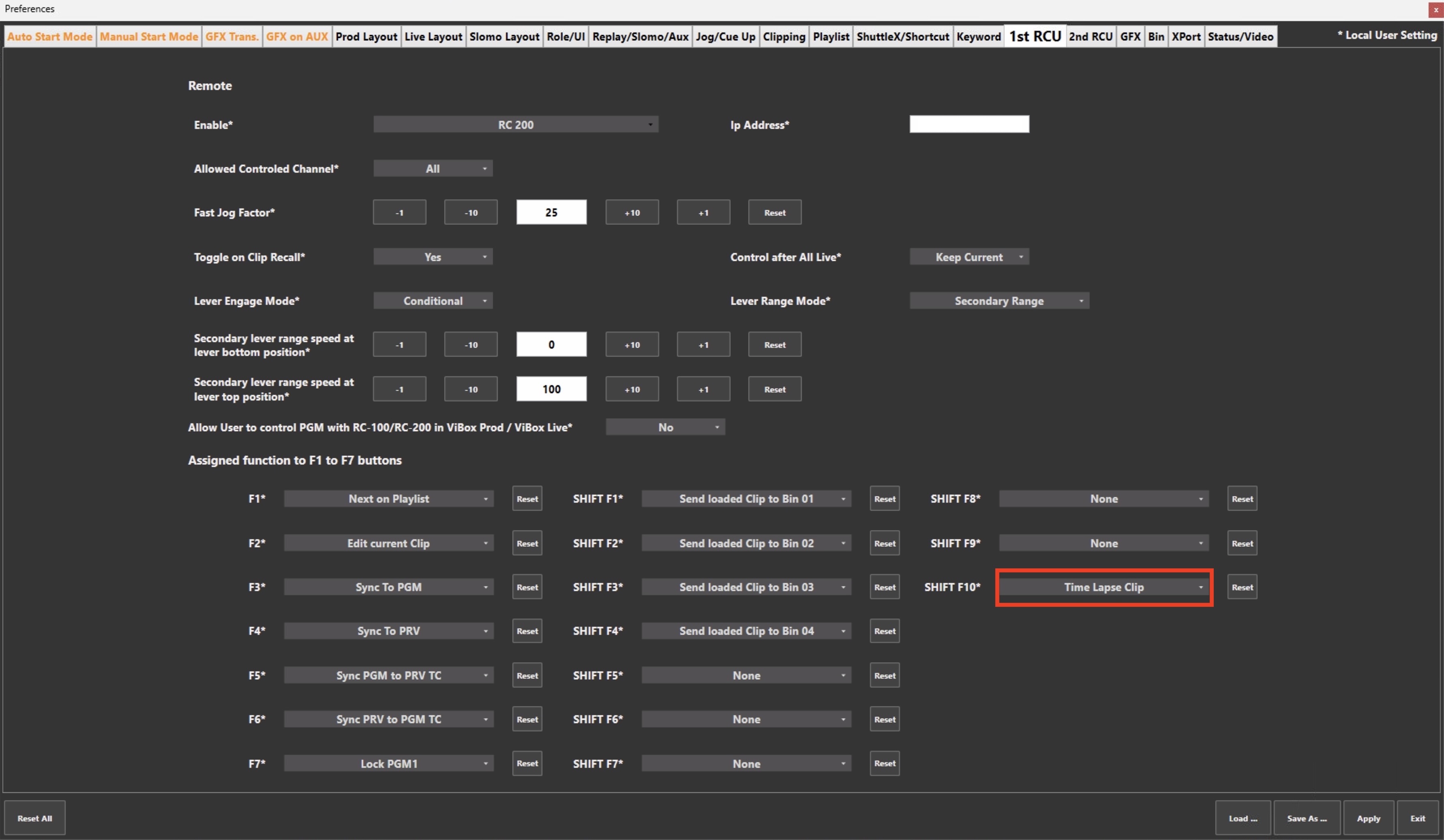
In SimplyLive, you can quickly create a time-lapse clip by assigning the Time Lapse function to one of the Function Keys (F1–F10).
Traditionally, creating a time lapse in replay systems requires several steps. Operators often need to fast-forward playback on the output, record the result back into the system, create a new clip from the record train, and repeat the process several times until the desired playback speed is achieved. This workflow requires precise timing and can take a considerable amount of time.
In SimplyLive, the process is much simpler.
To create a time-lapse clip:
-
Assign the Time Lapse function to one of the Function Keys (F1–F10).
-
Select the clip that you want to convert into a time lapse.
-
Press the assigned Time Lapse Function Key.
-
Select the destination position where the time-lapse clip should be stored (for example, Bank 2).
-
Choose the desired duration of the time-lapse clip.
The system will automatically generate a new clip with the selected time-lapse duration.
For example, you may have a 5-hour original clip stored in Bank 1, and create a 20-second time-lapse version stored in Bank 2.
This workflow allows operators to create time-lapse sequences quickly and efficiently, saving significant time compared to traditional replay methods.