
When working with playlist items, you can use the CUT key to split a clip into multiple parts and then apply different playback speeds to each segment. This technique is commonly used to create speed ramps or to emphasise important moments during a replay.
First, load the playlist by pressing the PLST key.
Then browse to the playlist item you want to edit and load the clip on the replay output.
The CUT key allows operators to split a clip into multiple parts, making it possible to apply different playback speeds to different moments of the same action.
This function is particularly useful when creating speed ramps or emphasising key moments during a replay.
For example, imagine a football sequence where a player runs toward the goal and scores.
-
Play the clip and stop just before the player kicks the ball.
-
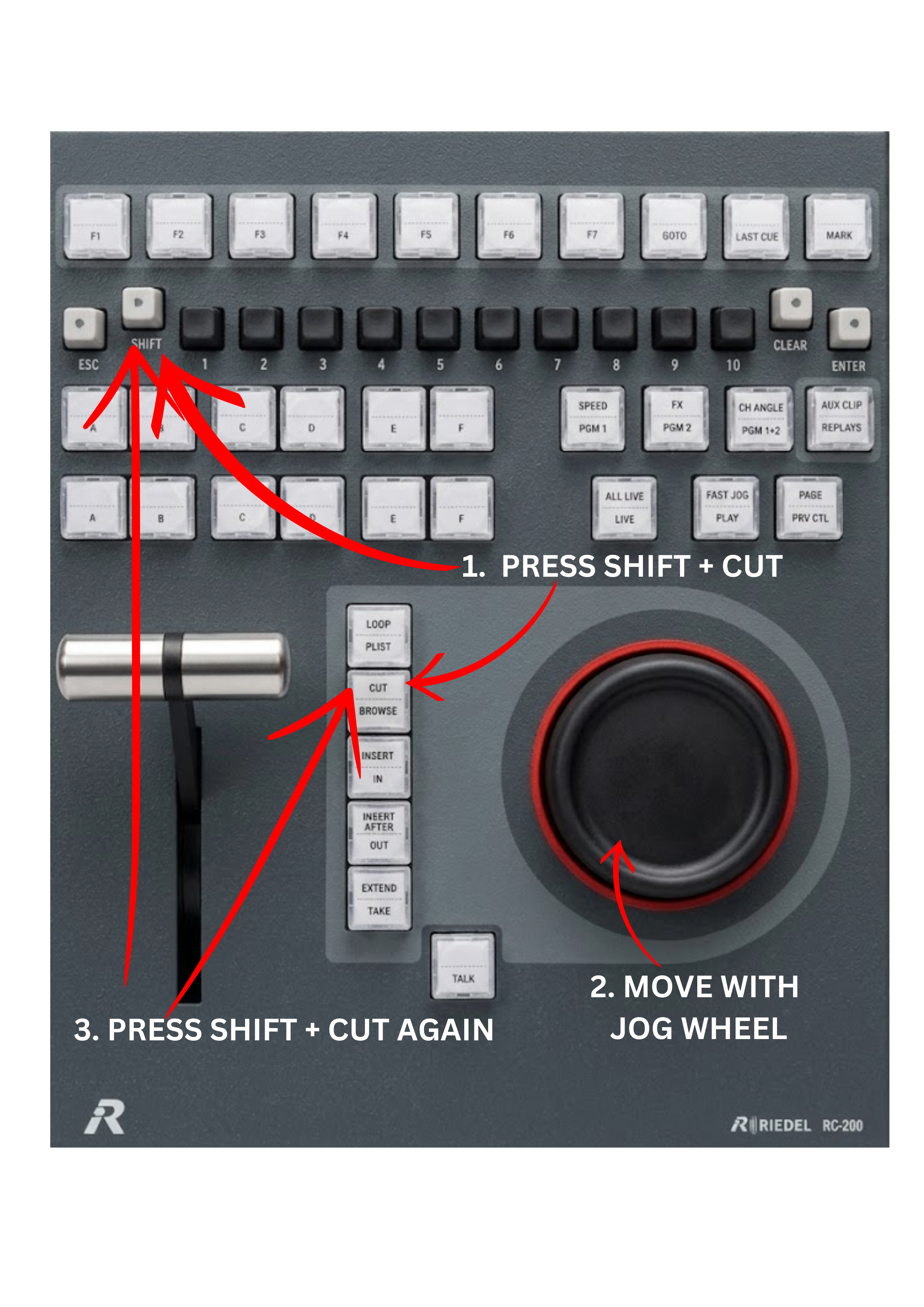
Press SHIFT + CUT key to create the first split.
-
Move forward in the clip to the moment just before the ball reaches the net.
-
Press SHIFT + CUT key again.
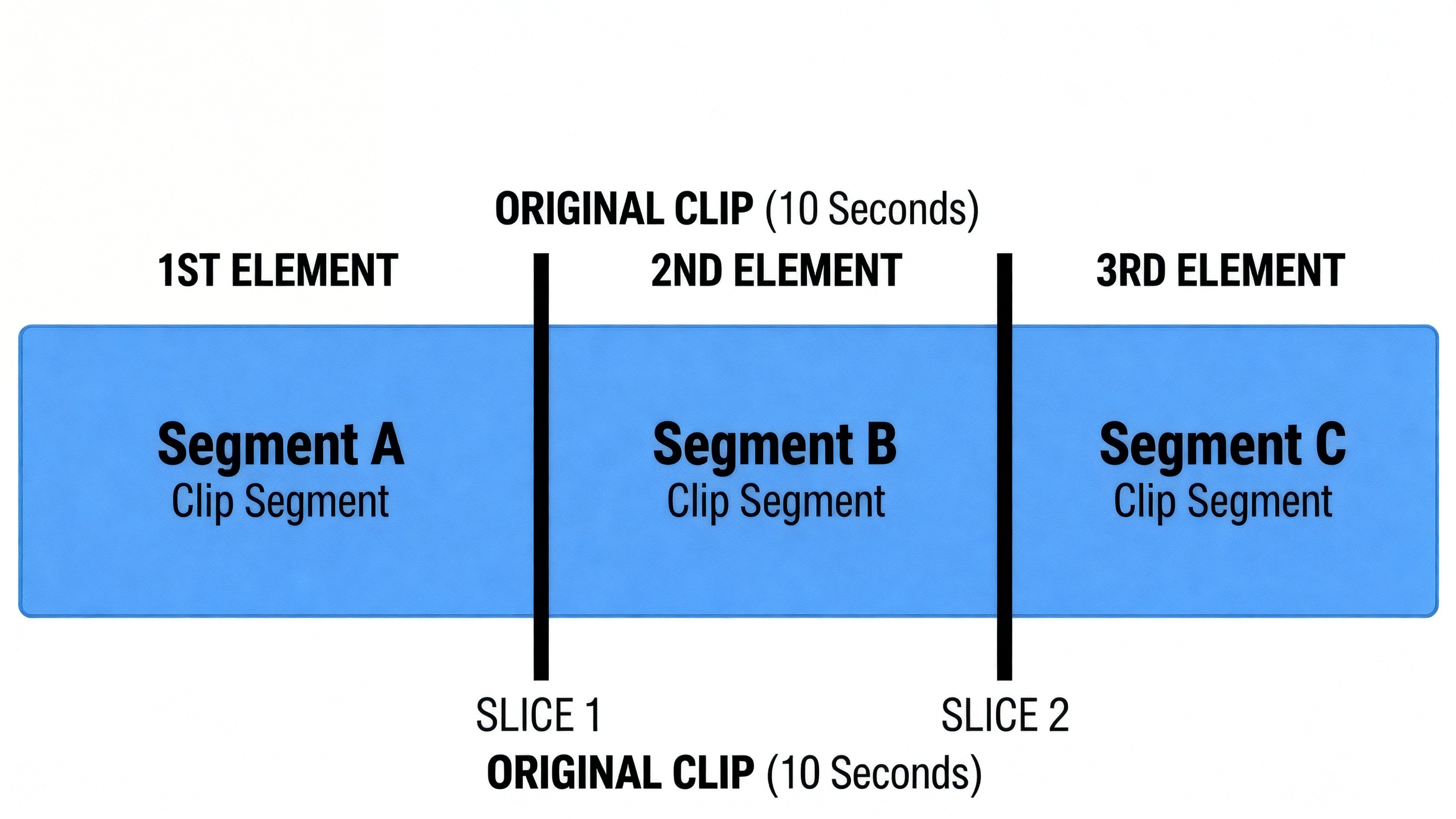
The original clip is now divided into three separate segments.
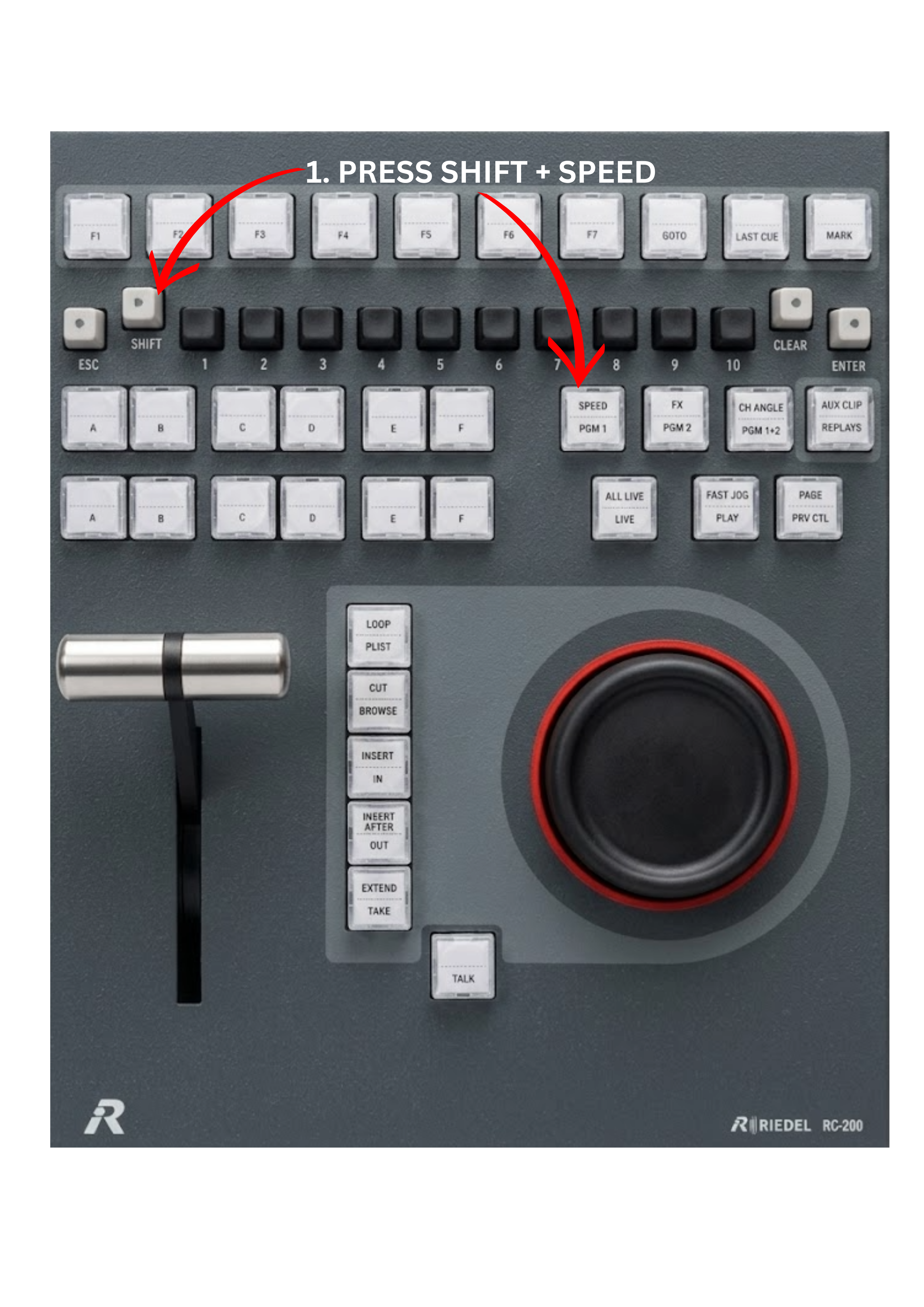
Once the clip is divided, you can press SHIFT + SPEED key to adjust the playback speed for each part of the sequence.
For example:
-
First segment – player running toward the ball → 100% speed
-
Second segment – the ball travelling toward the goal → 50% speed
-
Third segment – the moment the ball hits the net → 100% speed
This technique creates a classic speed ramp effect, commonly used in sports highlights to emphasise the most important moment of the action.
Pro Tip
Using CUT together with SPEED allows operators to quickly create dynamic highlight sequences directly inside the replay system, without the need for external editing tools. This is particularly useful during live sports production, where time is limited and impactful replays are required immediately.