
In SimplyLive, you can work on either PGM1 (Program) or PGM2 (Program 2) depending on which output you want to control.
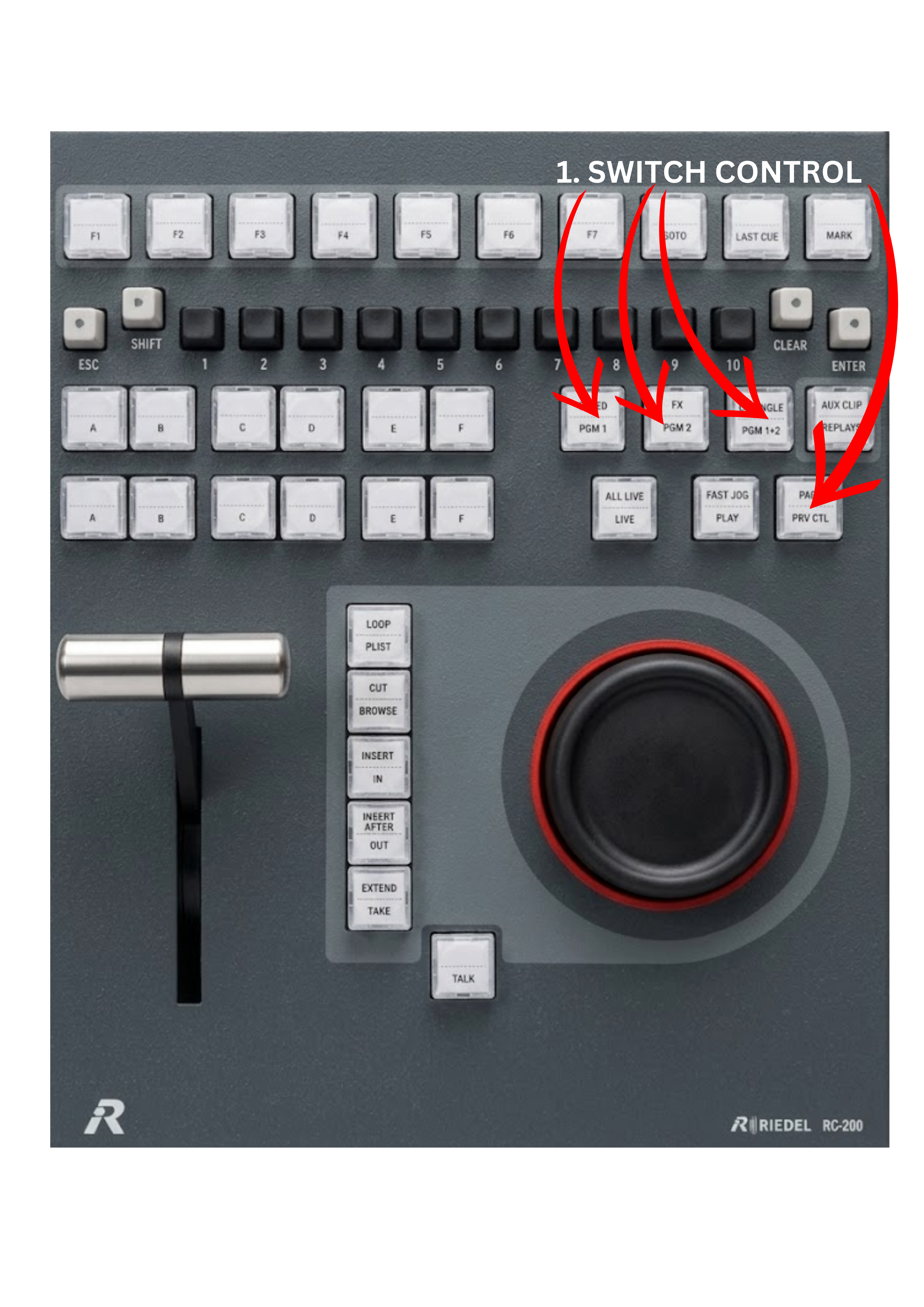
To switch control between the outputs, use the PGM1 / PGM2 buttons on the controller.
If you want to prepare actions without affecting the main output, you can also work in Preview control mode by pressing the PRV CTL button. Working with Program and Preview is a standard operating method in many broadcast workflows.
PGM1 and PGM2 can also be ganged together, allowing both outputs to operate simultaneously. This allows operators to play two clips at the same time when required by the production. To do that press the PGM1 + PGM2 button to gang the outputs.
Info
It is worth remembering that SimplyLive allows operators to combine the controller workflow with the touchscreen interface, which is described in this manual as well. Using both control methods together can significantly improve efficiency compared to operating only with a hardware remote.
Pro Tip
A common use case for ganged outputs is Fill and Key playback for graphics or show bumpers.
For example:
-
Place the Fill signal on PGM1
-
Place the Key signal on PGM2
-
Press the PGM1 + PGM2 button to gang the outputs
-
Press PLAY
Both clips will start perfectly synchronised, allowing the Fill and Key signals to play together.
Pro Tip
When operating in Program / Preview Control mode, and a clip contains fill on angle A and key on angle B, loading the clip will automatically place:
-
the fill signal on PGM1, and
-
the key signal on PRV CTL
This allows the operator to prepare the key signal on preview while the fill is already positioned on the main program output.