
Fast Playlist Preview
Instead of scrolling through the entire duration of each clip, operators can quickly preview the playlist by jumping only to the first frame of each clip.
This allows very fast visual inspection of the playlist content.
For example, when reviewing a goal sequence you can immediately see a wide shot, close-up, second close-up, player reaction, and crowd reaction without needing to play through each clip.
To enable this browsing mode:
-
Load the playlist.
-
Press SHIFT + BROWSE.
-
Use the JOG wheel to move through the playlist.
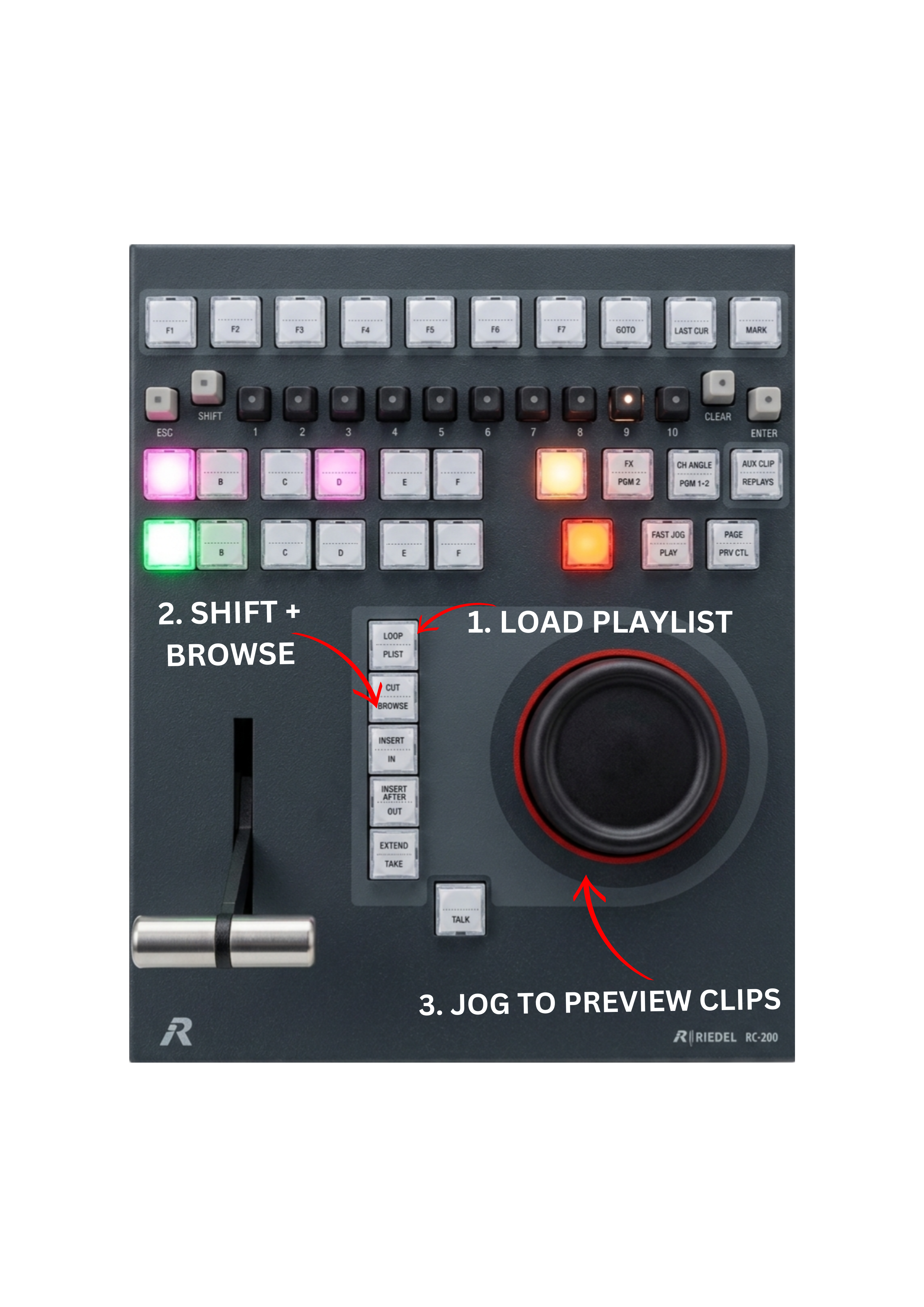
The system will display only the first frame of each playlist item, allowing very fast navigation and visual identification of clips.
Pro Tip
If you need to jump to the end of a very long playlist, select any clip from a BANK and press ENTER to add it to the playlist. The clip is automatically added to the end of the playlist.
Reload the playlist using the PLST key and the playhead will now be positioned at the last item.
You can then delete the temporary clip.
This entire operation can be performed in less than two seconds, which is often faster than browsing through a long playlist.