
Configure a Counter Widget
Overview
A Counter Widget requires an assigned counter parameter folder. Its named timer Presets define the count direction and optional target time.
These timer Presets belong to the Widget. They are distinct from the Control Panel Preset that makes its Widget Group available.
Prerequisites
-
Your account has Widget admin, and the installation license enables Widgets, which shows Widget Library in the menu.
-
A configured Node exposes a counter that can be selected.
-
The intended timer direction and target are known.
Configure the Counter
Caution
Creating a bound Counter Widget initializes the assigned counter's time, direction, and running state. Create it when these changes are safe for the production.
-
Open Widget Library and select Widgets.
-
To create a Widget, select the plus button, select Counter, then select Select.
-
To change an existing Widget, select it and select Edit.
-
Enter Widget name.
-
Select the counter-selection button, initially labeled No selected Counter.
-
In Select a Counter, select the intended counter and Node, then select Select.
-
The Widget provides four timer Presets, named
1to4by default, with the direction up. For each timer Preset, enter Preset name, with 16 characters at most, and select Count Direction. Widget name is limited to 15 characters. -
Enter Target time when the timer setting requires one.
-
Review the assigned counter and settings, then select Add or Save.
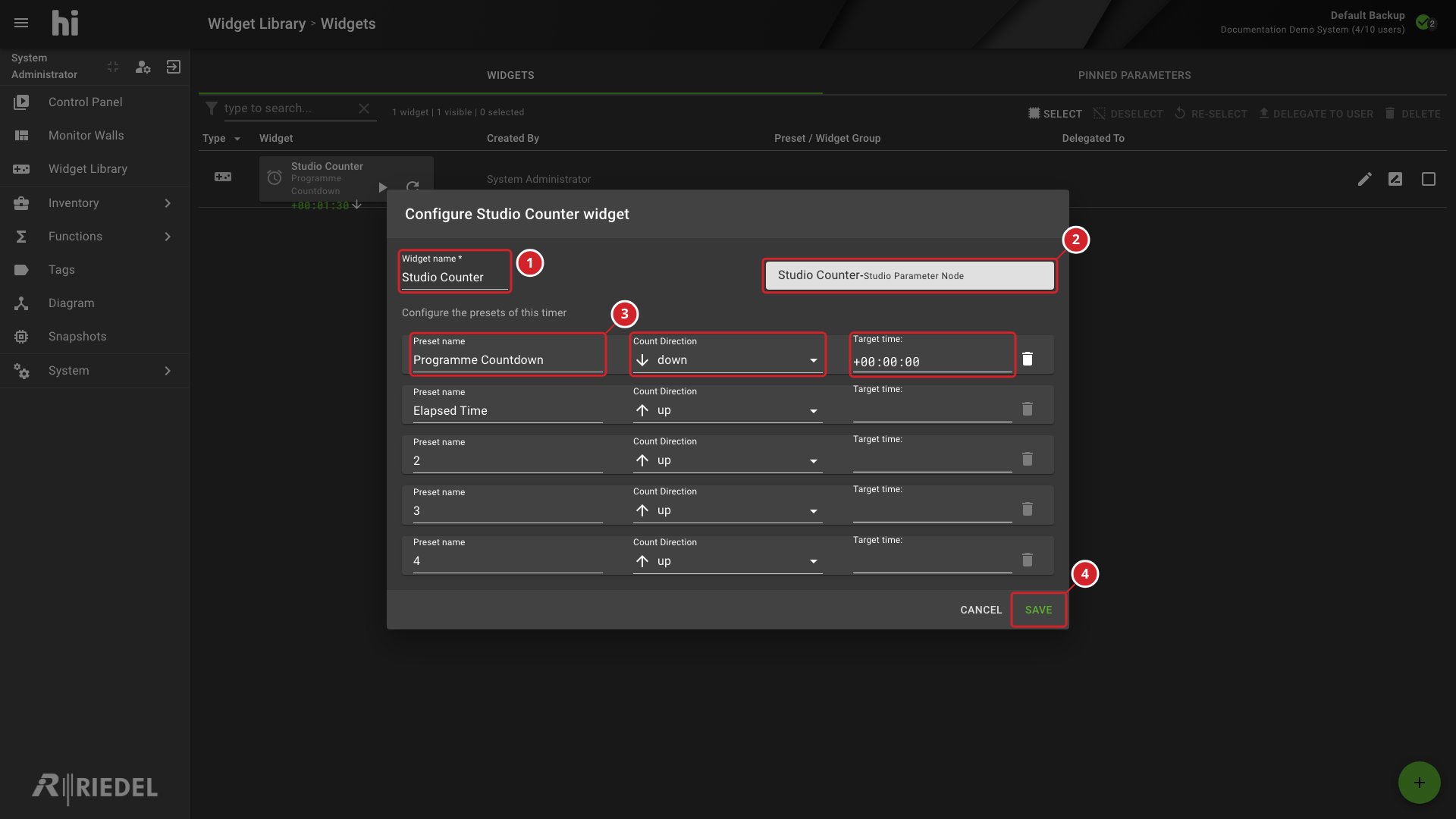
-
Widget name identifies the Counter Widget.
-
The counter-selection button identifies the assigned counter and Node.
-
Preset name, Count Direction, and Target time define the timer settings.
-
Add or Save submits the configuration.
Selection Constraints
The counter selector excludes parameter folders already assigned to Counter Widgets. Use Filter to search by counter or Node name.
No Parameter Folder indicates that no eligible folders are available. Check the Node's counter capability and existing Widget assignments.
A Widget name is required to enable Add or Save. Creating a named Widget alone does not assign its counter or confirm that the counter is available.
Verify the Result
Reopen the configuration and check the counter, Node, timer Preset names, directions, and targets. Confirm the assigned Node is online before testing.
Next Steps
-
Make Widgets Available in a Control Panel Preset for the group and Preset setup.