
Use a Snapshot Widget
Overview
A Snapshot Widget provides access to one saved Snapshot from the Control Panel. Selecting its name opens the Snapshot workspace; its recall control applies the saved components together.
Typical workflows include:
-
Restore a prepared routing state through Inspect and Recall the Snapshot. Check the Snapshot's saved components and affected Destinations before confirming recall.
-
Inspect what a prepared Snapshot contains before using it: open its workspace from the Widget name and review the saved components.
-
Recall only selected components through Manage Snapshots. Use the Snapshot workspace for this task because the Widget's recall control does not provide component selection.
An administrator creates the Widget for an existing Snapshot. What the recall changes depends on that Snapshot's saved components; the Widget does not define a separate saved state.
Prerequisites
-
Your account has Control Panel access and Snapshot admin. Recalling the Snapshot and opening the Snapshots workspace from the Widget both require Snapshot admin.
-
The active Preset includes the Widget's Widget Group and enables the Widget Area.
-
An administrator has created the Snapshot Widget for an existing Snapshot.
-
You have checked the saved components and affected Destinations.
Leave customization mode before using the Widget.
Inspect and Recall the Snapshot
-
Open Control Panel and select the Widget's Widget Group.
-
Select the Snapshot's name to inspect its saved components in the Snapshots workspace. This requires Snapshot admin.
-
Return to the Control Panel and locate the same Widget.
Caution
Recalling the Snapshot applies its saved components to the system. Locked Destinations are not changed. Check the affected components before confirming.
-
Select the Widget's recall icon.
-
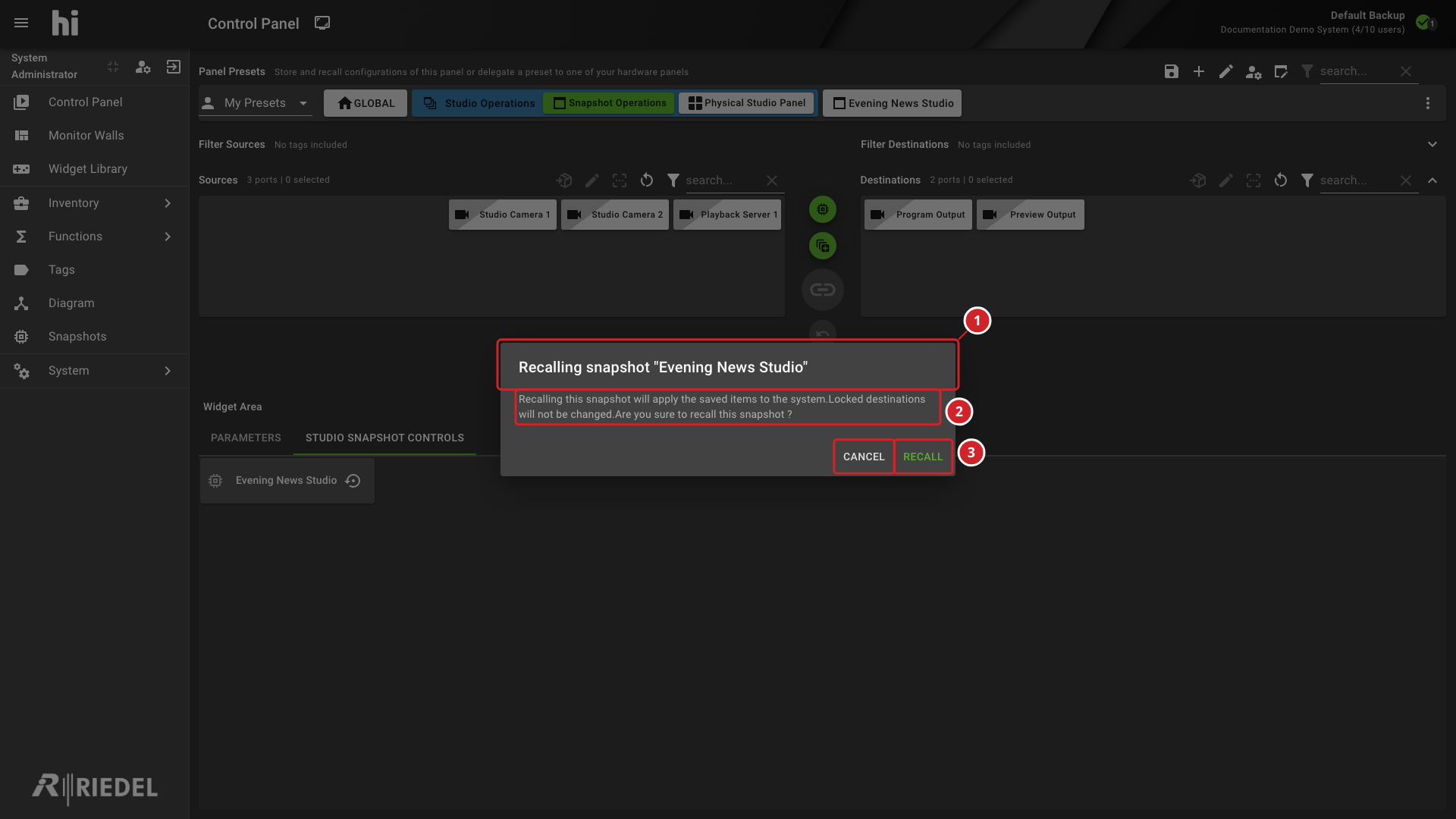
Check the Snapshot name in the confirmation dialog, then select Recall.
-
To abandon the recall, select Cancel.
-
The confirmation identifies the Snapshot being recalled.
-
The message explains that saved items are applied and locked Destinations are not changed.
-
Recall submits the recall; Cancel abandons it.
Unavailable Controls
The recall control is disabled when the bound Snapshot is missing or customization mode is active. Not Found Snapshot indicates a missing Snapshot.
Use the Snapshot workspace when you need to choose specific saved components. This Widget's recall control does not provide a component selection.
Verify the Result
Inspect the resulting routing and other saved component states. A temporary success indicator alone does not confirm every operational result.
Next Steps
-
Manage Snapshots to inspect or update saved components.
-
Create a Snapshot Widget to bind another Snapshot.
-
Customer Support if a failed recall remains unresolved.