
Use a Return Signal Widget
Overview
A Return Signal Widget presents configured channels with input and output sliders and level meters. Each control is bound to a pinned numeric parameter, bringing those channel controls together in the Control Panel.
Typical workflows include:
-
Inspect a return channel's IN and Red. meters while adjusting its assigned Out control. Follow Inspect and Adjust a Channel and verify the controlled audio path.
-
Open one channel's focused view to inspect and adjust that channel without losing its name and parameter context.
-
Reuse a named arrangement of configured channels through Manage Return Signal Banks. Check the restored assignments before operating the sliders.
An administrator configures the channel assignments. The slider and meter names describe their intended roles; their actual operational effect depends on the parameters assigned to them.
Prerequisites
-
Your account has Control Panel access.
-
The active Preset includes the Widget's Widget Group and enables the Widget Area.
-
An administrator has configured the channel assignments.
-
You know the controlled parameters and their operational effect.
Leave customization mode before opening the Widget. Use a screen wide enough to display its channel controls.
Inspect and Adjust a Channel
Caution
Moving an enabled slider sends a value to its assigned Node parameter. Confirm the channel and affected signal before changing its level.
-
Open Control Panel and select the Widget's Widget Group.
-
Select the Return Signal Widget to open its channel controls.
-
Identify the required channel by its name.
-
Inspect its IN and Red. meters.
-
Adjust the assigned IN or Out slider as required.
-
To view one channel more closely, select its channel-name button.
-
Close the focused channel view when finished.
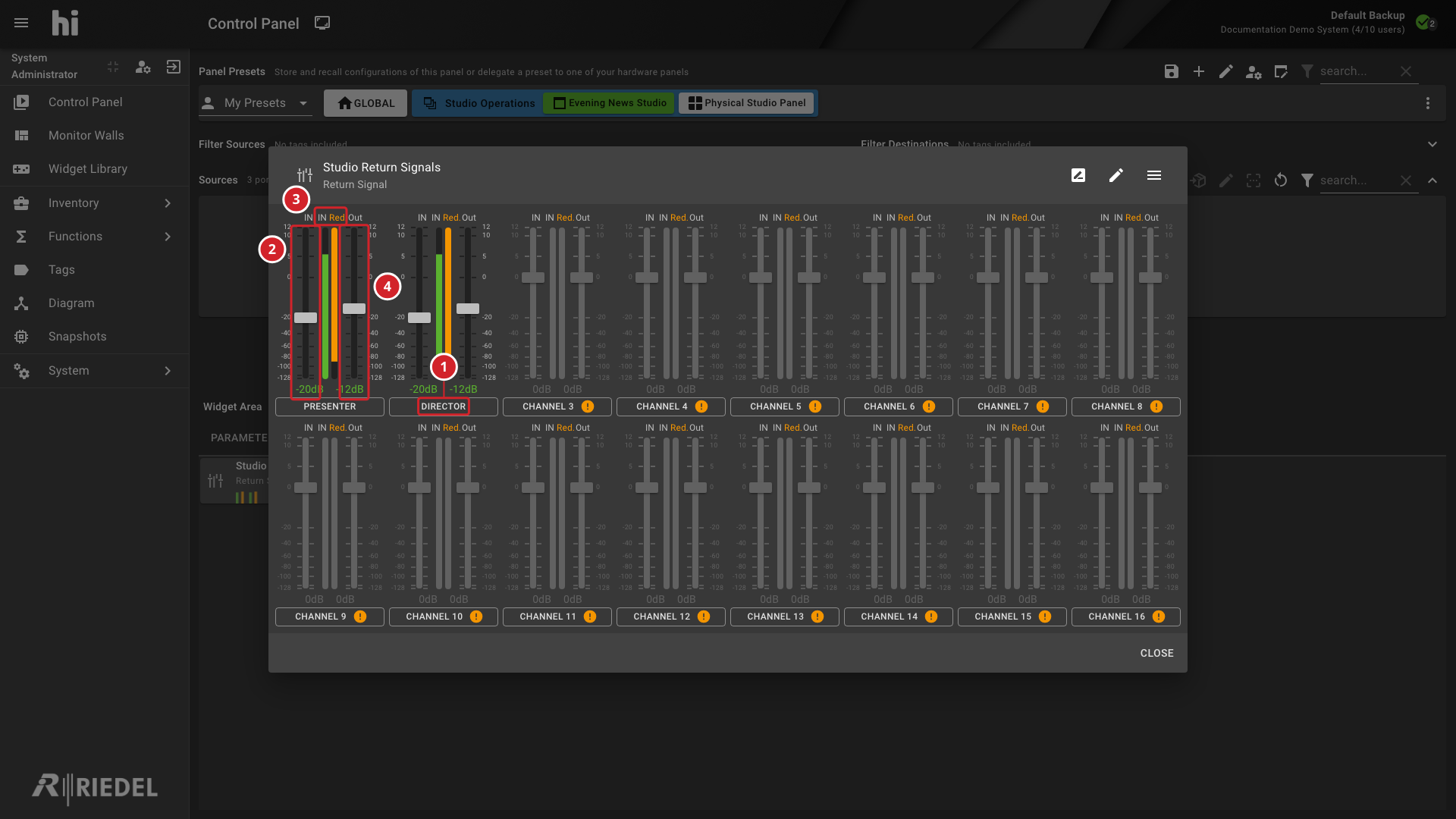
-
The channel-name button identifies the channel and opens its focused view.
-
The IN slider changes its assigned input parameter.
-
The IN and Red. meters display their assigned parameter values.
-
The Out slider changes its assigned output parameter.
Unavailable Controls
A channel without an assigned parameter has no usable control for that parameter. An incomplete configured channel shows an error indicator beside its name.
Sliders are disabled in channel configuration mode. Return to operation mode before changing levels.
An unconfigured channel cannot be opened in operation mode. Ask an administrator to check its four parameter assignments.
Unsupported Screen Size asks you to rotate the screen. Use a suitable screen orientation rather than assuming a device connection has failed.
Verify the Result
Check the updated displayed parameter values and meters. Verify the controlled audio path separately when adjusting levels for a production.
Next Steps
-
Configure a Return Signal Widget to change channel bindings.
-
Manage Return Signal Banks to save and restore named channel arrangements.
-
Manage Widgets to review use and delegation.