
Use a Parameter Widget
Overview
A Parameter Widget displays one pinned Node parameter. The parameter's data type determines its control: a switch, numeric control, text editor, or selection list. It brings a frequently used parameter into the Control Panel so an operator can read or adjust it without navigating the Node's parameter tree.
Typical workflows include:
-
Adjust a configured audio-level parameter using its numeric control, then verify the value and the device's output. Follow Use the Control.
-
Change a device setting through a Boolean switch or enumeration list, or enter a text value where that parameter permits it. The available control follows the parameter's data type and permissions.
-
Read a parameter's current value during operation. A read-only parameter provides a display instead of an editable control.
An administrator creates the Widget from a pinned parameter. This reusable Widget is distinct from the controls assigned to a selected Port. See Widgets and Parameter Control.
Prerequisites
-
Your account has Control Panel access.
-
The active Preset includes the Widget's Widget Group and enables the Widget Area.
-
An administrator has created the Parameter Widget from a pinned parameter.
-
The Node is connected, and the parameter permits the intended change.
Leave customization mode before using the control.
Use the Control
Caution
Changing a parameter sends the value to its Node. Confirm the parameter and its operational effect before proceeding.
-
Open Control Panel and select the Widget's Widget Group.
-
Identify the parameter by its displayed name and current value.
-
Use the control appropriate to the parameter's data type.
|
Parameter Type |
Action |
|---|---|
|
Boolean |
Select the switch to change between On and Off. |
|
Numeric |
Adjust the knob, or select the displayed value to open Edit Parameter Value. Enter Parameter Value, then select Set. |
|
Text |
Select the Widget to open Edit Parameter Value. Enter Parameter Value, then select Set. |
|
Enumeration |
Select a value from the displayed selection list. |
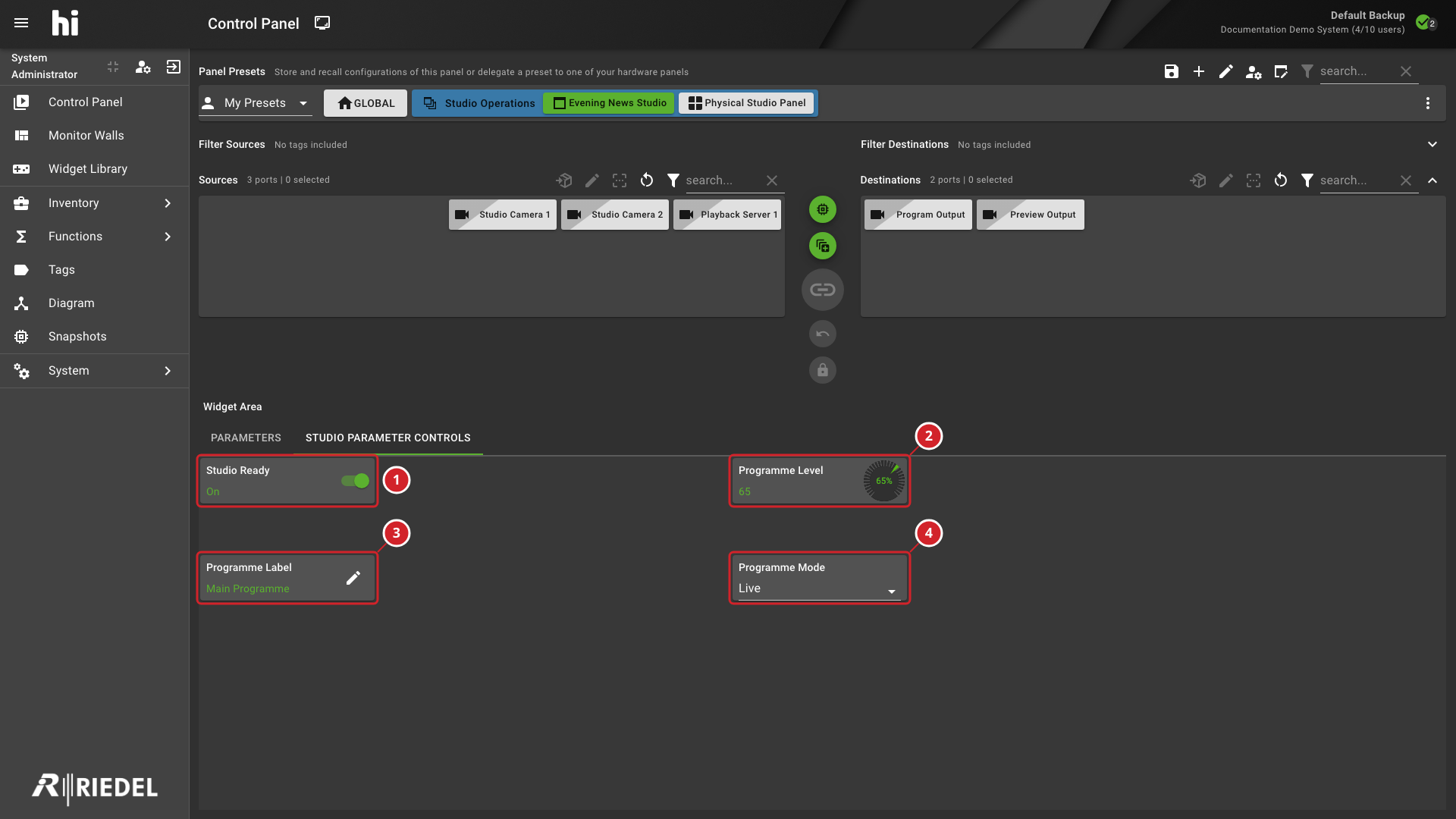
-
The Boolean parameter uses an On or Off switch.
-
The numeric parameter shows its current value and knob.
-
The text parameter shows its value and edit control.
-
The enumeration parameter provides a selection list.
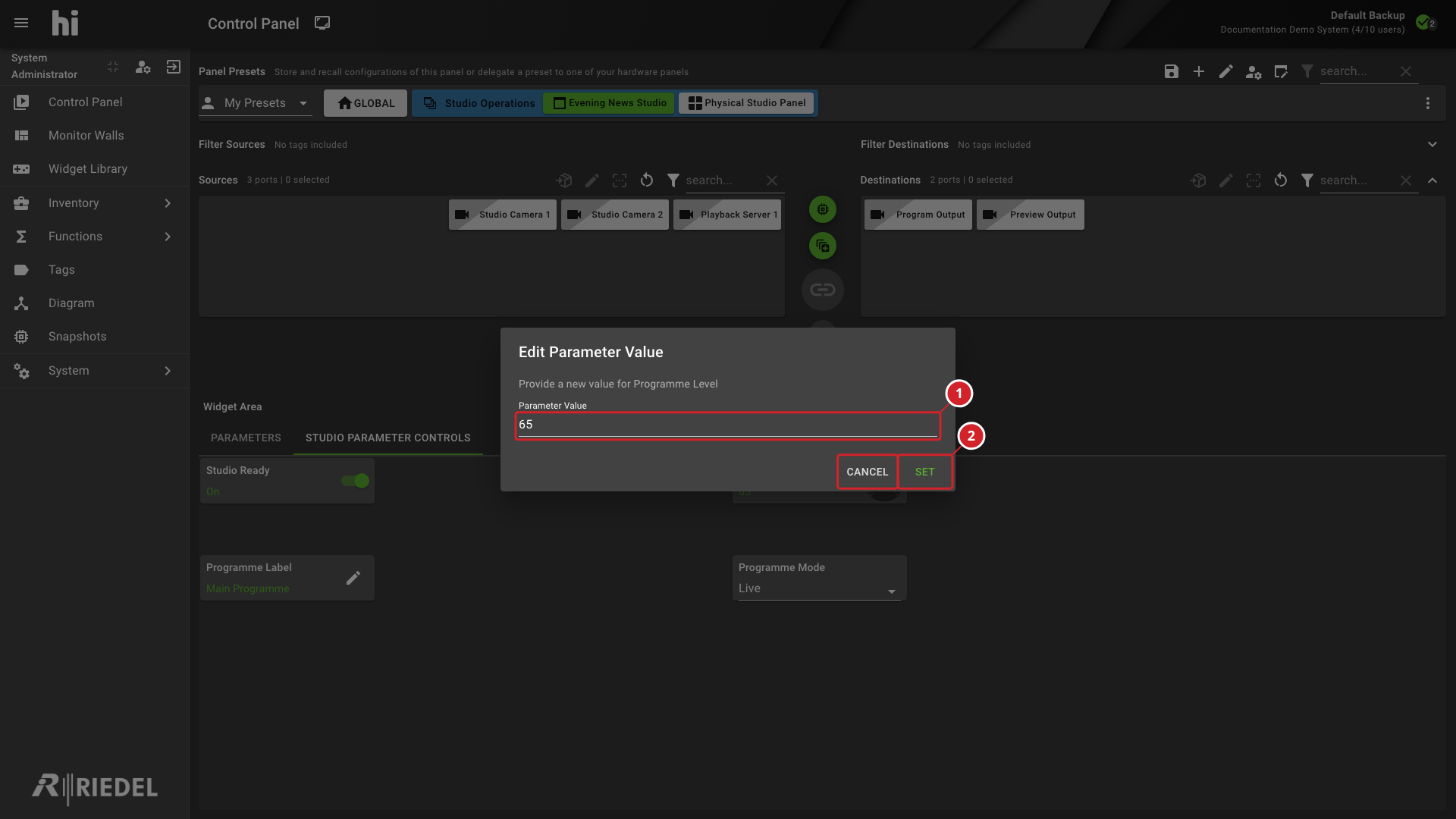
-
Parameter Value contains the value to send to the identified parameter.
-
Set submits the value; Cancel closes the dialog without submitting it.
Unavailable Controls
Locked, disabled, read-only, or hidden parameters cannot be changed through the Widget. Node connection state and customization mode can also disable controls.
Unavailable Parameter indicates that the Widget's pinned parameter cannot be found. Unsupported parameter type indicates that a supported control cannot be displayed.
Ask an administrator to check the pinned parameter and Node configuration. Do not assume that a disabled control indicates a faulty device.
Verify the Result
Confirm that the displayed parameter value updates to the intended value. For an operationally significant change, verify its effect on the controlled device.
Next Steps
-
Create a Parameter Widget to expose another pinned parameter.
-
Assign a Parameter Control for controls that follow the selected Port.
-
Manage Widgets to review Widget use and delegation.