
Use a Counter Widget
Overview
A Counter Widget controls a configured Node counter through its assigned parameter folder. Widget Presets provide named counter settings so an operator can select a prepared timing setup in the Control Panel.
Typical workflows include:
-
Run a countdown to a production cue: select the intended timer Preset, check its direction and starting time, and start it. Follow Run a Counter.
-
Measure an elapsed interval in up mode, then pause and check the displayed time. Reset the stopped counter to zero before starting a new interval.
-
Calculate an interval to Target time using difference mode. Follow Reset or Use Difference Mode and check the workstation clock first.
An administrator configures the assigned counter and named timer settings. These Widget Presets are distinct from the Control Panel Preset that makes the Widget Group available.
Prerequisites
-
Your account has Control Panel access.
-
The active Preset includes the Widget's Widget Group and enables the Widget Area.
-
An administrator has configured the Counter Widget and its timer Presets.
-
The assigned Node is online and its counter parameters are available.
Leave customization mode before opening the Widget.
Run a Counter
Caution
Counter controls change the assigned Node's counter. Confirm the Widget's Node and counter before changing its time or running state.
-
Open Control Panel and select the Widget's Widget Group.
-
Select the Counter Widget to open its controls.
-
Confirm the assigned counter and Node shown below the Widget name.
-
While the counter is stopped, select the required timer Preset tab.
-
Review Operation Mode and the displayed time. Selecting a timer Preset tab or Operation Mode immediately sets the counter direction of the Node. Changes to Operation Mode or Target time are saved to the timer Preset for all users of the Widget.
-
For up or down, select the time display and enter the starting time using the keypad.
-
If a stopping target is required, enter Target time.
-
Select the play icon to start the counter.
-
Select the pause icon to stop counting before changing its settings.
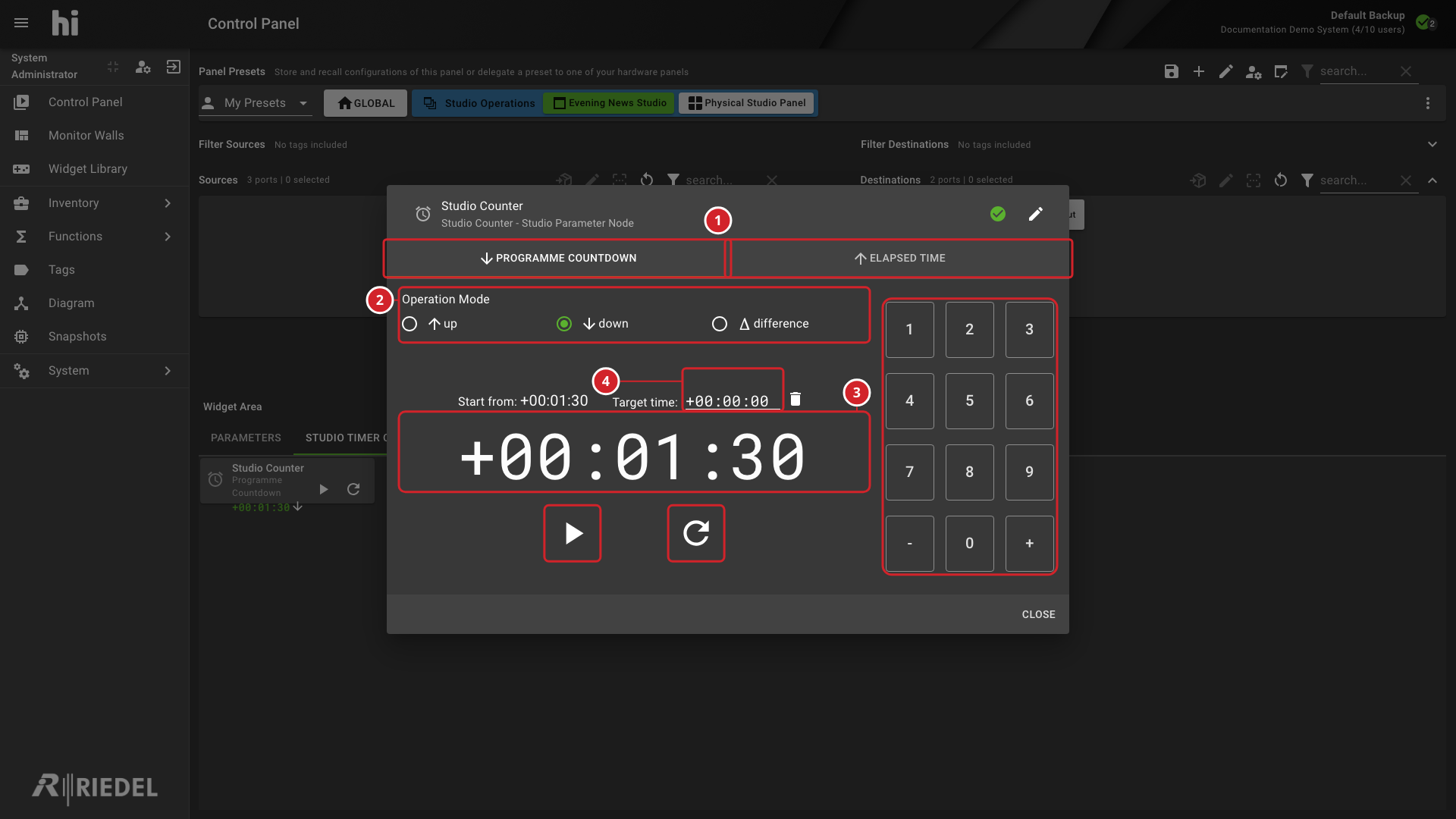
-
The timer Preset tabs select the counter settings.
-
Operation Mode selects up, down, or difference.
-
The time display and keypad provide time entry when enabled.
-
Target time and the play, pause, and reset controls operate the assigned counter.
Reset or Use Difference Mode
When stopped, the reset icon sets up mode to zero or restores the recorded starting time in down mode. Reset becomes available after the counter has been started once with the selected timer Preset.
difference calculates the interval from the browser's current time to Target time when started. Check the workstation clock before using this mode.
In difference mode, a target is required and reset is unavailable. The starting time display is not directly editable while stopped.
Unavailable Controls
Controls are disabled when no counter is assigned or its Node is not online. Running the counter disables timer Preset, mode, keypad, and target editing.
A target inconsistent with the selected mode disables starting. Check the entered time, target, and mode together rather than retrying the play control.
Verify the Result
Confirm that the displayed time changes in the intended direction. After pausing or resetting, check the displayed time against the intended value.
Next Steps
-
Configure a Counter Widget to change the assigned counter or named timer settings.
-
Manage Nodes to review the counter's Node state.