
Use a PTZ Camera Widget
Overview
A PTZ camera Widget groups camera slots, camera Presets, and supported camera parameters. It brings camera selection and the available camera controls into one Control Panel dialog. A slot can also have a Source for a monitoring Destination.
Typical workflows include:
-
Prepare a studio camera's framing: select its configured slot, inspect its monitoring image, and adjust the available pan, tilt, and lens controls. Follow Select and Control a Camera.
-
Return a camera to a stored position using Recall a Camera Preset. Confirm the camera and observe the resulting image.
-
Retain a new camera state for later use through Save a PTZ Camera Preset.
An administrator configures the camera slots and monitoring assignments. Available controls depend on the selected camera's connection and assigned parameters. A slot can provide monitoring routing without camera control.
Prerequisites
-
Your account has Control Panel access.
-
The active Preset includes the Widget's Widget Group and enables the Widget Area.
-
An administrator has configured the camera slots.
-
The selected camera is connected and exposes the required camera parameters.
-
You know which monitoring Destination, if any, the Widget controls.
Leave customization mode before opening the Widget.
Select and Control a Camera
Caution
Opening the Widget can select a camera slot and route its Source to the configured monitoring Destination. Selecting another slot can change that route immediately. Confirm the monitoring Destination before opening the Widget.
-
Open Control Panel and select the Widget's Widget Group.
-
Select the PTZ camera Widget to open its controls.
-
Under CAM, select the required configured slot.
-
Confirm the selected camera name before adjusting its controls.
-
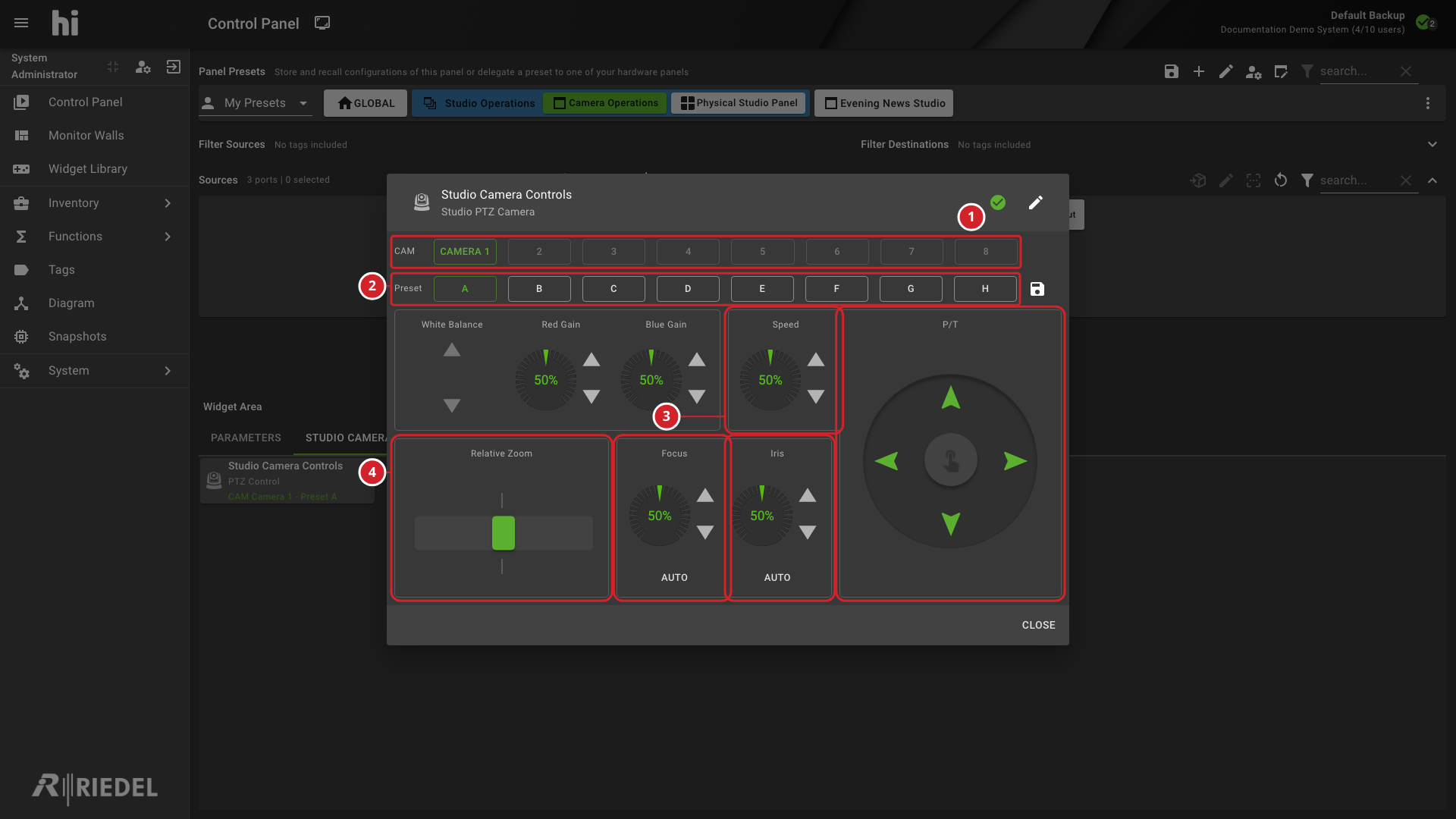
Use Speed and P/T for the camera's pan and tilt controls.
-
Use the available zoom, focus, and iris controls.
-
Adjust White Balance, Red Gain, or Blue Gain when the camera provides those controls.
-
CAM selects the configured camera slot.
-
Preset selects an available camera Preset.
-
Speed and P/T control pan and tilt.
-
The lens controls adjust zoom, focus, and iris when those camera parameters are available.
Recall a Camera Preset
Selecting a button in the Preset row sends a recall request for the selected camera. Confirm the camera and intended position first.
To retain a new camera state, follow Save a PTZ Camera Preset.
Unavailable Controls
Controls depend on the camera's connected state and assigned parameters. Missing camera Preset read or recall parameters can disable the control area.
Individual controls also depend on their parameter permissions and capabilities. A slot can provide monitoring routing without providing camera control.
Ask an administrator to check the slot, camera connection, and parameter assignments when the intended control is unavailable.
Verify the Result
Check the selected camera and displayed Preset state. Observe the camera image or monitoring output to verify the movement, lens change, or recalled position.
Next Steps
-
Configure a PTZ Camera Widget to change slots and monitoring assignments.
-
Save a PTZ Camera Preset to retain an intended camera state.
-
Manage Nodes to review the camera's connection and parameters.
-
Manage Widgets to review Widget use.