
Use a VB440 Widget
Overview
A VB440 Widget displays configured probe services in named Widget Presets. Each view can show video, audio meters, or a scope according to its settings, bringing prepared analysis views into the Control Panel.
Typical workflows include:
-
Inspect a configured service's enabled video, audio-meter, or scope displays through Inspect a Service View. Confirm the service name before interpreting its displays.
-
Switch between named Widget Preset tabs to compare the prepared service views, or enlarge an enabled display for closer inspection.
-
Prepare the displays needed for a particular check through Configure a VB440 Widget and VB440 Widget Settings Reference.
These Widget Presets are distinct from the Control Panel Preset that makes the Widget Group available. Analysis requires a reachable, configured probe service.
Prerequisites
-
Your account has Control Panel access.
-
The active Control Panel Preset includes the Widget's Widget Group and enables the Widget Area.
-
An administrator has configured the VB440 Widget.
-
The browser can reach the configured probe host and service.
Leave customization mode before opening the Widget.
Inspect a Service View
-
Open Control Panel and select the Widget's Widget Group.
-
Select the VB440 Widget to open its views.
-
Select the named Widget Preset tab for the intended service view.
-
Confirm the service name above each enabled display.
-
Inspect the video, scope, or audio meters enabled for that view.
-
To enlarge one display, select its full-screen icon. Select the smaller-screen icon to return.
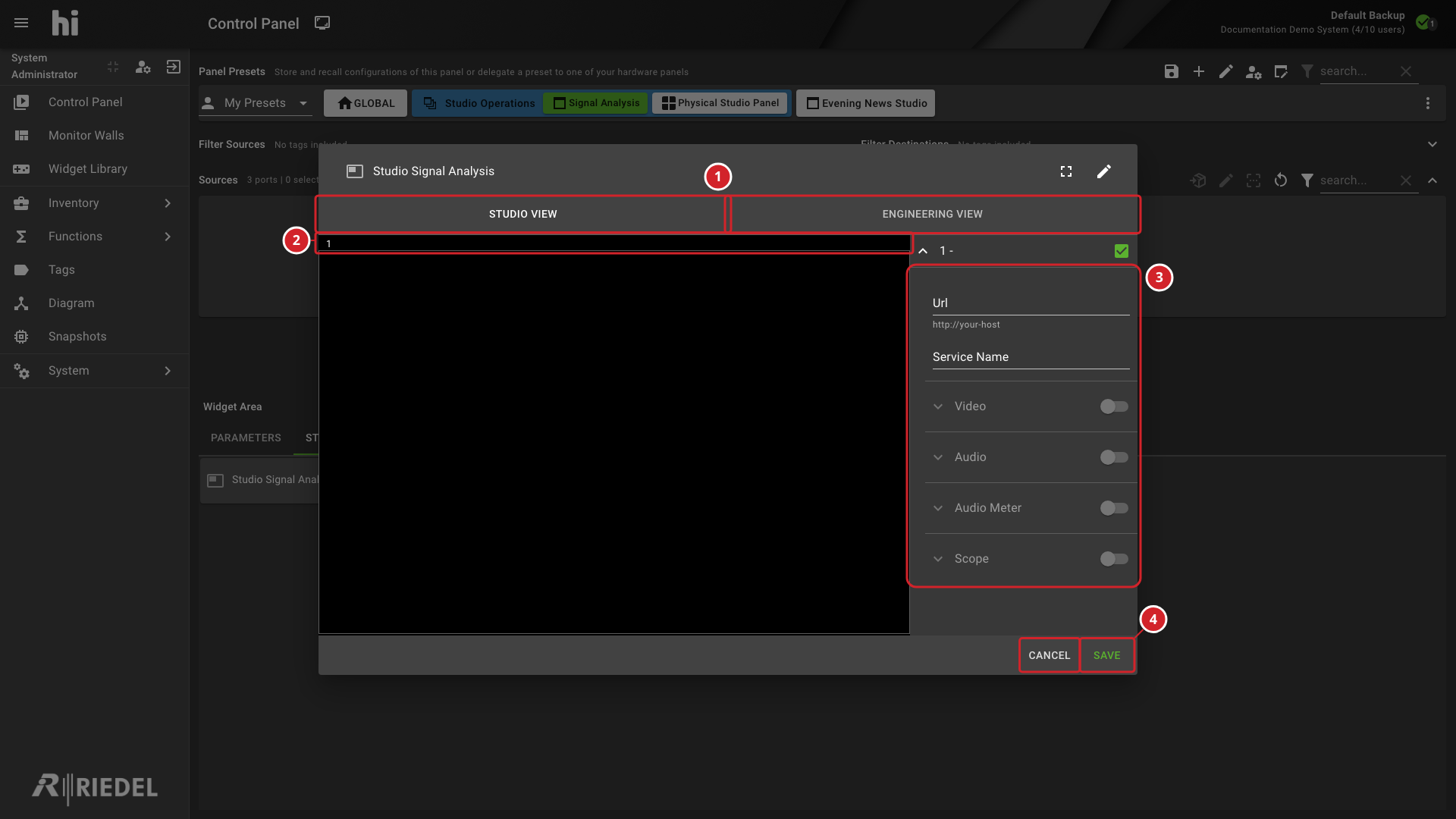
-
The Widget Preset tabs select the configured service views.
-
The numbered display positions identify the view layout.
-
The settings panel identifies the selected view's enabled displays and sections.
-
Save retains the selected view settings; Cancel discards unsaved view settings.
Change the Display Settings
Display settings are available beside the views. Follow Configure a VB440 Widget before changing a probe URL, service, or display section.
Caution
Every operator who opens the Widget sees the display settings and Save, and saving changes the shared view for all users.
Select Save to retain view settings when finished. Select Cancel to discard unsaved view settings.
Missing Displays
A display needs a configured URL, service name, and enabled display section. A view with every display disabled has no analysis display.
Check the selected Widget Preset and enabled sections before investigating probe connectivity. A named Widget or saved view alone does not establish a working probe connection.
Verify the Result
Confirm the intended service names and check that each enabled display shows the expected probe output. An empty display does not confirm a received signal.
Next Steps
-
Customer Support for an unresolved problem.