
Configure a VB440 Widget
Overview
Configure each VB440 view with the probe host URL and service name supplied for the installation. Enable the displays and sections needed for the operator's task.
Prerequisites
-
Your account has Widget admin, and the installation license enables Widgets, which shows Widget Library in the menu.
-
Your account has Control Panel access for the steps in the Control Panel.
-
You have the intended probe host URL and service names.
-
The browser can reach the configured probe host.
-
The intended Widget Group and Control Panel Preset are known.
-
To rename through the Control Panel's edit control, you created the selected Widget Group or have Preset admin.
Create and Configure a View
-
Open Widget Library and select Widgets.
-
Select the plus button, select VB440, then select Select.
-
In Add VB440 widget, enter Widget name, then select Add.
-
Follow Make Widgets Available in a Control Panel Preset for the intended Widget Group.
-
Open the Widget from Control Panel and select the intended Widget Preset tab.
-
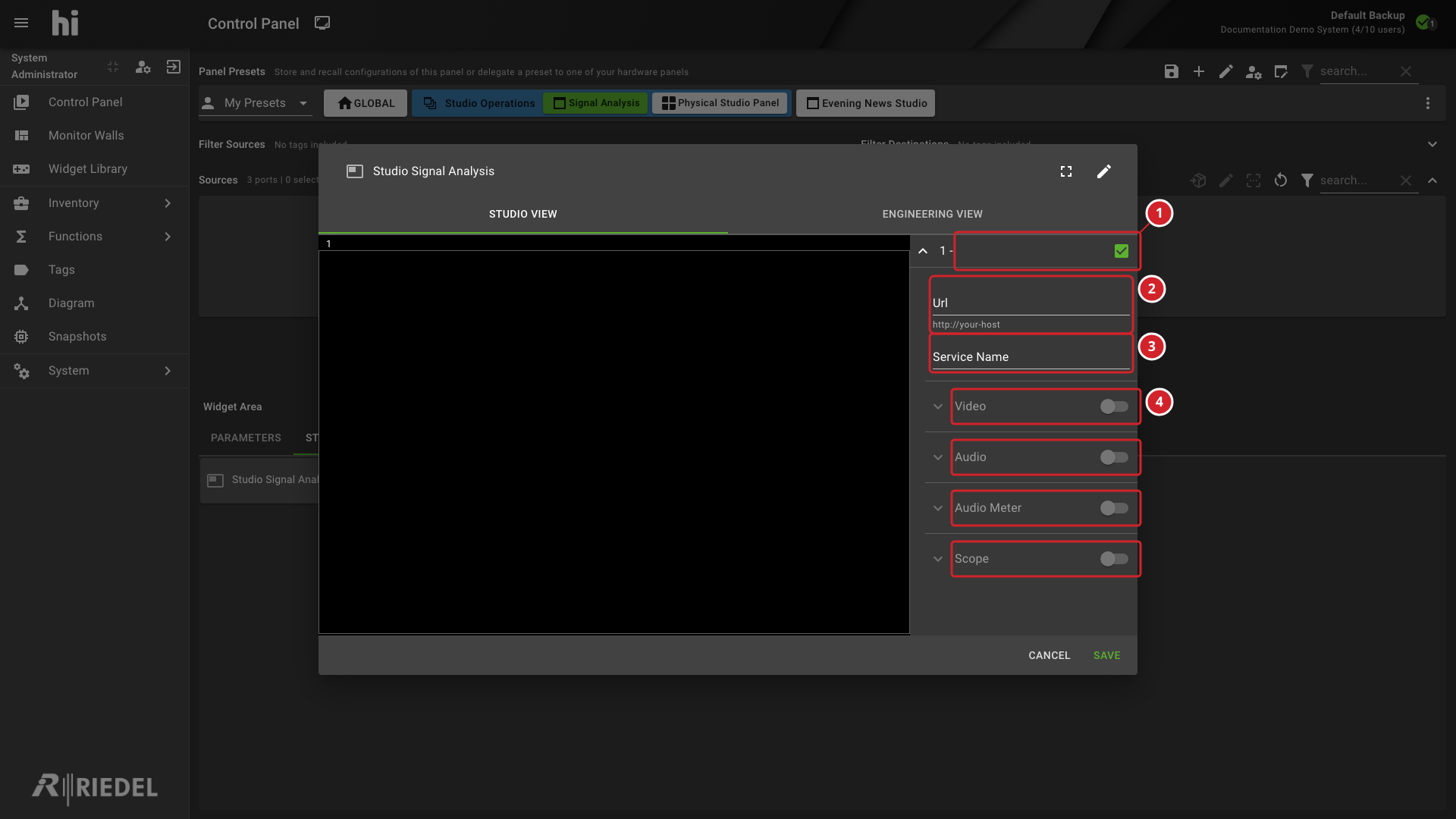
In the settings panel, enable a display position using its checkbox.
-
Expand that display's settings and enter Url and Service Name.
-
Enable Video, Audio Meter, or Scope for the required display.
-
Expand the enabled section and adjust its settings as required.
-
Check the service and display settings, then select Save.
-
The display-position checkbox enables the selected display.
-
Url specifies the probe host for the display.
-
Service Name specifies the probe service for the display.
-
Video, Audio, Audio Meter, and Scope provide the display-section settings.
Enter the installation's URL and service name before testing the display.
Section switches require a URL and service name. Audio also requires Video to be enabled.
Enabling Scope disables Video, Audio, and Audio Meter for that display. Enabling Video disables Scope.
Rename the Widget or Its Views
Select the Widget's edit icon to open Configure VB440 Widget. Use Rename Widget and the numbered Rename … Preset fields, then select Save.
These fields change names. The probe URL and display settings remain in the view's settings panel.
Verify the Result
Reopen the Widget and confirm the saved view names, URL, service name, and enabled sections. Check that the configured probe supplies the expected display.
If the display is empty, review the selected view and enabled sections before changing connectivity settings.
Next Steps
-
Manage Widgets to review use and delegation.