
Create a Snapshot Widget
Overview
Create a Snapshot Widget to make a saved Snapshot available to an operator. Creating the Widget does not recall the Snapshot or add saved components to it.
Prerequisites
-
Your account has Widget admin, and the installation license enables Widgets, which shows Widget Library in the menu.
-
The intended Snapshot already exists.
-
Its saved components are suitable for the operator's workflow.
Select the Snapshot
-
Open Widget Library and select Widgets.
-
Select the plus button, select Snapshot, then select Select.
-
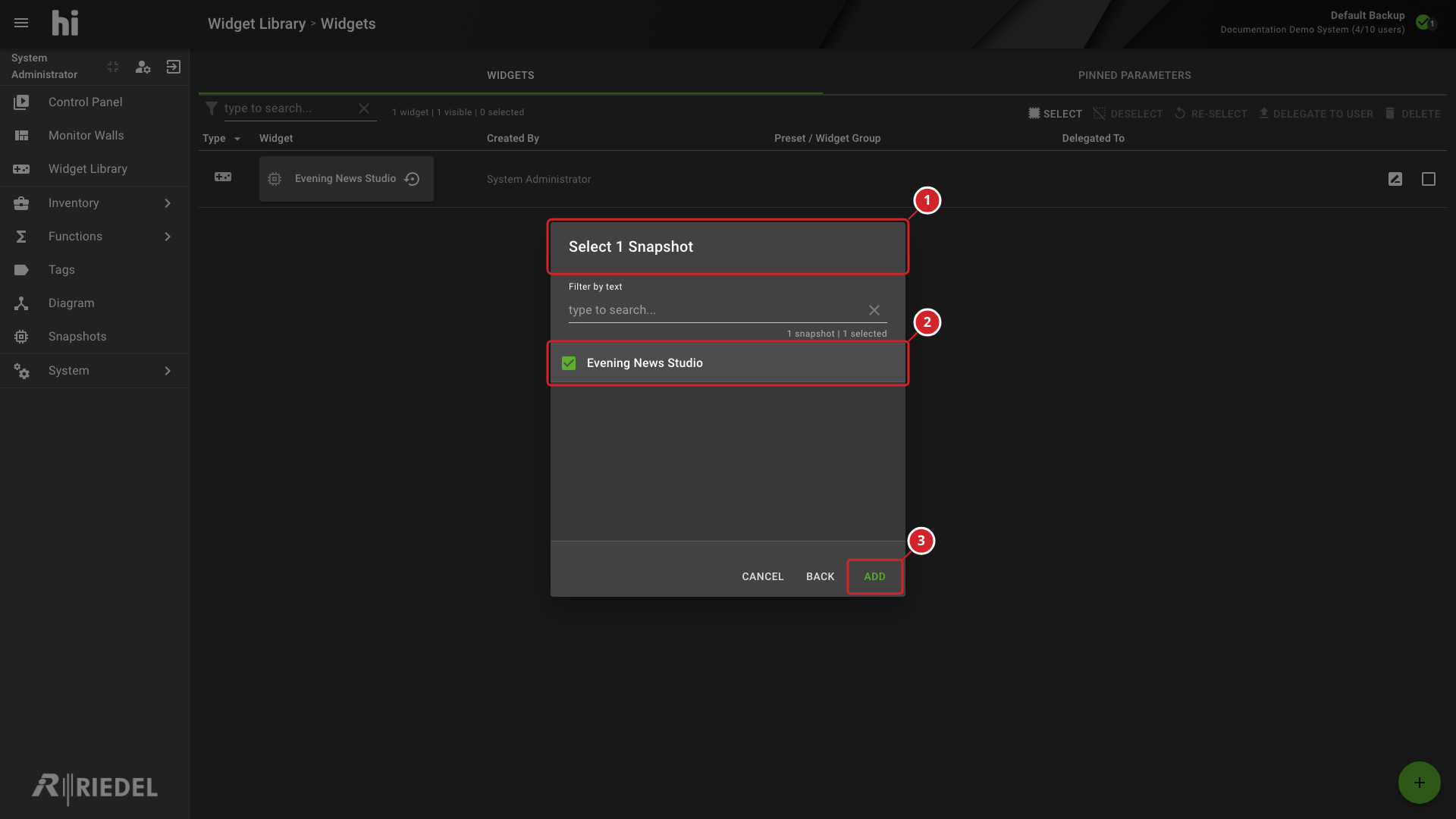
In Select 1 Snapshot, identify and select the intended Snapshot.
-
Select Add.
-
Select 1 Snapshot identifies the Snapshot-selection dialog.
-
The selected row identifies the Snapshot bound to the Widget.
-
Add creates the Widget for that Snapshot.
The dialog requires the requested number of selected Snapshots. No Snapshots indicates that no Snapshots are available in the list.
The Widget Library's Edit action does not change the Snapshot binding. Create a Widget for a different Snapshot instead.
Verify the Result
Confirm that the Widget appears in the Widgets list. Include it in the intended Widget Group and Preset, then check the Snapshot name.
Follow Make Widgets Available in a Control Panel Preset for the group and Preset setup.
Next Steps
-
Manage Snapshots to create or inspect the saved Snapshot.
-
Manage Widgets to review use and delegation.