
Create a Video Server Widget
Overview
Create a Video Server Widget to expose one configured player's playback controls. Creating the Widget does not configure the player's clips or device connection.
Prerequisites
-
Your account has Widget admin, and the installation license enables Widgets, which shows Widget Library in the menu.
-
The Video Server Node and intended player are configured.
-
You know which player and output the operator should control.
Select the Player
-
Open Widget Library and select Widgets.
-
Select the plus button, select Video Server, then select Select.
-
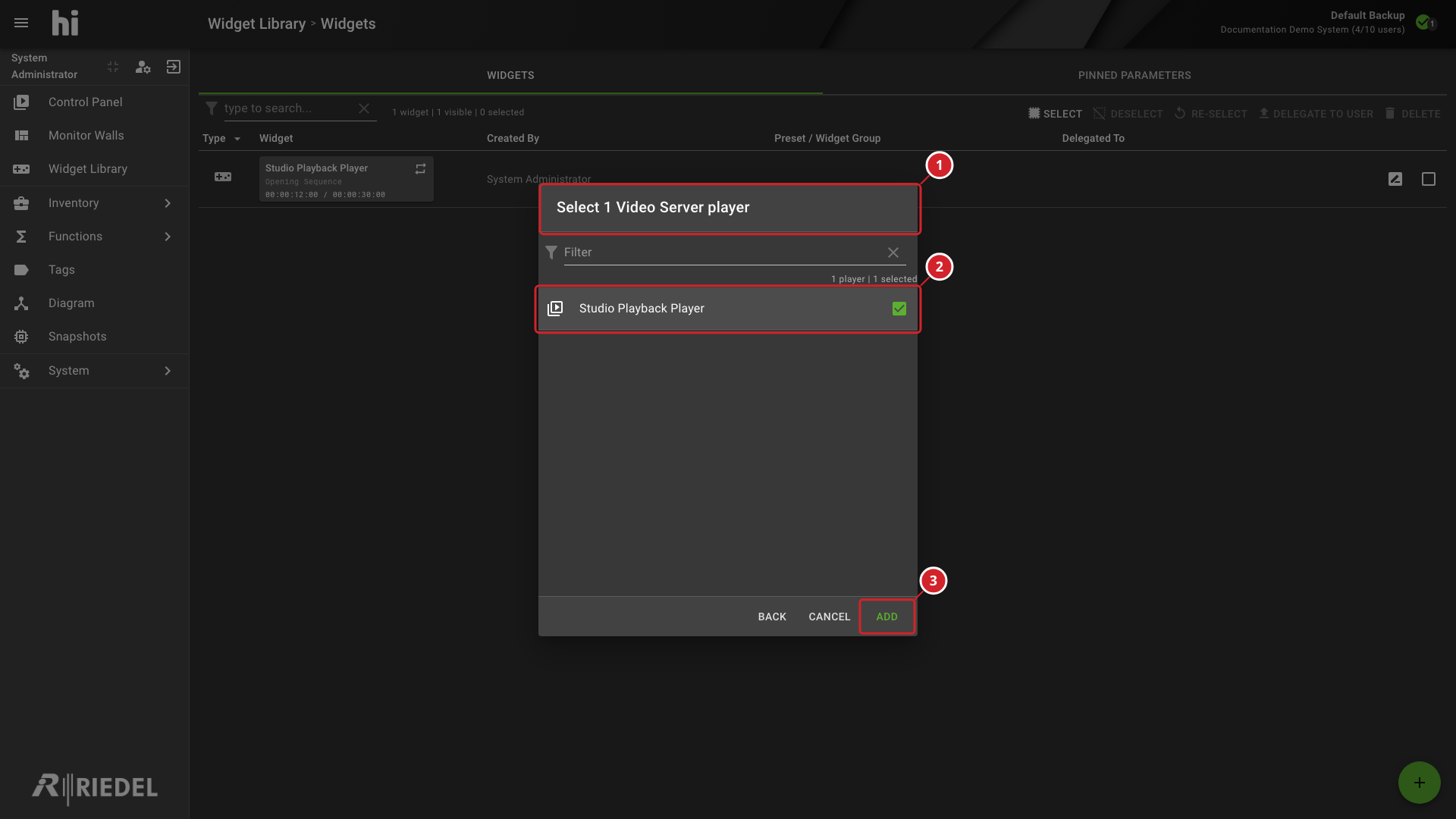
In Select 1 Video Server player, use Filter to locate the intended player.
-
Select one player, then select Add.
-
Select 1 Video Server player identifies the player-selection dialog.
-
The selected row identifies the player for the new Widget.
-
Add creates the Widget from the selected player.
Add requires the requested number of selected players. When adding directly to a Widget Group, players already represented in that group are excluded.
If no players are listed, review the configured Video Server Node and player. Filtering can also hide otherwise available players.
Video Server Widgets cannot be edited in the Widget Library. To control another player, create a Widget for that player.
Verify the Result
Confirm that the player appears in the Widgets list. Include the Widget in the intended Widget Group and Preset before operator use.
Follow Make Widgets Available in a Control Panel Preset for the group and Preset setup.
Next Steps
-
Manage Widgets to review use and delegation.