
Configure a PTZ Camera Widget
Overview
Configure each camera slot separately from its Source. The camera assignment supplies controls; the Source assignment supplies monitoring routing.
For example, bind a slot to a studio camera and its video Source, then select a confidence monitor as the monitoring Destination.
Prerequisites
-
Your account has Widget admin, and the installation license enables Widgets, which shows Widget Library in the menu.
-
The intended cameras and monitoring Ports are configured.
-
You know which camera and Source belong together.
Configure the Slots
-
Open Widget Library and select Widgets.
-
To create a Widget, select the plus button, select PTZ camera, then select Select.
-
To change an existing Widget, select it and select Edit.
-
Enter Widget name.
-
Under Monitoring destination, select the intended Destination, if monitoring routing is required.
-
Select a camera slot, then select Assign CAM.
-
Select the intended camera in Assign PTZ Cameras, then select Save.
-
Select the same slot, then select Assign Source.
-
Select its monitoring Source and confirm the selection.
-
If needed, use Rename Camera Slots to identify the slot clearly.
-
Check the slot's camera and Source together, then select Add or Save.
Configure one slot at a time when the camera-to-Source mapping could be ambiguous. Camera and Source assignments are independent.
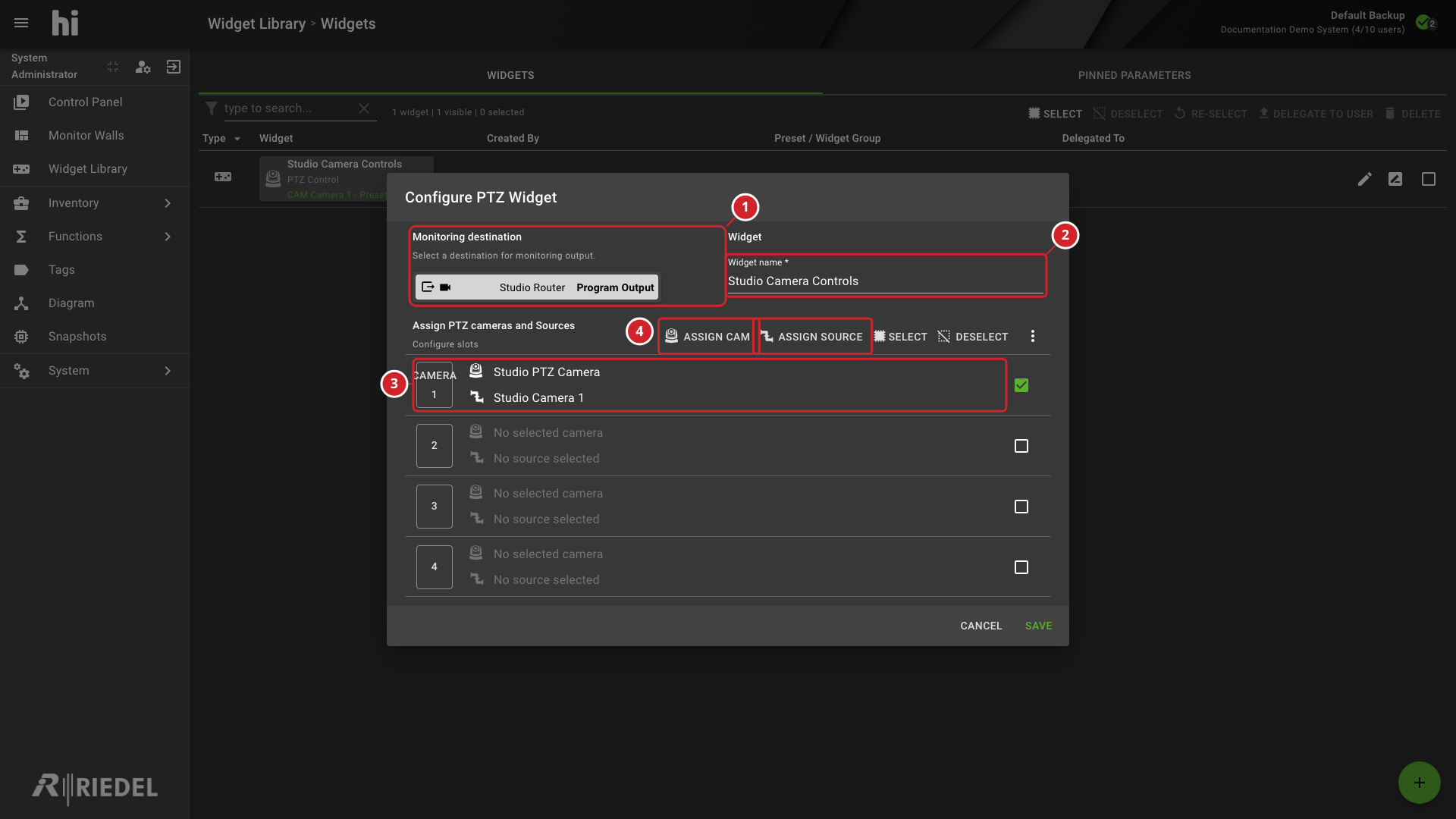
-
Monitoring destination identifies the Destination used for monitoring routing.
-
Widget name identifies the Widget.
-
The selected slot shows its camera and Source assignments.
-
Assign CAM and Assign Source configure the selected slots independently.
Remove an Assignment
Select the affected slot, then use Unassign CAM or Unassign Source. Review the resulting slot before saving.
Removing a camera assignment and removing its Source assignment are separate actions. Neither should be used as a substitute for reviewing the other.
Verify the Result
Reopen the configuration and confirm the Widget name, monitoring Destination, and each slot's camera and Source.
Before testing operator controls, review the routing caution in Use a PTZ Camera Widget.
Next Steps
-
Make Widgets Available in a Control Panel Preset for the group and Preset setup.