
Save a PTZ Camera Preset
Overview
Use the PTZ camera Widget's save mode to update a camera Preset with its current state. Camera Presets are distinct from Control Panel Presets.
Prerequisites
-
The PTZ camera Widget is available to your account.
-
The intended camera is connected and selected.
-
The camera provides the required Preset read, recall, and modification parameters.
-
You know which existing camera Preset should be updated.
Save the Camera State
Caution
Saving replaces the selected camera Preset and sends a recall request afterward. If the Widget has no Preset modify parameter, hi sends only the recall, and the camera returns to its old stored position. Confirm the selected camera and Preset before proceeding.
-
Open the PTZ camera Widget and confirm the selected camera under CAM.
-
Adjust the camera to the intended state.
-
Select the Save Preset icon beside the Preset row.
-
Select the Preset button that should retain the current state.
-
To leave save mode without selecting a Preset, select its cancel icon instead.
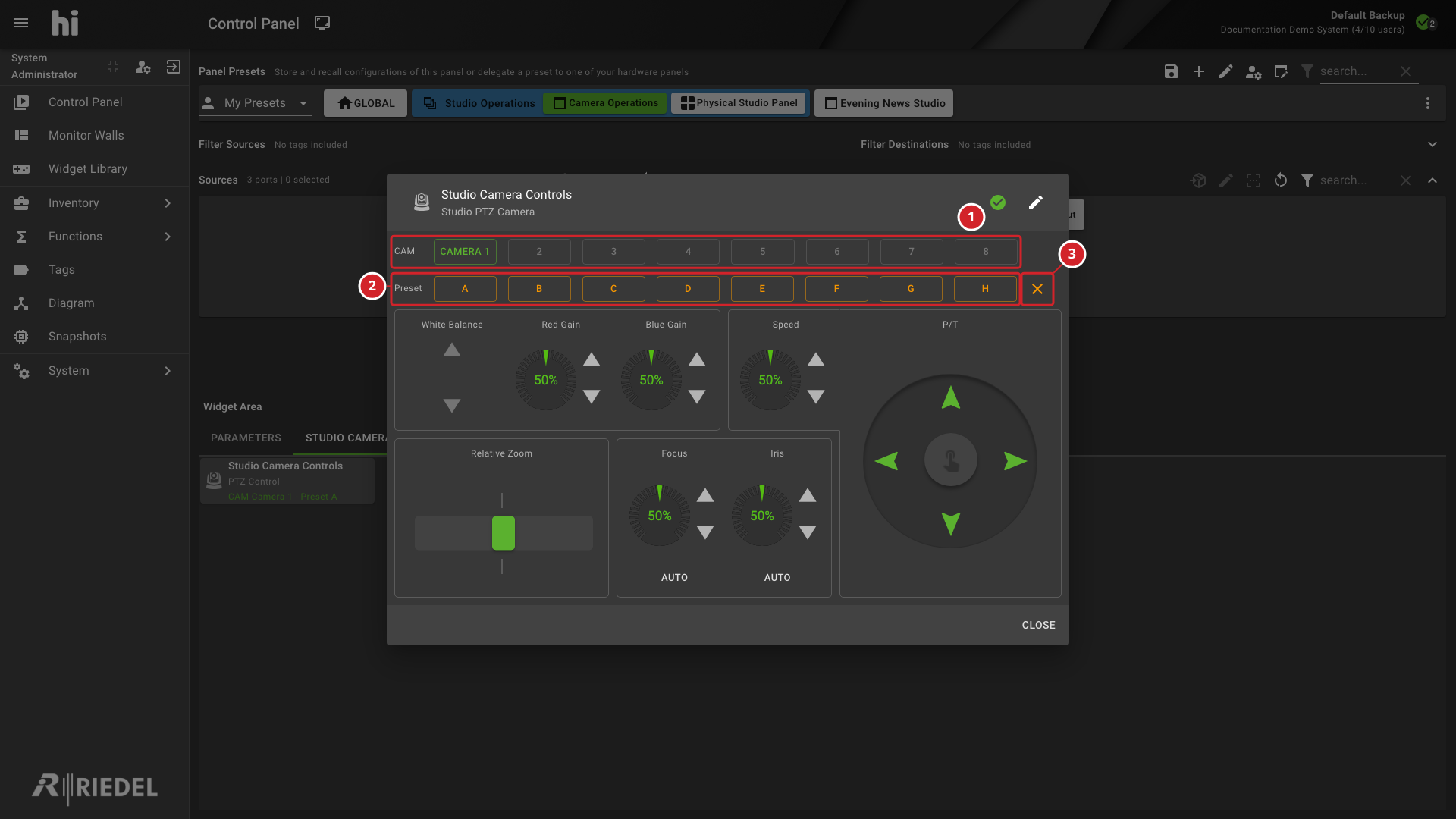
-
CAM identifies the selected camera slot.
-
The Preset buttons identify the camera Presets available to update.
-
The cancel icon leaves camera Preset save mode without selecting a Preset.
The save mode changes the meaning of the Preset buttons. In normal mode, selecting a Preset recalls it; in save mode, selecting it updates it.
The save control can appear even when the camera does not support modifying its Presets. Ask an administrator to check missing camera capabilities.
Verify the Result
Confirm that save mode ends. Check the camera state and, when safe, recall the saved Preset to verify its intended result.
Next Steps
-
Use a PTZ Camera Widget for camera operation.
-
Configure a PTZ Camera Widget to review camera and Source assignments.