
Configure a Return Signal Widget
Overview
Configure a Return Signal channel by naming it and assigning pinned parameters to its sliders and meters. The Widget provides up to 16 channel positions.
The four bindings are independent. Their names describe their position in the Widget, not an automatic assignment to a device's audio signal.
Prerequisites
-
Your account has Widget admin, and the installation license enables Widgets, which shows Widget Library in the menu.
-
The required numeric parameters are pinned on their Nodes.
-
You know the appropriate input, metering, reduction, and output parameters for each channel.
Create the Widget and Bind a Channel
-
Open Widget Library and select Widgets.
-
Select the plus button, select Return Signal, then select Select.
-
In Add Return Signal Widget, enter Name, then select Add.
-
Select the created Widget and select Edit to open its channel configuration.
-
Select Add channel at the intended channel position.
-
In Add New Channel, enter Channel Name.
-
Select the edit icon for each required meter or slider row.
-
In Select Pinned Parameter, select the matching numeric parameter, then select Save.
-
Review the Parameter, Value, and Root columns for each binding.
-
Select Add to create the channel, then close the Widget configuration.
-
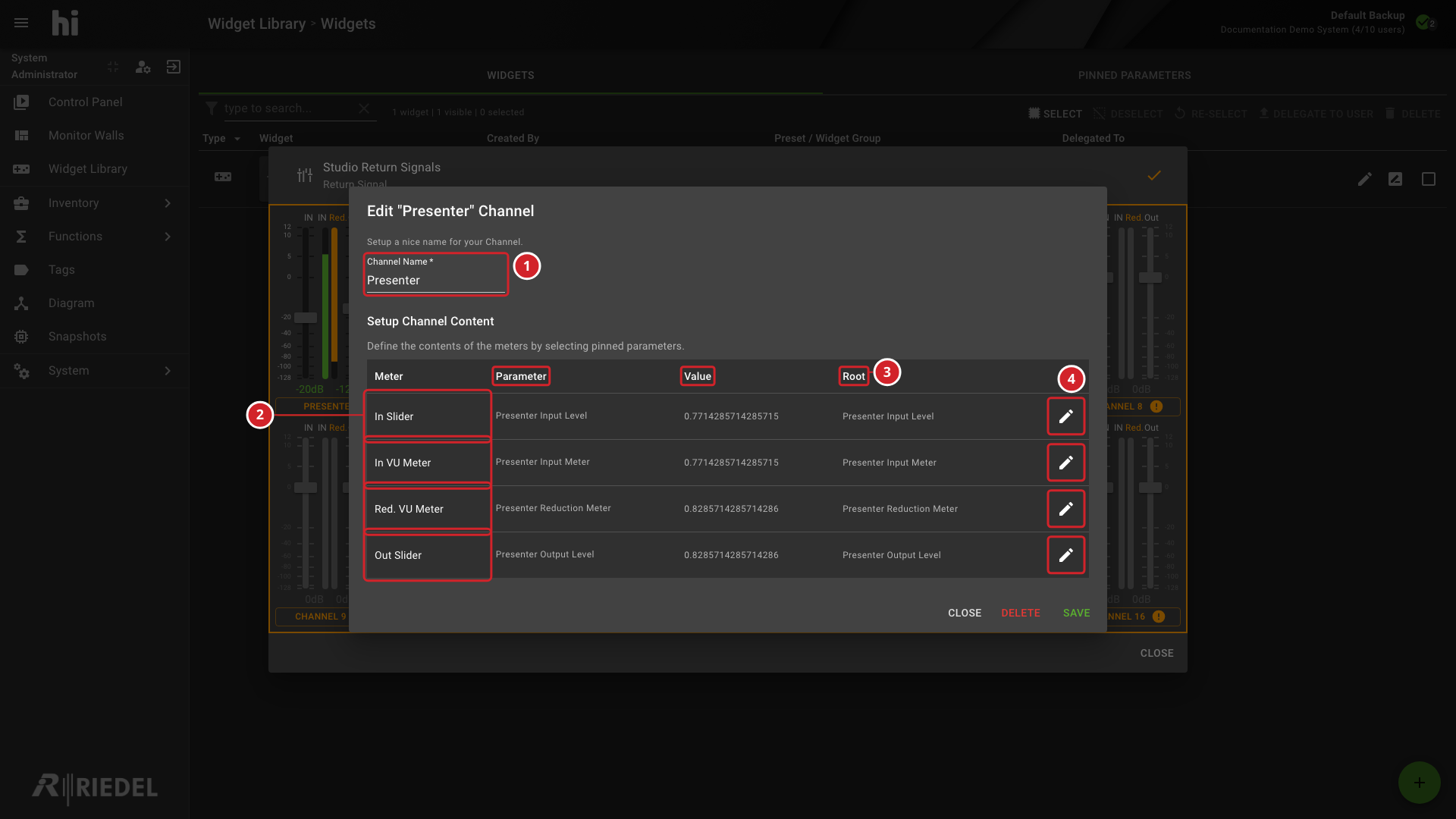
Channel Name identifies the channel being configured.
-
In Slider, In VU Meter, Red. VU Meter, and Out Slider identify the four bindings.
-
Parameter, Value, and Root identify each assigned parameter and its current value.
-
The edit icons select pinned numeric parameters for the corresponding rows.
Change or Remove a Channel
In configuration mode, select an existing channel's name to edit it. Change its name or parameter bindings, then select Save.
To remove that channel, select Delete in its edit dialog and check the channel name in the confirmation before confirming.
The parameter picker lists numeric parameters. A channel name is required to enable Add or Save; check all intended bindings before submitting.
Verify the Result
Open the Widget in operation mode. Confirm the channel's name, sliders, and meter values. Check incomplete-assignment indicators before allowing operator use.
Next Steps
-
Manage Return Signal Banks to retain named channel arrangements.
-
Make Widgets Available in a Control Panel Preset for the group and Preset setup.