
Create a Snapshot from the Workspace
Overview
Create a named, empty Snapshot to populate with the connections and other components you want to save.
To capture the current state of selected Ports while working in the Control Panel, use Create a Snapshot from Selected Ports. That is the common creation workflow; this workspace workflow creates the empty Snapshot first.
Prerequisites
-
Use an account with the Snapshot admin role.
-
Open Snapshots.
-
Confirm that at least one compatible router is available. The Create Snapshot dialog does not allow creation when no routers are available.
Create the Snapshot
-
Select the + button at the bottom right of the Snapshots workspace.
-
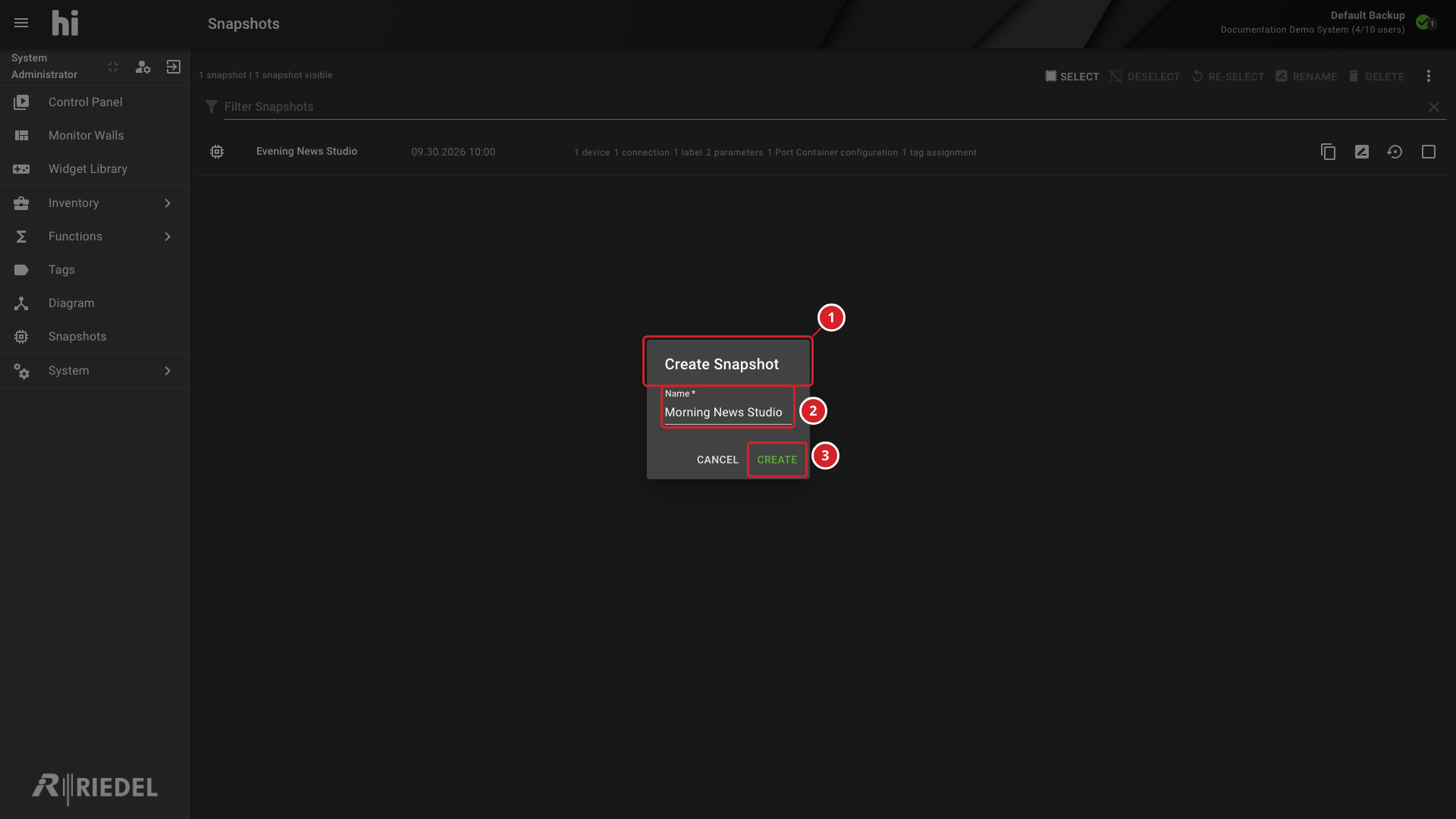
In the Create Snapshot dialog, enter a name in Name. Use a distinct name so that you can find the Snapshot later.
-
Select Create.
-
The Create Snapshot dialog opens from the Snapshots workspace.
-
Enter a name in the Name field.
-
Select Create to create the empty Snapshot, or Cancel to close the dialog.
The new Snapshot is empty: creating it does not capture router connections or other components. Add Destination Ports to save their current connections, or use Create a Snapshot from Selected Ports to add selected component types to the existing Snapshot.
Verify the Result
Confirm that the new Snapshot appears in the workspace. Its component tabs remain empty until you add content.
Next Steps
Add Destination Ports, then use the Snapshot Workspace Reference to inspect the saved scope before recalling it.