
Remove Items from a Snapshot
Overview
Remove selected saved items while retaining the Snapshot.
Prerequisites
-
Use an account with the Snapshot admin role.
-
Open Snapshots.
Remove Saved Items
Caution
Deleting saved items removes them from this Snapshot's recall scope. Review the selected items and retain a copy of any saved values you still need before confirming deletion.
-
Open the Snapshot and the tab containing the items.
-
Select the items to remove.
-
Select Delete in the tab toolbar.
-
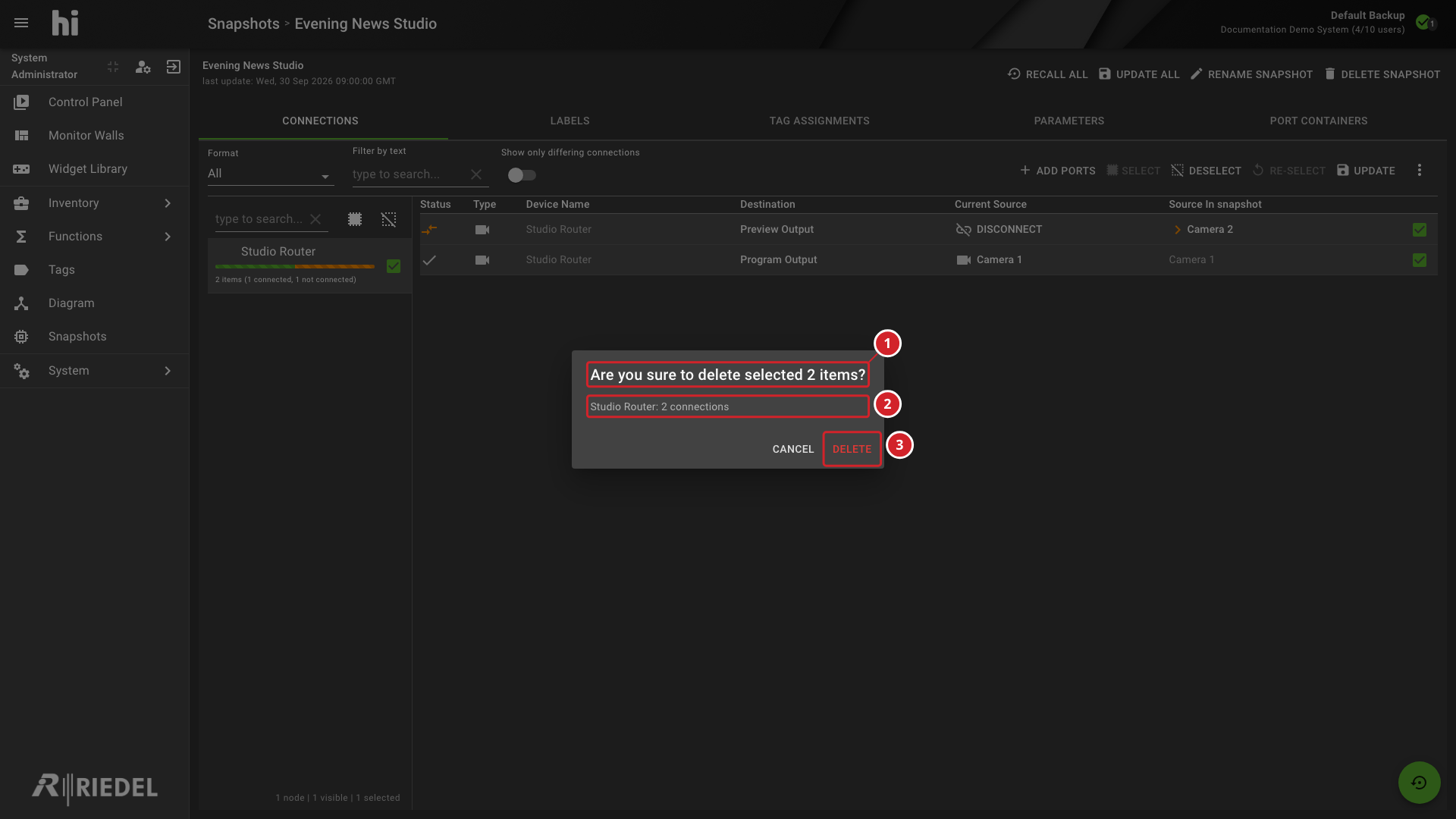
In the confirmation dialog, review the summary of the selected items. The title asks whether to delete the selected item or items, and it includes the count. The body lists each Node, or Port Container for Port Container items, with the number of saved items selected for it, such as a count of connections.
-
Select Delete to remove the items, or Cancel to keep them.
-
The title states the number of selected items.
-
The summary line lists the Node and the number of connections.
-
Delete removes the items. Cancel keeps them.
The Snapshot itself is not deleted.
See the illustrated example of a Snapshot tab with its toolbar.
Verify the Result
Confirm that the selected items are absent and the remaining Snapshot items are unchanged.
Next Steps
Return to the Manage Snapshots task list.