
Delete a Snapshot
Overview
Permanently remove one or more saved Snapshots.
Prerequisites
-
Use an account with the Snapshot admin role.
-
Open Snapshots.
Caution
Deletion permanently removes the saved Snapshot. Review the selected names before confirming.
Delete the Snapshot
-
Select one or more Snapshots in the list, then select Delete from the command bar. Alternatively, select Delete Snapshot in a Snapshot's detail header.
-
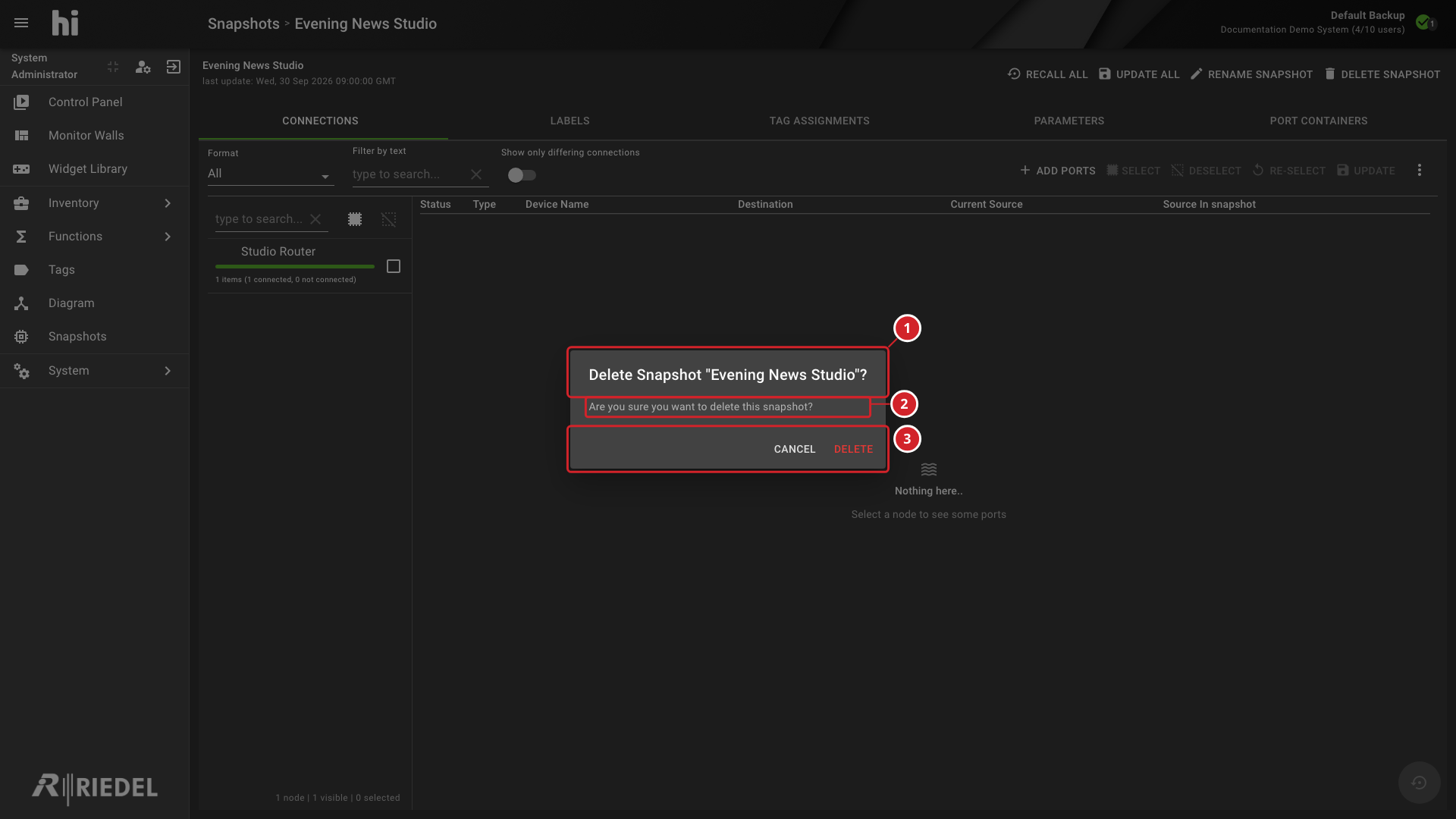
Review the selected Snapshot names or count in the confirmation.
-
Select Delete to confirm.
-
The confirmation identifies the Snapshot to delete.
-
Review the deletion prompt before removing the saved Snapshot.
-
Select Delete to confirm or Cancel to keep the Snapshot.
Verify the Result
Confirm that the deleted Snapshots no longer appear in the list.
Next Steps
Return to the Manage Snapshots task list.