
End User Sessions
Overview
Terminate the active sessions of the selected users on computers other than the one that sends the request.
Prerequisites
-
Use an account with the User admin role.
-
Open the Users list and identify the accounts to change.
The Force logout action applies to user accounts only. It is disabled when the selection contains no user account, and it skips Hardware Panel profiles. It is enabled when at least one selected user has an active session.
Caution
This action terminates the active sessions of the selected users. The affected users must sign in again to continue.
End the Sessions
-
Select the users whose sessions must end.
-
Select Force logout.
-
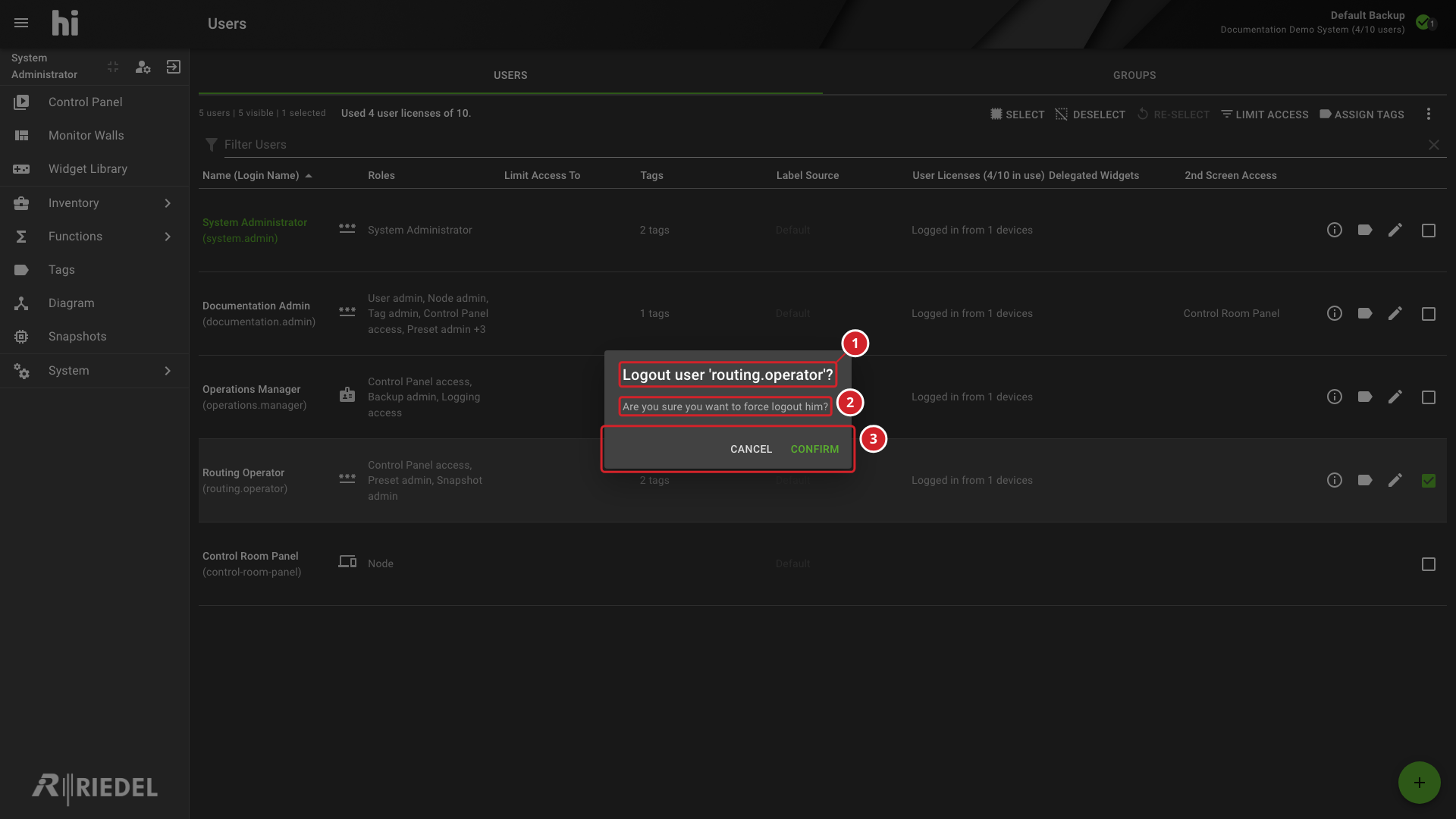
Review the users identified in the confirmation. Select Confirm to end their sessions, or Cancel to leave them active.
-
The confirmation title names the user to sign out.
-
The confirmation text asks whether to force the logout.
-
Cancel keeps the sessions. Confirm ends them.
The confirmation title names the user by login name for one selected user: Logout user '<login name>'? For several users it reads Logout selected N users? The text asks whether you are sure that you want to force logout the user or users.
Information
When your own account is selected, force logout is available only if your account has more than one active session. The request ends the user's sessions on other computers than the one that sends it, so the session you are using stays active.
Verify the Result
Confirm that the affected users are signed out of the hi web interface.
Next Steps
Return to the Manage Users task list.