
Set a User Label Override
Overview
Set the Label Override for selected users or Hardware Panel profiles. For the setting's meaning and available choices, see Label Override and Label Sources.
The setting is also available in User Profile. To change your own setting without the User admin role, use Edit Your User Profile.
Prerequisites
-
Use an account with the User admin role.
-
Open the Users list and identify the accounts to change.
Set the Override
-
Select one or more users or Hardware Panel profiles.
-
Select Set Label Override.
-
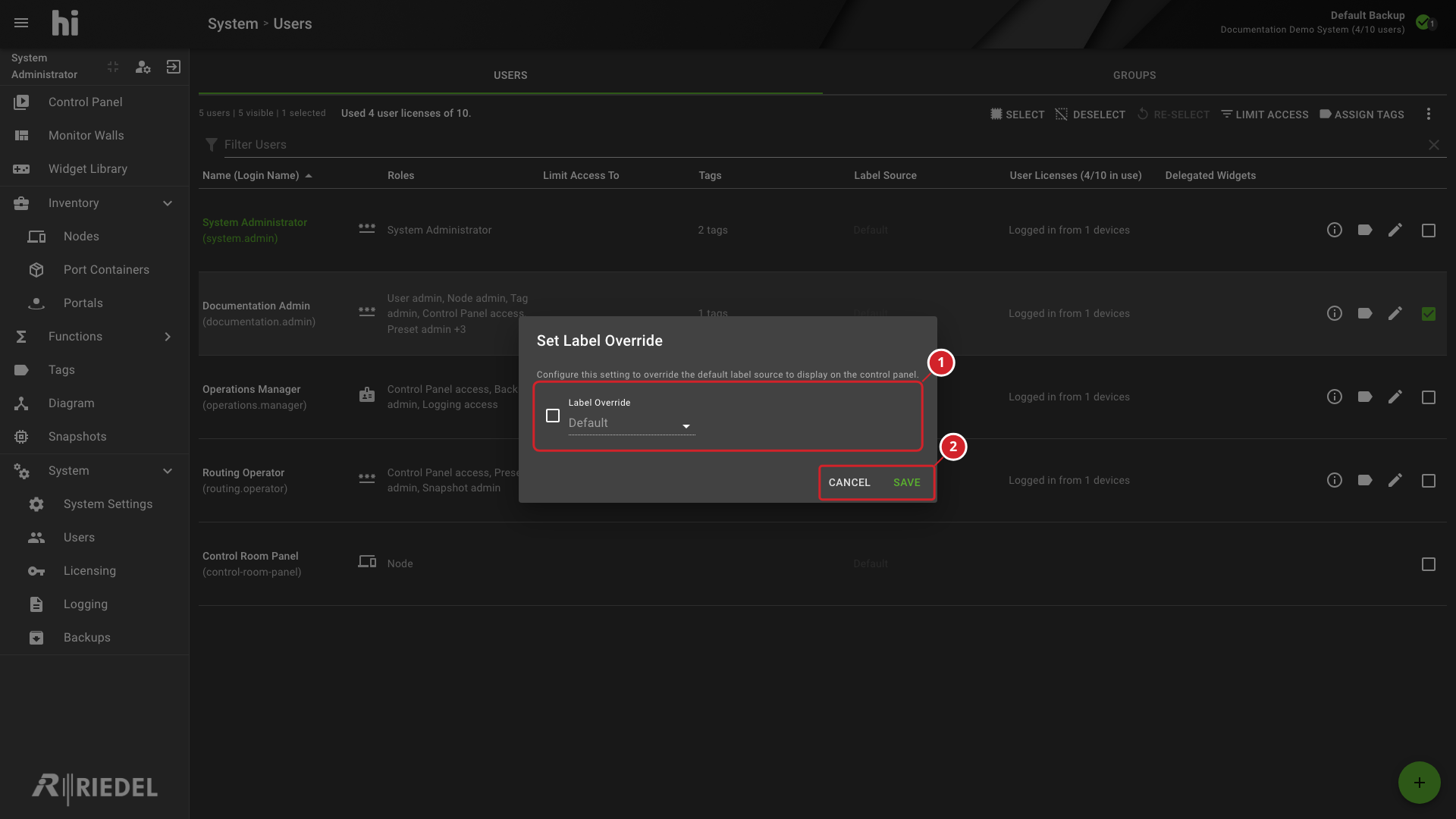
Select the checkbox beside the Label Override selector, and select the required Label Source. To remove an override, select Default, then select Save. Clearing the checkbox does not remove an override.
-
Select Save.
See the Label Source reference for the available values. When selected accounts use different Sources, the dialog shows the number of distinct Sources.
-
Select the label source and enable the override for the selected user or panel profile.
-
Select Save to apply the override or Cancel to leave the current labels unchanged.
Verify the Result
Have the affected user open the Control Panel and confirm that Ports use the selected name property. For a Hardware Panel profile, confirm the labels on that panel.
Next Steps
To change your own settings, see Edit Your User Profile. Return to the Manage Users task list for other account-management procedures.