
Import Microsoft Entra ID User Groups
Overview
Import Microsoft Entra ID user groups into hi for centralized role and Tag administration.
Information
These User Group workflows require Microsoft Entra ID authentication. They are not supported for local users or non-Entra deployments.
Prerequisites
-
Use an account with the User admin role.
-
Open System > Users.
-
Confirm that Microsoft Entra ID authentication is enabled in System > System Settings.
-
Open the Groups tab.
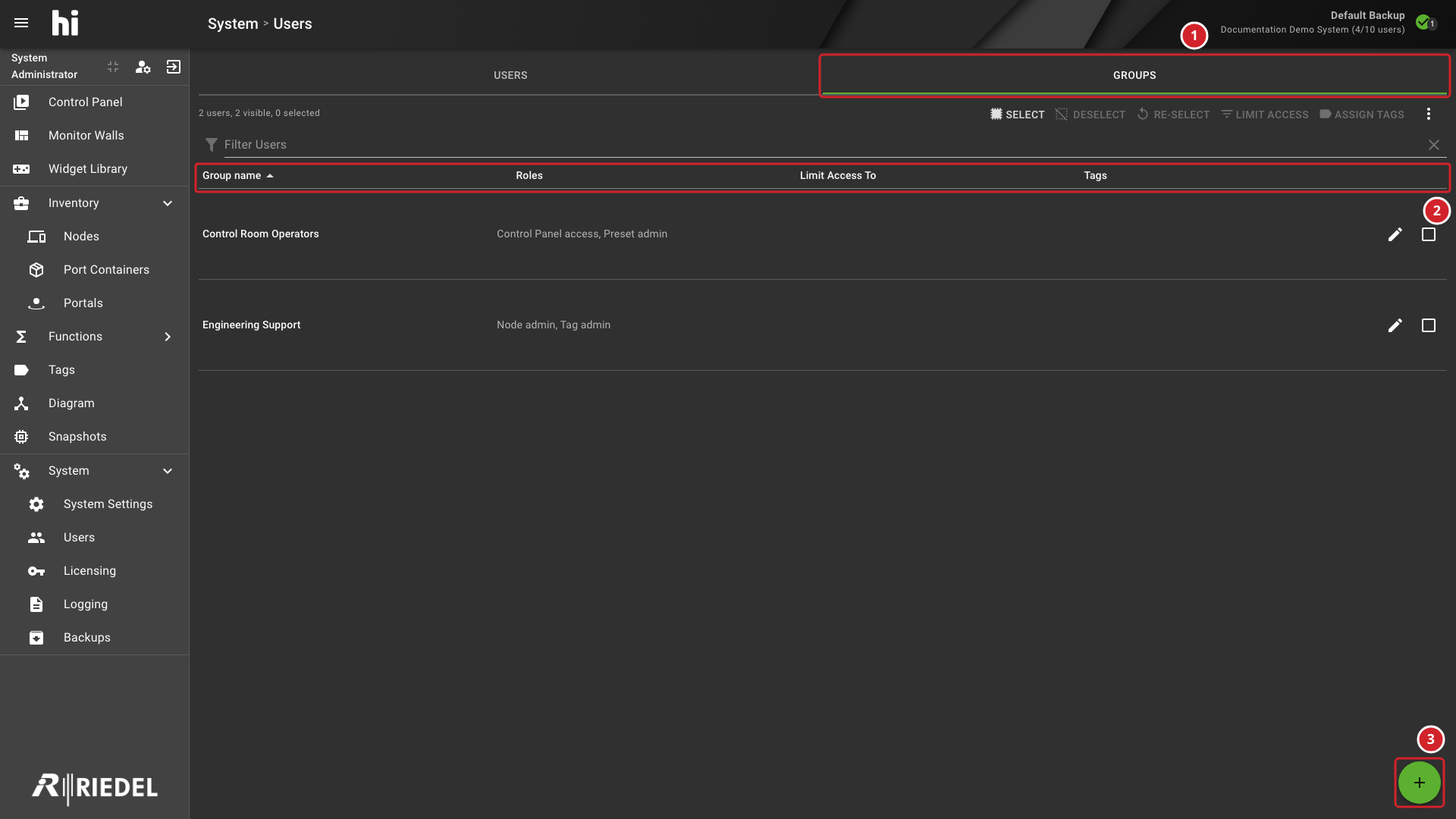
The Groups tab is available when Microsoft Entra ID authentication is enabled in System > System Settings. User groups are imported from Microsoft Entra ID and allow centralized role and Tag management for groups of users.
-
Select Groups to view imported Entra ID groups.
-
The list shows each group's roles, Limit Access, and Tags.
-
Select the + button to open the Add Groups dialog.
See hiAccess for the license requirements of existing hiAccess installations and current bundle packaging.
Import the Groups
-
Select the + button at the bottom right.
-
If not already authenticated with Entra ID, a confirmation dialog prompts to redirect to the Entra ID login page. Select Confirm to authenticate.
-
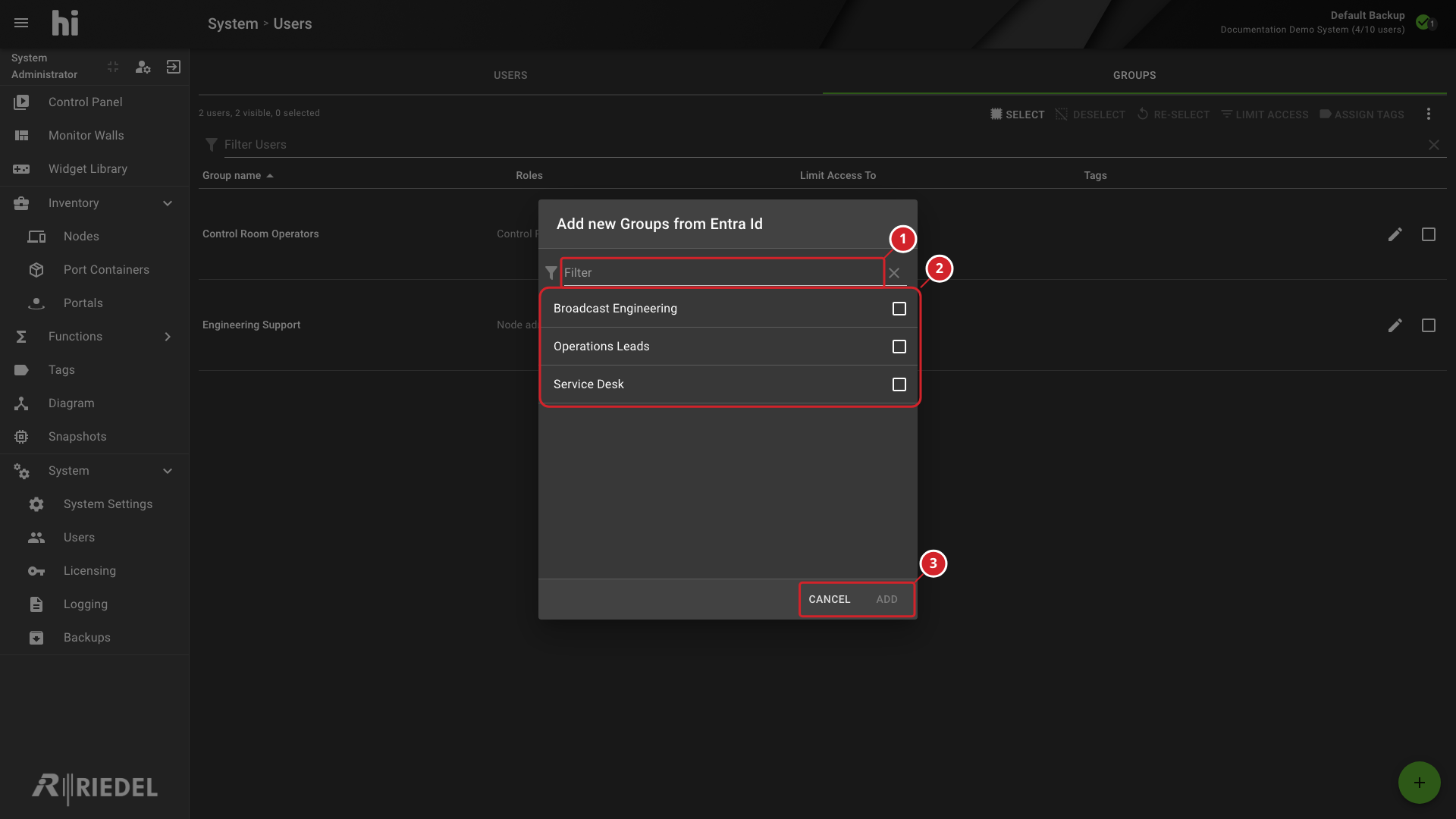
After authentication, the Add Groups dialog displays available groups from Entra ID. Select the groups to import and confirm.
The dialog is titled Add new Groups from Entra Id. The system requests the Group.Read.All permission scope from Entra ID to retrieve the group list.
The dialog lists only groups that are not yet imported, sorted by name without regard to case. Use the Filter field to narrow the list by name. The dialog shows these messages when a list is empty.
|
Situation |
Message |
|---|---|
|
Entra ID returns no group that you can add |
No groups with the text "There are no groups you can add to User Groups" |
|
The filter matches no group |
"No groups matching search criteria." |
Add stays disabled until you select at least one group. Select Cancel to close the dialog without importing.
Information
The picker excludes groups already imported into hi. If no groups are shown, clear the name filter and check the existing Groups list before investigating authentication or tenant permissions. An empty list alone does not identify the cause.
-
Filter the available groups by name.
-
Select the Entra ID groups to import.
-
Select one or more groups to enable Add, then import them; select Cancel to close the dialog.
Verify the Result
Confirm that the selected groups appear in the Groups tab.
Next Steps
Use Assign Roles to a Microsoft Entra ID User Group, then Assign Tags to a Microsoft Entra ID User Group.