
Edit Your User Profile
Overview
Change your own Label Override, Tag visibility, and Control Panel colorization settings.
Prerequisites
-
Sign in to hi. The User admin role is not required for your own profile.
-
Open the main menu, or the application bar in a simplified view, and select the Edit User Profile icon.
Edit Your Profile
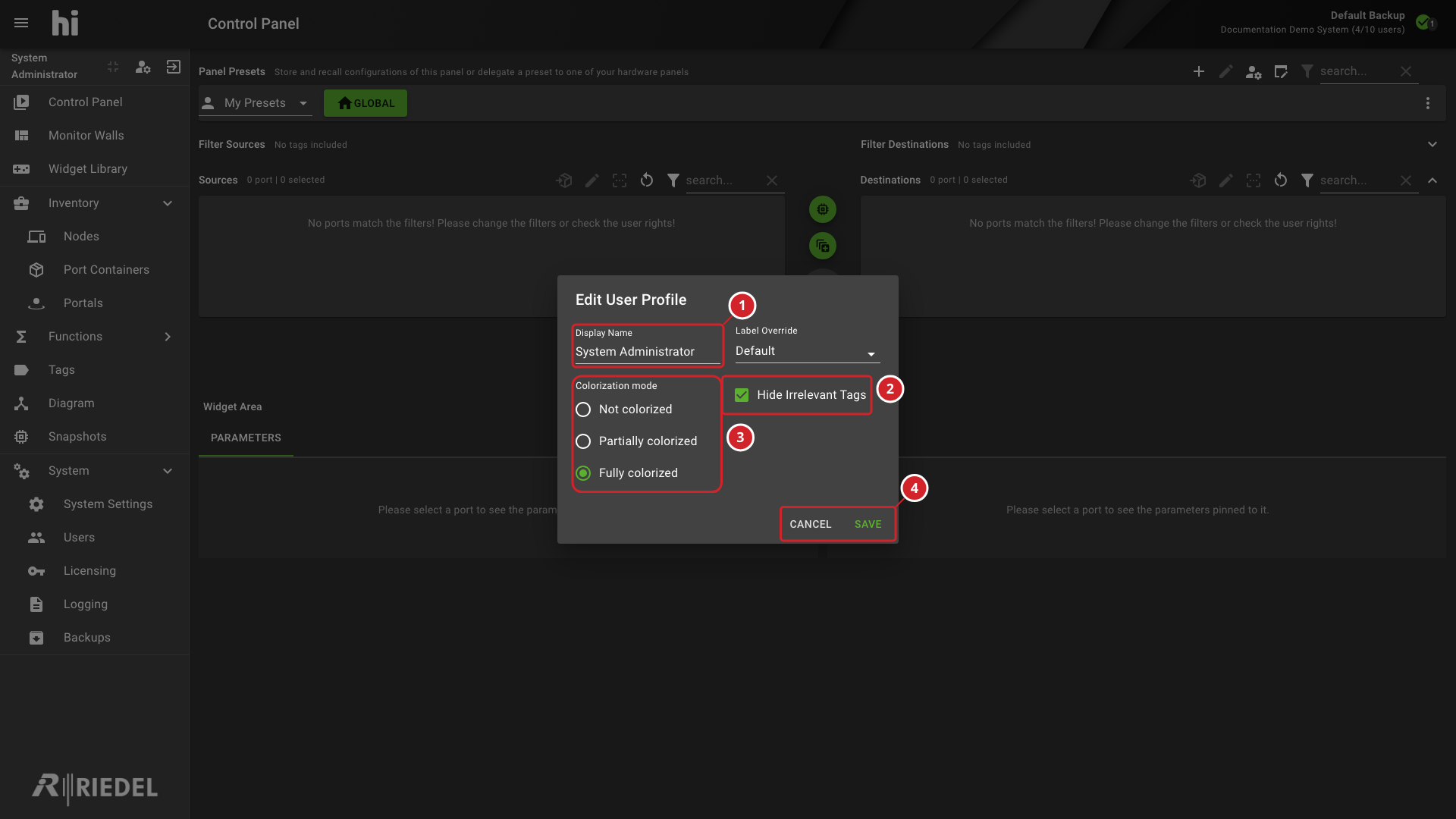
Users can edit their own profile settings without requiring the User admin role. Display Name is editable for local users in the full interface; it is read-only for Entra ID users and in simplified views. The profile dialog also allows modification of:
-
Label Override - select a Label Source for the Port labels displayed to you. See Label Override for details.
-
Hide Irrelevant Tags - controls presentation of irrelevant Tags; see Hide Irrelevant Tags.
-
Colorization mode - controls how Port and Port Container buttons are colorized on the Control Panel:
-
Not colorized - disables color on Port buttons
-
Partially colorized - half of the button is colored
-
Fully colorized - the entire button is colored
-
-
Select the profile-edit icon to open Edit User Profile.
-
Review the Display Name and select the required Label Override. Use Default for the system default Label Source.
-
Set the colorization mode and Hide Irrelevant Tags preference.
-
Select Save to apply the profile, or select Cancel to discard it.
-
Review the read-only display name in this simplified Control Panel example.
-
Set whether irrelevant Tags are hidden.
-
Select the colorization mode for your Control Panel.
-
Select Save to apply profile changes or Cancel to discard them.
Verify the Result
Confirm the saved Label Source, Tag visibility, and colorization on your Control Panel.
Next Steps
To change Label Override for other users or Hardware Panel profiles, use Set a User Label Override; that procedure requires the User admin role. Return to the Manage Users task list for other tasks.