
Remove a Microsoft Entra ID User Group from hi
Overview
Remove an imported Microsoft Entra ID user group from hi without deleting it in Microsoft Entra ID.
Information
These User Group workflows require Microsoft Entra ID authentication. They are not supported for local users or non-Entra deployments.
Prerequisites
-
Use an account with the User admin role.
-
Open System > Users.
-
Confirm that Microsoft Entra ID authentication is enabled in System > System Settings.
-
Open the Groups tab and identify the imported Microsoft Entra ID user groups to change.
Remove the Group
Caution
Removing an imported group removes its hi role and access assignments. Review the members' remaining assignments before confirming deletion. The group itself remains in Microsoft Entra ID.
-
Select one or more groups.
-
Select Delete.
-
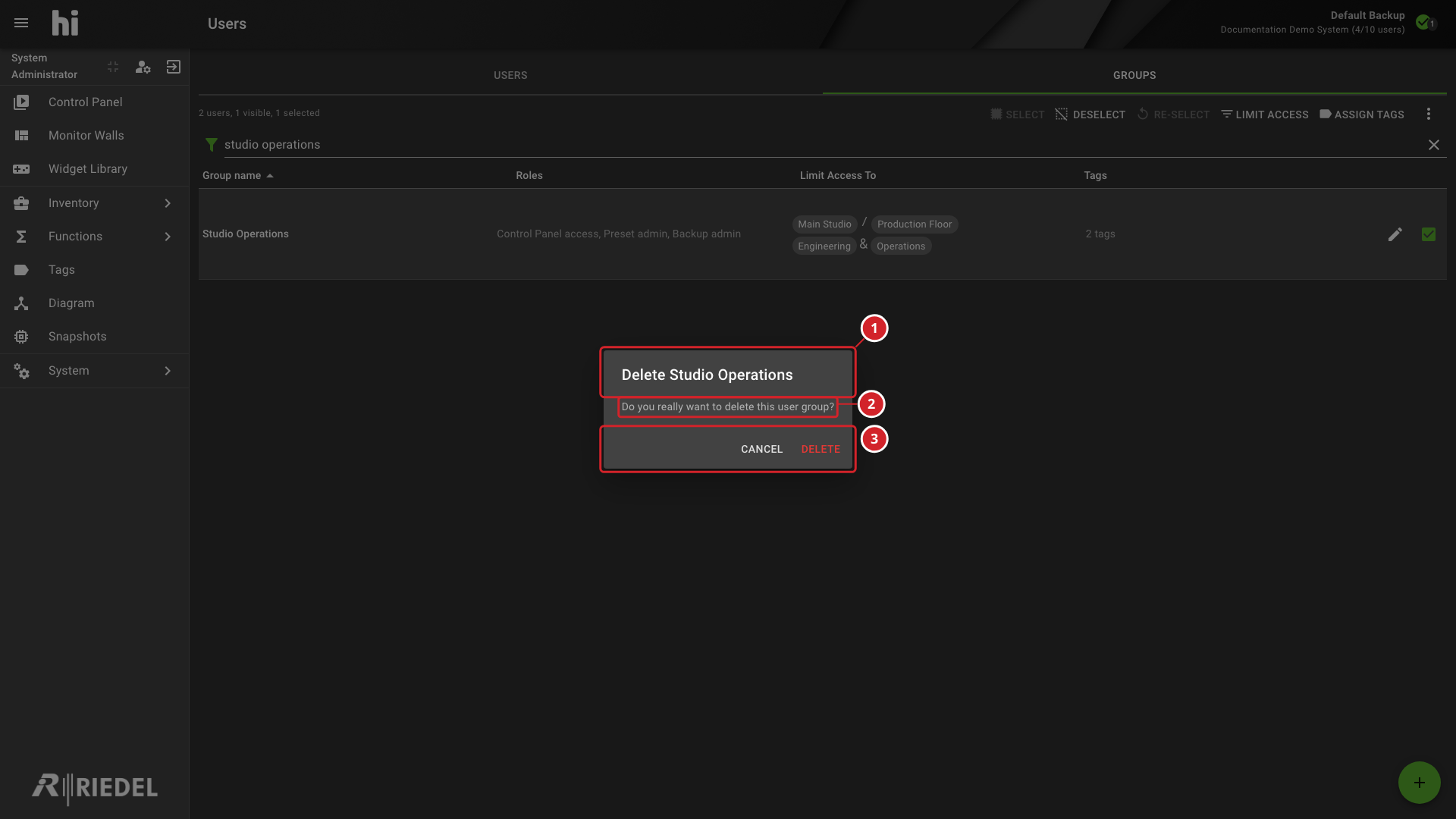
Review the confirmation, then select Delete to remove the group from hi.
-
The group selected for removal: Studio Operations.
-
Confirmation prompt before the group is removed from hi.
-
Select Delete to confirm removal, or Cancel to keep the group.
Verify the Result
Confirm that the group no longer appears in hi. The Entra ID group is unchanged.
Next Steps
Return to the Manage Users task list.